Difference between revisions of "Learn Freemind"
Jump to navigation
Jump to search
| Line 20: | Line 20: | ||
|style="width: 50%;|{{ext-img|450px|https://upload.wikimedia.org/wikipedia/commons/d/df/FreeMind_2_Save_as_Window.png}} | |style="width: 50%;|{{ext-img|450px|https://upload.wikimedia.org/wikipedia/commons/d/df/FreeMind_2_Save_as_Window.png}} | ||
|- | |- | ||
| − | |style="width: 50%;| | + | |style="width: 50%;|Step 1 - Once Freemind is open you will see a window like this. |
| − | |style="width: 50%;| | + | The new mind map is the root node and you can give it any name you want. The name of this root node will be the name of the mind map. Once you have given it a name, you can save the mind map. |
| + | |style="width: 50%;|Step 2 - Once you click on save, you will see a window like this. | ||
| + | You can save the folder you want to select the folder you want to save it on. | ||
| + | Here the mind map is named Food and is saved under home/ranjani/Documents | ||
|- | |- | ||
|style="width: 50%;|Image Image Image Image (Step 3) | |style="width: 50%;|Image Image Image Image (Step 3) | ||
Revision as of 10:51, 14 October 2016

Introduction
Educational application and relevance
Version
Configuration
Overview of Features
Other similar applications
Development and community help
Working with the application
Functionalities
- Please label images as Step 1
- Please add 500px
|

|
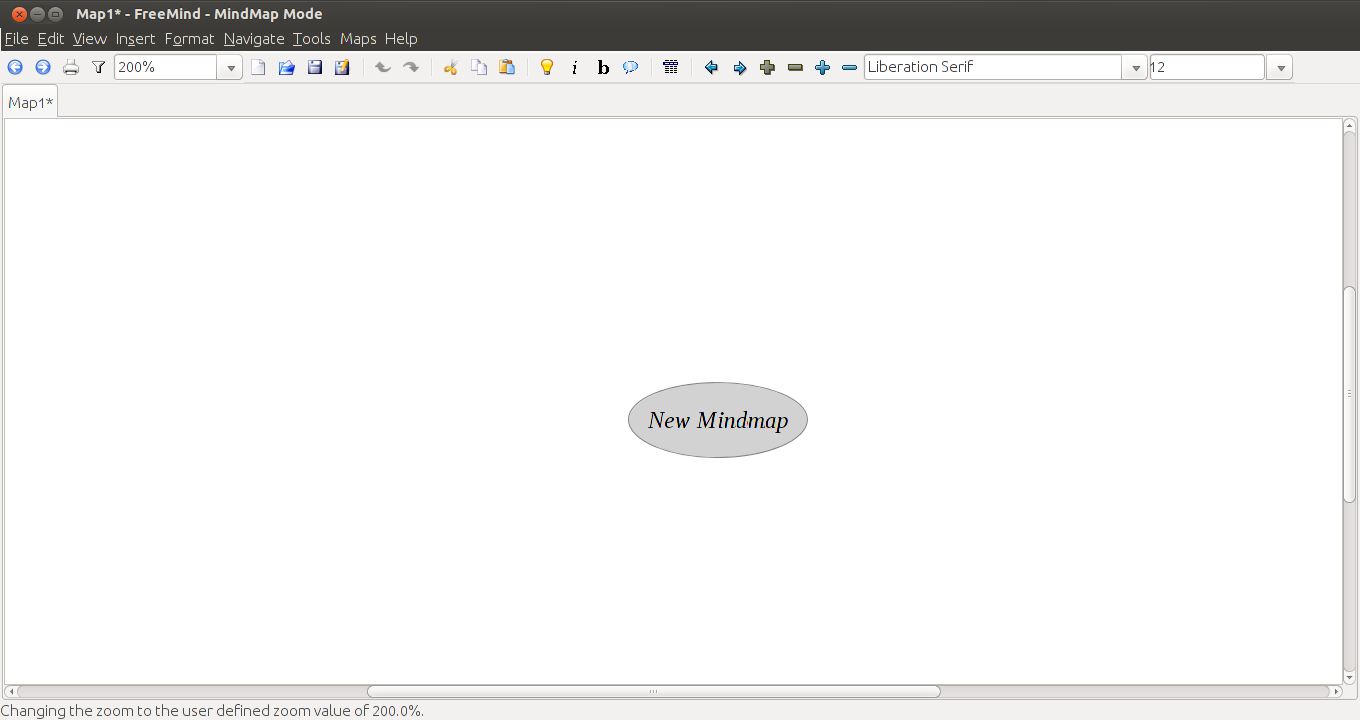
| Step 1 - Once Freemind is open you will see a window like this.
The new mind map is the root node and you can give it any name you want. The name of this root node will be the name of the mind map. Once you have given it a name, you can save the mind map. |
Step 2 - Once you click on save, you will see a window like this.
You can save the folder you want to select the folder you want to save it on. Here the mind map is named Food and is saved under home/ranjani/Documents |
| Image Image Image Image (Step 3) | Image Image Image Image (Step 4) |
| Texttexttexttexttext Texttexttexttexttext Texttexttexttexttext Texttexttexttexttext Texttexttexttexttext Texttexttexttexttext Texttexttexttexttext Texttexttexttexttext Texttexttexttexttext Texttexttexttexttext | Texttexttexttexttext Texttexttexttexttext Texttexttexttexttext Texttexttexttexttext Texttexttexttexttext Texttexttexttexttext Texttexttexttexttext Texttexttexttexttext Texttexttexttexttext Texttexttexttexttext |
File formats for creation
Saving the file
Export and publishing files
Advanced features
Installation
| Method of installation | Steps |
|---|---|
| From Ubuntu software Centre | Steps |
| From Terminal | Steps |
| From the web | Steps |
| Web based registration | Steps |
The application on mobiles and tablets
Ideas for resource creation
References
How to use template
{{subst:Explore_an_application}} on the page you create for your tool. Page Name should be "Learn ToolName"