Difference between revisions of "Learn Telegram"
| Line 29: | Line 29: | ||
====Installation==== | ====Installation==== | ||
===== For Ubuntu OS ===== | ===== For Ubuntu OS ===== | ||
| − | #In case you do not find it on your computer, you can install by typing Telegram-Desktop on top search bar in Software | + | #In case you do not find it on your computer, you can install by typing Telegram-Desktop on top search bar in Software Center(App Grid). |
#If you would like to install through the terminal follow these steps below: | #If you would like to install through the terminal follow these steps below: | ||
##Open terminal by clicking Applications->System Tools->Terminal or through Keyboard shortcut <code>Ctrl+Alt+T</code> | ##Open terminal by clicking Applications->System Tools->Terminal or through Keyboard shortcut <code>Ctrl+Alt+T</code> | ||
| Line 49: | Line 49: | ||
==== Configuring the Telegram ==== | ==== Configuring the Telegram ==== | ||
| − | You can use Telegram on both mobile and | + | You can use Telegram on both mobile and systems. Telegram is a cloud based messenger which needs synchronized application, which keeps all your media in the cloud. |
| − | Once you install Telegram on your phone, | + | To use Telegram on your PC, you must have a mobile Telegram app set up on your phone to verify your identity. If you are using Android you can use [https://telegram.org/android this link] to download the Telegram application. Telegram can be supported on iphone and ipad which you can download using [https://apps.apple.com/app/telegram-messenger/id686449807 this link]. |
| + | |||
| + | Once you install Telegram on your phone, it asks for your contact number as a login and once you are done with that you can install in on system. | ||
| + | |||
| + | At first, you need to download the Telegram application based on the operating system you are using as the instructions given in 'Installation' section given above. | ||
| + | |||
| + | Once you download and install you should follow the below steps: | ||
| + | |||
| + | # At first you will be displayed a welcome message with an option 'START MESSAGING'. You can click on that. Now you can login using one of the two methods. | ||
| + | #* Using QR Code: Open the Telegram application on your phone, click on three lines on top left --> Settings --> Devices --> Link Desktop Device. It opens the camera and asks you to scan the QR code on your PC. | ||
| + | #* Using contact number: | ||
==== Compose, Reply and Forwarding messages ==== | ==== Compose, Reply and Forwarding messages ==== | ||
Revision as of 16:27, 24 May 2023
Introduction
Basic information
| ICT Competency | Telegram is a cloud based messenger application. It supports synchronization, resulting as you can access your telegram account with several devices at once and share the resources. |
| Educational application and relevance | Telegram as a messenger supports to make groups thereby allowing group communication between students and the faculty. Creating a channel, conducting quiz through poll makes relates it to educational purpose as well. |
| Version | Version - 4.7.1 |
| Configuration | Telegram need to be configured by scanning the device's QR code.
It can be installed on Windows, Ubuntu, MAC OS, Android and iOS. |
| Other similar applications | Dino |
| The application on mobiles and tablets | |
| Development and community help | Telegram |
Overview of Features
With Telegram you can send messages, photos, videos and files of any type (doc, zip, mp3, etc), as well as create groups for up to 2,00,000 people or channels for broadcasting to unlimited audiences. You can use this tool to create group of people with folder by project and this will help you to use this for any projects related discussions and communication in the team. You can also find people by their usernames. As a result, Telegram is like SMS and email combined and can take care of all your personal or work related needs. In addition to this, it supports end-to-end encrypted voice and video calls, as well as voice chats in groups for thousands of participants.
Installation
For Ubuntu OS
- In case you do not find it on your computer, you can install by typing Telegram-Desktop on top search bar in Software Center(App Grid).
- If you would like to install through the terminal follow these steps below:
- Open terminal by clicking Applications->System Tools->Terminal or through Keyboard shortcut
Ctrl+Alt+T - In the terminal window, type below command and press enter to start the installation by providing your machine password:
sudo apt-get install telegram-desktop
- Open terminal by clicking Applications->System Tools->Terminal or through Keyboard shortcut
For Windows OS
To install and use Telegram on your Windows computer, you can follow these steps:
- Download the Windows x64 option of Telegram-Desktop version from this link
- Now go the downloaded path on your computer and double click on "tsetup-x64..." file to begin the installation.
For MAC OS
- Download the installation file for MAC OS from this link
- When the download is complete, find the downloaded .dmg file and move it to the application folder to install it.
Working with the application
Configuring the Telegram
You can use Telegram on both mobile and systems. Telegram is a cloud based messenger which needs synchronized application, which keeps all your media in the cloud.
To use Telegram on your PC, you must have a mobile Telegram app set up on your phone to verify your identity. If you are using Android you can use this link to download the Telegram application. Telegram can be supported on iphone and ipad which you can download using this link.
Once you install Telegram on your phone, it asks for your contact number as a login and once you are done with that you can install in on system.
At first, you need to download the Telegram application based on the operating system you are using as the instructions given in 'Installation' section given above.
Once you download and install you should follow the below steps:
- At first you will be displayed a welcome message with an option 'START MESSAGING'. You can click on that. Now you can login using one of the two methods.
- Using QR Code: Open the Telegram application on your phone, click on three lines on top left --> Settings --> Devices --> Link Desktop Device. It opens the camera and asks you to scan the QR code on your PC.
- Using contact number:
Compose, Reply and Forwarding messages
Emoticons are special feature which is usually in an animated form in telegram. You can also search for a particular type of emoticon by using the expression you want to show by prefixing a colon (:) symbol.
To show a sad expression, you can type :sad in the text area, immediately you will get the emoticons that shows sad faces. Below image depicts the same.
Editing and Deleting the messages
Whenever you will be sending messages using telegram you may come across a situation of typing error or even the message you sent may not be valid at some point of time. In such cases you may feel to edit or delete the messages. Telegram lets you edit your messages even after you sent the message and seen by the receiver.
You can edit the message by right-clicking on the message and clicking ‘edit’. You can modify the text according to the need and then press 'enter'.
You can delete the message that is sent by you. To delete any message you can right-click on the message and click 'delete'. You can delete it only for you OR delete for the receiver OR all the participants in the group.
Voice and video calls
Telegram is not only a instant messaging application but it also allows you to make a voice and video call with screen casting. This can be used whenever you want to have a quick video call or screen cast your screen to do a quick presentation etc. It also allows to make group video calls up to 30 users to join from their camera device and the video call can be attended by 1000 people at the same time.
To make a voice or video call you can click on 'phone' icon on the recipient’s name box as shown in the image.
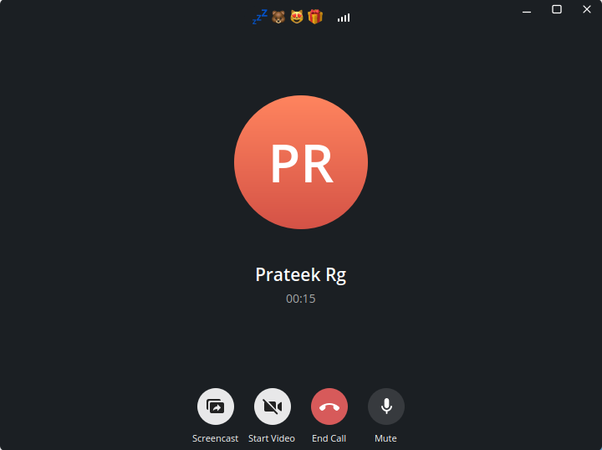
Calling interface in Telegram

Once you click on it, it will try to connect to the recipient and established a connection. Once the connection is established it gives an option to switch to video call and also allows to share the screen with the users.
Creating a folder
Telegram lets you create folders to group common related chats or community. You may want to bifurcate chats or groups based on projects or teams, in such cases you can create folders. You may also want the official groups to be separated from the personal ones in Telegram.
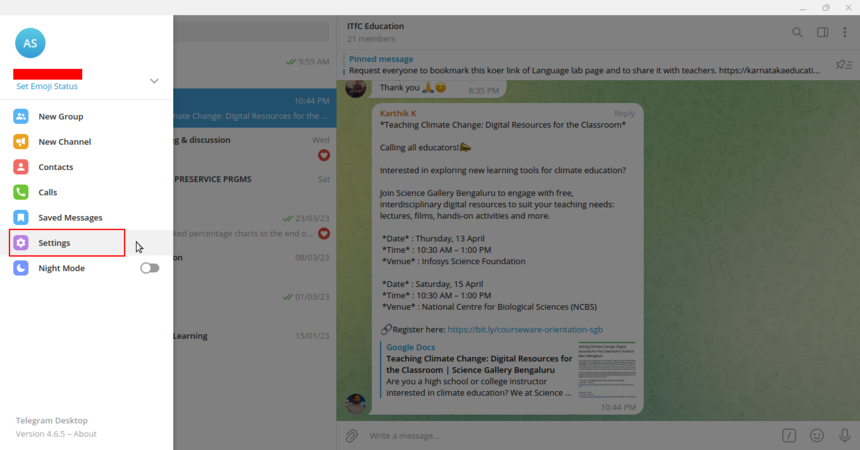
Click on "Settings"
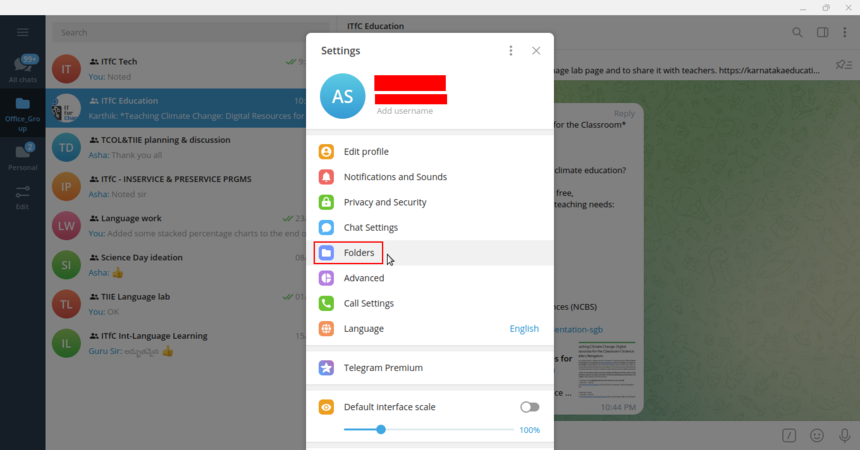
Click on "Folders"


To create a folder,
"Click on three lines on top left --> Click Settings --> Click on Folders --> Create a new folder"
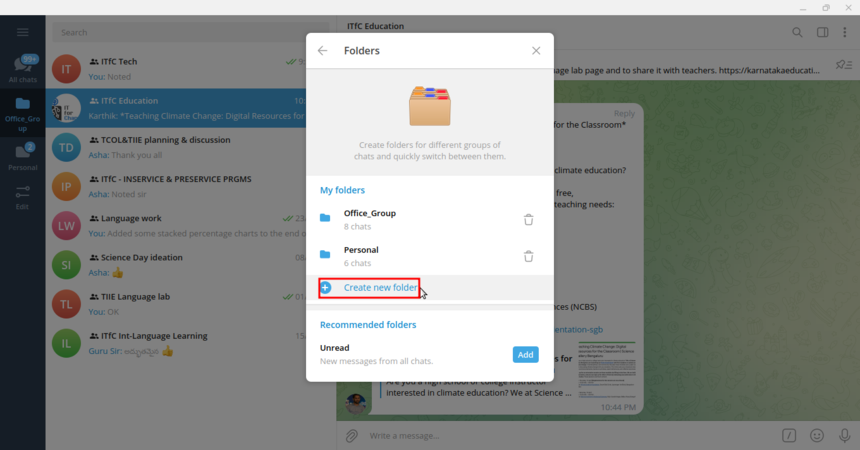
Click on "Create new folder"
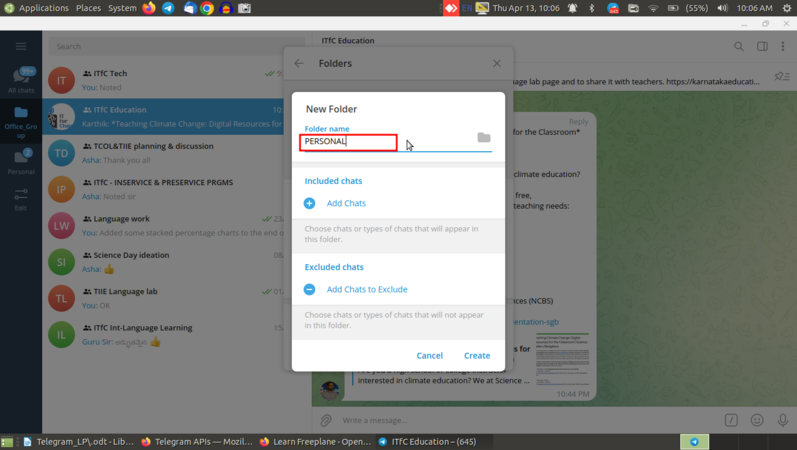
Give a folder name


You can type the folder name and choose what are the chats that you want to appear on this folder or chats that you don’t want to appear on this folder. With these two options you can bifurcate the contacts/groups that exists in your contact.
Having an unread folder
Whenever you feel you need a separate folder for all unread messages, you can add an "unread" folder to the telegram.
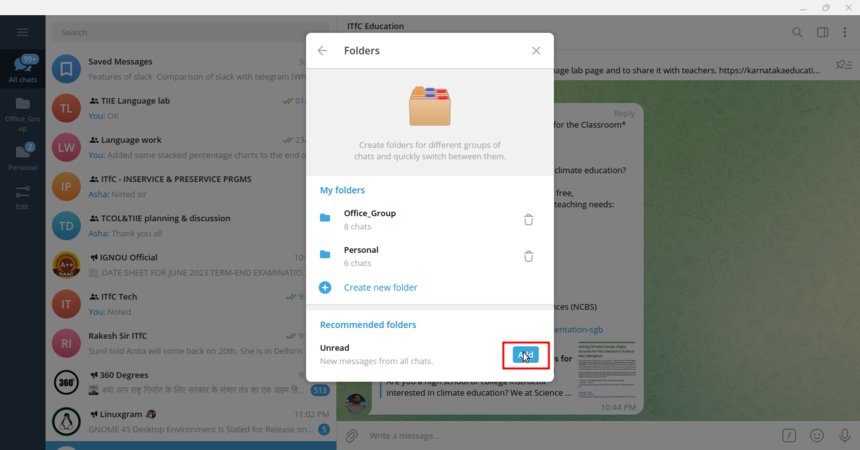
Click on "Add"

To add unread folder,
Click on three lines on top left --> Click Settings --> Click on Folders --> In Recommended folders section there is an option to add unread. Click on that and close the window.
Pin messages, creating topic (within group you can create topics),
Creating a poll
In general, a poll is used to collect information, opinion, decision etc. Situation could arise when you want to collect people's opinion for a particular question. Poll gives you an idea of their thought. It is good that, to create a poll you don’t have to have the administrator rights. This involves few steps.
To create a poll,
Click on the group in which you want to create a poll --> Click on three dots on the right side of group name --> Create poll.
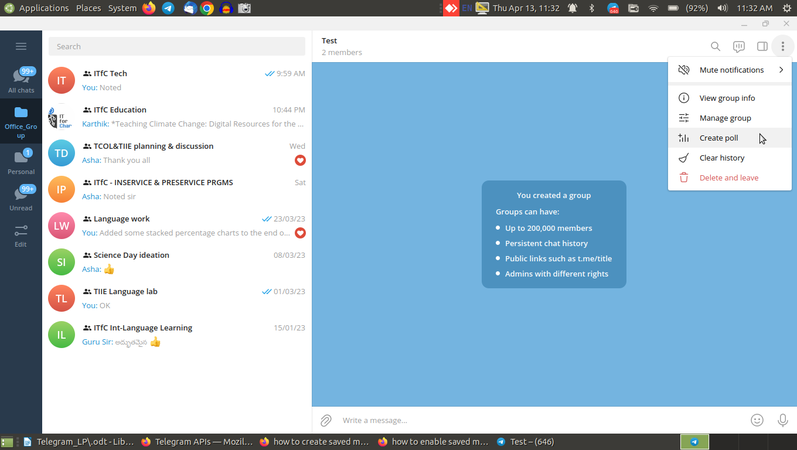
Creating a poll
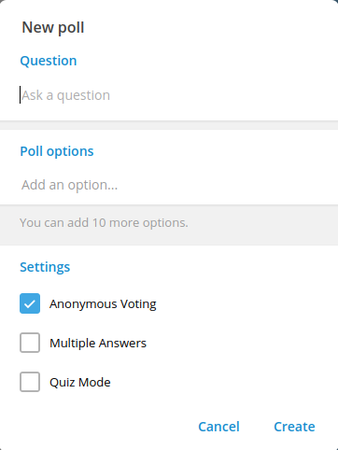
Creating a Poll : Interface


Using 'saved messages' feature
You may have come across a situation where you want to save some particular resources for your own references say, text notes, to-do list, images, links, videos etc, but you don’t want to disturb others by sending them those. In such case you can create a “Saved Messages” by your own.
To create a saved messages forum,
Click on three lines on top left of telegram → Click on “Saved Messages”. You can use this space for yourself. This is like your personal workspace.
Using public channel
Having a secret chat
Secret chat is a device-specific chat box which is secure with end-to-end encryption. Interesting thing in secret chat is that there is an option of self-destruct timer after which the messages disappear automatically.
Secret chat option is available only on Mobile phones.
To open a secret chat,
Open the contacts in telegram --> There will be an option say, “Create a secret chat”.
Customising Telegram
Editing the profile
You can edit your profile based on your need.
To do that, you can click on three lines on "top left of telegram --> Settings --> Edit Profile".
- You can change your first name and last name by clicking 'Name' field.
- You can change your contact number
- You can add username for your account so that the people cannot figure out your contact number and you can be uniquely identified by your username.
Note that this will be the global username, with this feature you need not be searched with your contact number.
Changing the download path
Usually the files you download from the Telegram will be downloaded to the default folder. The default folder will be "/home/user/Downloads/Telegram Desktop". You can change the default folder to download the files to make it more convenient to you.
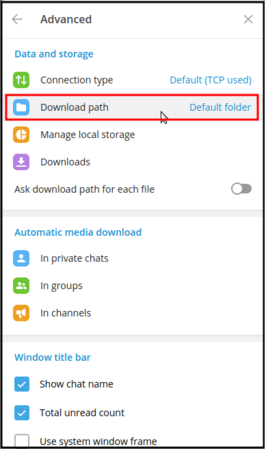
Download path in 'Advanced'
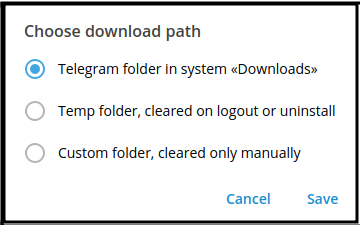
Changing the download path


To do that,
"Click on three lines on top left of the telegram --> Settings --> Advanced --> Download path."
There will be three options for download path,
- Telegram folder is system under 'Downloads' directory which is the default path
- A temporary folder that can be cleared on logout or uninstall
- Custom folder in which you want to store your files and clear it manually.
Setting pass code for telegram
If you want telegram to ask for a pass code when the system is idle after some particular time for a security reason you can do so by setting up the pass code.
To do that,
Click on three lines on top left of the telegram --> Settings --> Click on Privacy and Security --> Click on Local Pass code.
You can enter a pass code and confirm it. You can also auto lock telegram for some specific amount of time such as one minute, after which your account should ask for the pass code.
Translating text
While working with Telegram, you may get a in some other languages which you do not understand. As Telegram supports multiple languages you can simply translate the text within Telegram without the need to depend on any other external translators.
- Translating the text
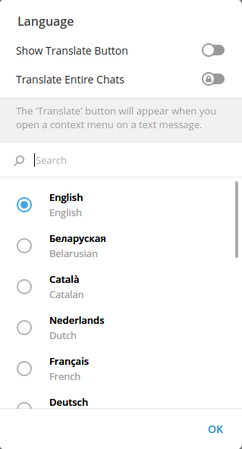
Tick "Show translate button"
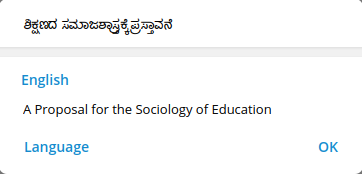
A sample output of translation


To do that, Click on three lines on top left of the "telegram → Settings → Language"
Tick the "Show Translate button" → OK. Now on wards, if you receive text in any other languages that your default one, you can select the text, right click on that and click on "Translate selected text"
Text which is in some other language gets easily translated with two clicks without need of external translator applications.
Advance features
Hiding contact number
Sharing user ID
Group settings - Adding members, Sharing and replying.