Difference between revisions of "Learn Google Form"
Jump to navigation
Jump to search
Pruthviraj (talk | contribs) |
Pruthviraj (talk | contribs) |
||
| Line 27: | Line 27: | ||
=== Working with Application === | === Working with Application === | ||
| + | |||
| + | ==== Introduction ==== | ||
* First step is to sign with your Google account in the web browser, Once you sign in click on Google apps button to access google forms | * First step is to sign with your Google account in the web browser, Once you sign in click on Google apps button to access google forms | ||
* Now click on blank to create new google form, now you can see the untitled form (Rename form as per your requirement) | * Now click on blank to create new google form, now you can see the untitled form (Rename form as per your requirement) | ||
| Line 46: | Line 48: | ||
# Add video in the form using this button | # Add video in the form using this button | ||
# To add new section click here | # To add new section click here | ||
| + | |||
| + | ==== Short answer questions ==== | ||
| + | To add short answer question, choose short answer type as in question type | ||
Revision as of 12:29, 10 March 2022
Introduction
Google form is platform created by google to collect data and to present, access it in a efficient way.
Basic information
| CT Competency | Google form is to collect data and present it in efficient service developed by Google. |
| Educational application and relevance | We can use Google forms to collect student, teacher, information etc |
| Version | Not applicable |
| Configuration | No specific configuration requirements but Internet connection is needed to use this application. |
| Other similar applications | Lime survey |
| The application on mobiles and tablets | All our Android version mobile phones will have Google forms application which can be downloaded from playstore |
| Development and community help |
Working with Application
Introduction
- First step is to sign with your Google account in the web browser, Once you sign in click on Google apps button to access google forms
- Now click on blank to create new google form, now you can see the untitled form (Rename form as per your requirement)
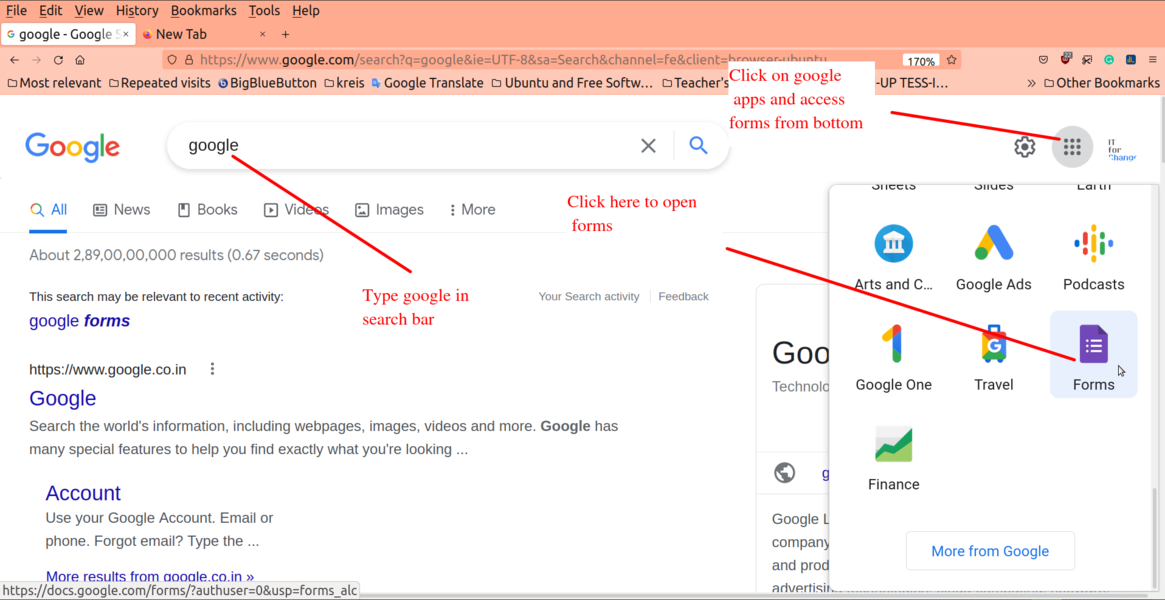
Google apps
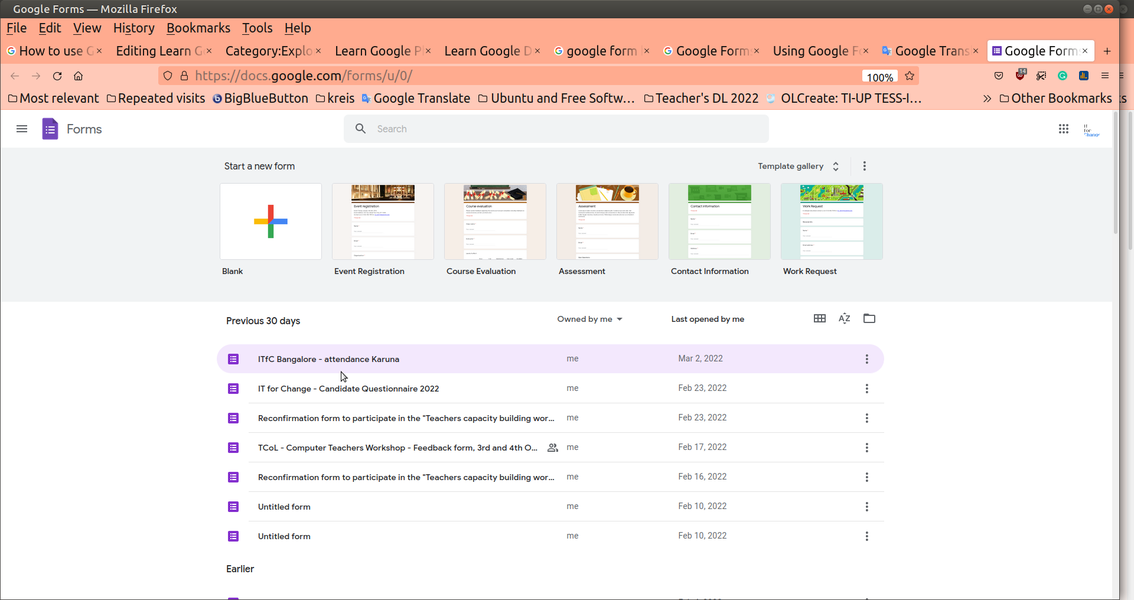
Access new or previously created Google forms
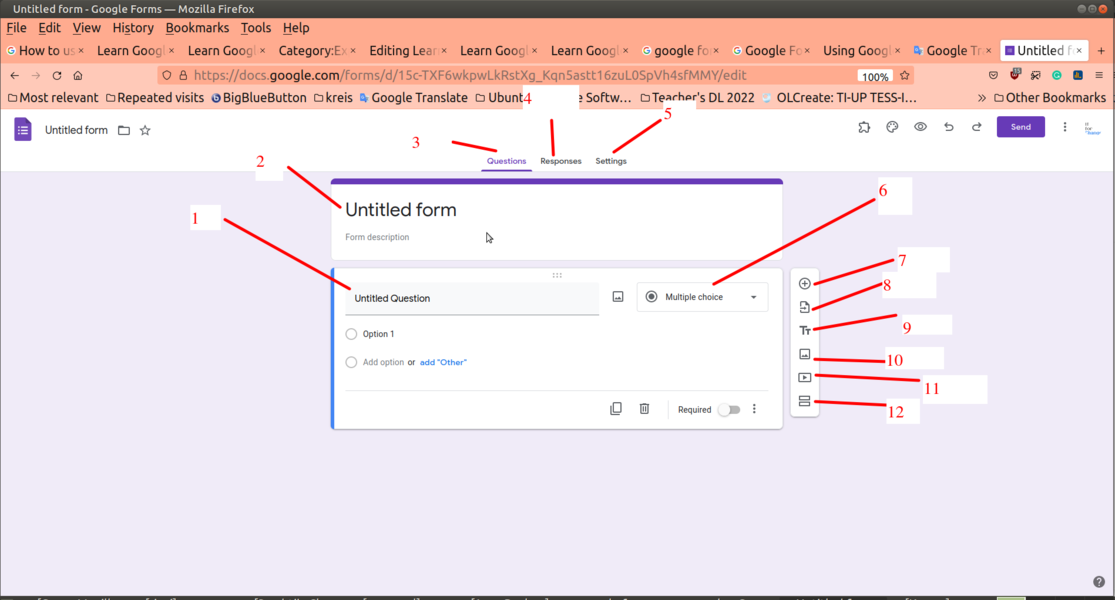
Google form interface


In the above image
- Add your question as shown
- Add your form title
- To see questionwise click here
- To see reposes click here
- To change form settings click here
- To choose question type click here
- To add new question to the form click here
- Import question in the form using this button
- Add title and description
- To add image click here
- Add video in the form using this button
- To add new section click here
Short answer questions
To add short answer question, choose short answer type as in question type