Difference between revisions of "Learn Firefox"
| Line 41: | Line 41: | ||
#In case you do not find it on your computer, you can install by typing <code>Firefox</code> on top search bar in Software Centre. | #In case you do not find it on your computer, you can install by typing <code>Firefox</code> on top search bar in Software Centre. | ||
#If you would like to install through the terminal follow these steps below: | #If you would like to install through the terminal follow these steps below: | ||
| − | ##Open terminal by clicking Applications->System Tools->Terminal or through Keyboard shortcut <code>Ctrl+Alt+T</code> | + | ##Open terminal by clicking '''Applications->System Tools->Terminal''' or through Keyboard shortcut <code>Ctrl+Alt+T</code> |
| − | ##In the terminal window, type below command and press enter to start the installation by providing your machine password: | + | ##In the terminal window, type the below command and press enter to start the installation by providing your machine password: |
##<code>sudo apt-get install firefox</code> | ##<code>sudo apt-get install firefox</code> | ||
Revision as of 12:54, 7 February 2022
ಕನ್ನಡದಲ್ಲಿ ನೋಡಿ हिंदी में देखें
Introduction
Mozilla Firefox (or simply Firefox) is a free and open-source web browser developed by the Mozilla Foundation and its subsidiary. Firefox is available for Windows, MacOS and Linux operating systems; Firefox is also available for Android.
Basic information
| ICT Competency | Firefox is a free and open-source web browser for connecting and learning.
We will use it as a web browser to browse academic information and resources. |
| Educational application and relevance | Accessing the web for one's learning as a global digital library is one of the most important advantages of ICT. A browser is essential for accessing pages on the web. |
| Version | Firefox 75.00 |
| Configuration | No need to configure, its a web based application and need internet connection to browse. |
| Other similar applications | 'Google Chrome, Opera' |
| The application on mobiles and tablets | Android version for Firefox can be downloaded from Fdroid. |
| Development and community help | Mozilla Foundation and contributors - Mozilla Corporation |
Overview of Features
Firefox browser supports many web standards for rendering of web pages; it renders most of the web pages correctly. Firefox is also known for its vast range of plug ins/add-ons that let the user customize in a variety of ways.
Firefox is a free, cross platform (available for Windows, Mac OS X and Linux platforms) web browser developed by Mozilla Corp. together with many other contributors.
For more detail visit https://en.wikipedia.org/wiki/Features_of_Firefox
Installation
Ubuntu installation
- The application is part of the Ubuntu custom distribution.
- In case you do not find it on your computer, you can install by typing
Firefoxon top search bar in Software Centre. - If you would like to install through the terminal follow these steps below:
- Open terminal by clicking Applications->System Tools->Terminal or through Keyboard shortcut
Ctrl+Alt+T - In the terminal window, type the below command and press enter to start the installation by providing your machine password:
sudo apt-get install firefox
- Open terminal by clicking Applications->System Tools->Terminal or through Keyboard shortcut
Windows installation
- Visit this Mozilla Firefox page in any other browser, such as Microsoft Internet Explorer, Google Chrome.
- Click the Download Now button.The Firefox Installer that downloads will automatically offer you the best available version of Firefox for your computer.
- NOTE : If you see Open File - Security Warning dialog, Click Open .
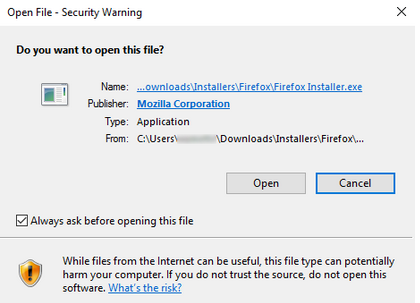
Click on 'Open'
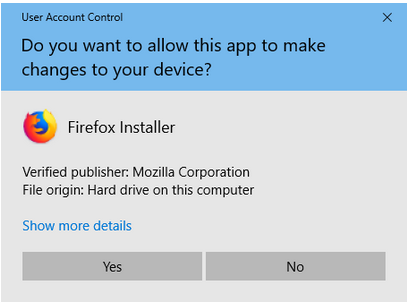
Click on 'YES' to start the installation


- The User Account Control dialog may open, to ask you to allow the Firefox Installer to make changes to your computer. If the below dialog box appears, click YES to start the installation.
- Wait for Firefox to finish the installation.
- Mozilla firefox - Finishing the installation
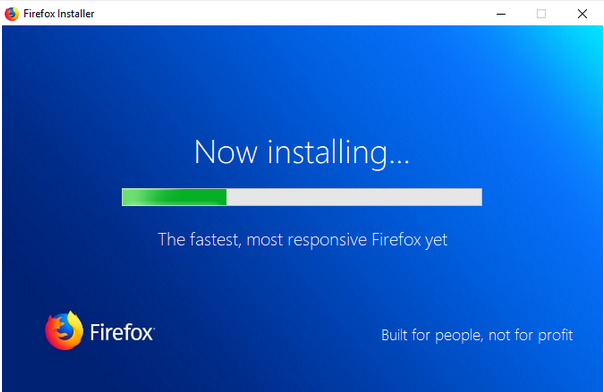
Finishing the installation
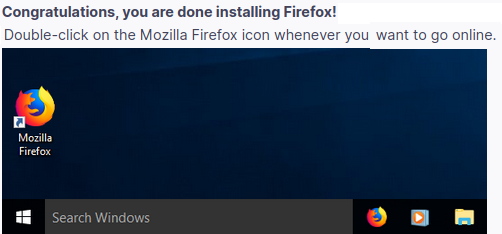
Finished Installation


- When the installation is complete Firefox will open.
Working with the application
Opening and accessing Firefox
- Opening and accessing Firefox
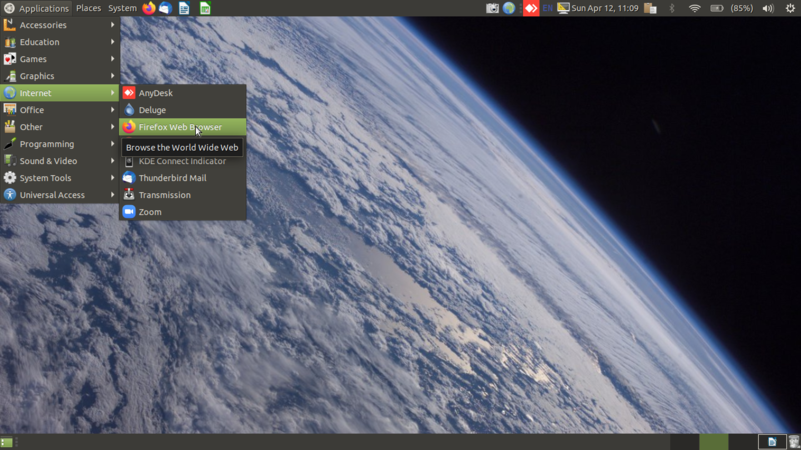
Opening Firefox

The menu bar in Firefox


- Mozilla Firefox will appear under Applications > Internet >Firefox Web Browser.
- Main page will look like the second image. If you know the web address you can type it in the address bar. Ex; www.upsc.gov.in
- Searching for information using Firefox
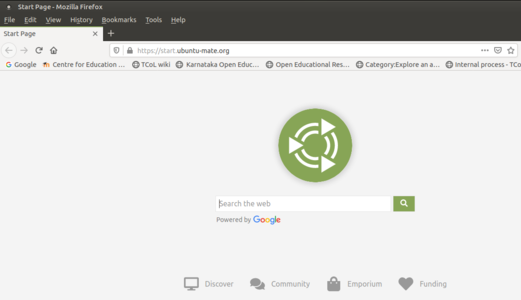
Accessing address bar
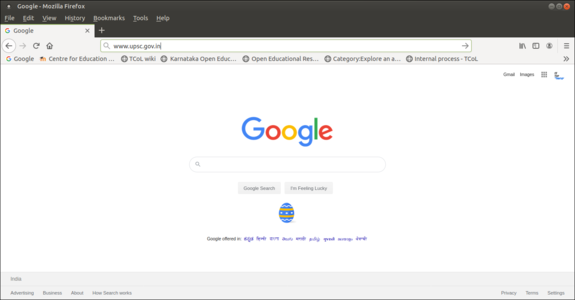
Searching resources
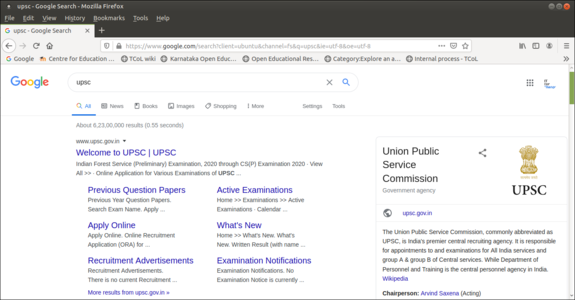
Browsing information


- If you don’t know the particular web address, you can type the key word of searching object Ex;UPSC. you can search not only for text, but also for images, videos using search engine. In Google search engine (there are also other search engines), the search results has options for searching the web, or images or videos. You can download the file (video, text file, image file) to your computer. Check if the copyright of the file allows to copy and use.
- The search results will appear like in the third image. You can click on the links to access the information retrieved.
Searching text and image resources
- Searching for resources from the INTERNET
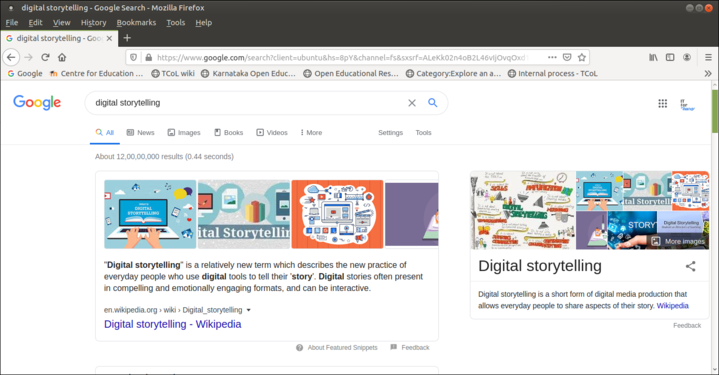
Searching text resources
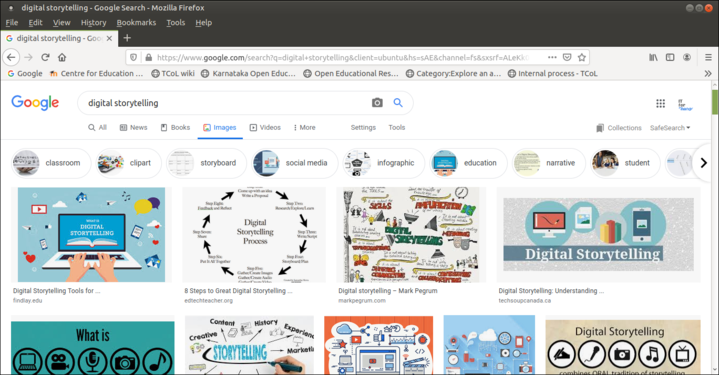
Searching image resources


- You could look for text information by simply typing the key word of your searching content, In the above image you can see text information accessed for "Digital Story Telling" in the search bar of the search engine. You can copy the search results information and can paste into your own text document.
- You can search for images from Firefox web browser, For example: If you want to search images about Digital Story Telling, simply type "Digital Story Telling" in the search bar of the search engine and select ‘Images’ link. Here you can select images that are licensed for reuse by specifying the search settings. If you want to download or save images to your computer, right click on the image and click on "Save image as". Rename the image file and select appropriate folder to save.
- Use creative commons website for OER images
Bookmark features in Firefox
To enable bookmark : Right clicking on the free tab space of the browser like shown in the below screenshot.
- Firefox - How to make bookmark

Enabling Menu bar

Bookmarks-All modern web browsers include bookmark features. Bookmarks are called favourites or Internet short-cuts in Internet browser.
To add a bookmark: Go to Menu Bar and click the bookmarks and click on "add this to bookmarks" to save the current page as a bookmark. By default, new bookmarks are saved to the Unsorted bookmarks folder. ... If you want separate folder, you can also create as per our requirements.
Save webpage to use offline

In Browser you can save web pages offline to use without internet. To save the page, right click on the page and click on "Save Page As". In the save tab, you can give specific file name and in the file format you need to select "Web Page Complete" and then click SAVE. Now it will save html file with a thumbnail folder. By clicking on html file you can view web page offline.
Change the Homepage to a specific page
Set your favourite page as your homepage so you can see it every time you open Firefox.
- Tap the menu button at the top-right corner of the browser, then Settings (In Windows you may need to go to "options").
- Tap General, and then Home. Click the menu next to Homepage and new windows and choose custom URLs.
- Enter a URL which you want to make it default home page (example: https://duckduckgo.com) in new window and tabs.
- Close your browser and open your browser to apply the changes you have done.

 Note:For Google Chrome users follow this link to set default homepage
Saving the files and formats
Not Applicable
Advanced features
Open Source Firefox is the only open source Web browser among the most used browsers on the Web as of March 2013. The open source nature of Firefox enables developers from all over the world to contribute code to the browser and extend the functionality of Firefox with add-ons and themes.
Add-ons Firefox is one of the most easily customized browsers thanks to its extensive library of add-ons. Add-ons are small bits of code that can extend the functionality of Firefox in an almost infinite number of ways.
Security Firefox features a number of tools designed to prevent malicious websites from causing harm.
Android version for Firefox can be downloaded from Fdroid.
Download Settings By default in firefox browser the download path or download folder is downloads ( means if you download any resource from the internet it is saved in downloads folder). Suppose if you want to change the download path settings then click on application menu at the top right side of the screen and go to settings ( Application menu-> Settings -> General section > Files and Applications ). You will get two options here i) Save files to where you can browse your folder and set the download path ii) Always ask you where to save files using which you can save files to the selected folders.
Download YouTube Creative Common videos
Using computer
The following animation will teach you how to use the "ss" prefix to easily download YouTube videos:

- Go to your browser and find the video you want to download from YouTube.
- Click a video to play it, then pause it.
- Navigate to the video URL, add "ss" before "youtube.com ..." and press Enter.
- You will be redirected to another page where you can save the video.
- This page is the parent site of ssyoutube.com known as savefrom.net.
- You will find out information such as duration, title of the video, and also get a download link.
- To the right of the green download icon, you will see a drop-down menu. Click on it and select the format in which you want to download the video (with or without sound).
Using Mobile phone

Ideas for resource creation
From the web browser, we can easily download whatever we want related to the subject (text,audio-video)