Difference between revisions of "Learn Gmail"
| (One intermediate revision by the same user not shown) | |||
| Line 1: | Line 1: | ||
| − | + | [http://karnatakaeducation.org.in/KOER/index.php/%E0%B2%9C%E0%B2%BF-%E0%B2%AE%E0%B3%87%E0%B2%B2%E0%B3%8D_%E0%B2%95%E0%B2%B2%E0%B2%BF%E0%B2%AF%E0%B2%BF%E0%B2%B0%E0%B2%BF ಕನ್ನಡದಲ್ಲಿ ನೋಡಿ] | |
| − | |||
| − | |||
{{Template:Book-sidebar}} | {{Template:Book-sidebar}} | ||
===Introduction=== | ===Introduction=== | ||
| Line 36: | Line 34: | ||
====Using Gmail==== | ====Using Gmail==== | ||
[[File:Gmail_1_Main_Window.png|400px|left|Gmail home page]] | [[File:Gmail_1_Main_Window.png|400px|left|Gmail home page]] | ||
| − | + | Once you open the browser from (Application -> Internet -> Firefox) type www.gmail.com in address bar and press '''Enter'''. The Gmail window will open, as shown in the image here. You can either '''sign in''' from the top right side of your screen or create a new Gmail ID follow below. {{clear}}<br> | |
To Create new Gmail ID, click on '''Create Account''' or '''sign up''' from the gmail home page and follow the below steps. | To Create new Gmail ID, click on '''Create Account''' or '''sign up''' from the gmail home page and follow the below steps. | ||
| Line 57: | Line 55: | ||
'''Accessing emails''' | '''Accessing emails''' | ||
#When you want to check your email, simply type gmail.com or mail.google.com into any browser address bar. Be sure to type your email and password EXACTLY as you typed it in when you created your account (including whether letters are capitalized or not). DO NOT click “Stay signed in.” | #When you want to check your email, simply type gmail.com or mail.google.com into any browser address bar. Be sure to type your email and password EXACTLY as you typed it in when you created your account (including whether letters are capitalized or not). DO NOT click “Stay signed in.” | ||
| − | #In the second image you | + | #In the second image you will have following options. |
## Refresh button : to refresh your gmail folders | ## Refresh button : to refresh your gmail folders | ||
## Compose : To send a new mail | ## Compose : To send a new mail | ||
| Line 91: | Line 89: | ||
==== Download an attachment ==== | ==== Download an attachment ==== | ||
| − | [[File:Gmail_8_Download_The_Attachement.png|450px|left|thumb| | + | [[File:Gmail_8_Download_The_Attachement.png|450px|left|thumb|Download attachment file]] |
#A paperclip icon next to an email indicates that there is an attachment with the mail | #A paperclip icon next to an email indicates that there is an attachment with the mail | ||
#To download an attachment in an email, open mail and scroll down the message and come to the file attached. | #To download an attachment in an email, open mail and scroll down the message and come to the file attached. | ||
Latest revision as of 12:38, 8 August 2018

Introduction
Gmail is a web based mail service.
Basic information
| ICT Competency | One of the important benefits of using technology is for connecting with each other to share and learn. Working with email applications allows you to get familiar with communicating using digital methods. |
| Educational application and relevance | E-mail (electronic mail) is the exchange of computer-stored messages by telecommunication. E-mail was one of the first uses of the Internet and is still the most popular use. Mails and mailing forums are very useful and essential to share resources. |
| Version | Not applicable |
| Other similar applications | Yahoo, Rediff. |
| The application on mobiles and tablets | Mobile app is available in a Google Play store (Search for gmail ) and you can install the Gmail app in your android mobile. |
| Development and community help | Gmail is an internet based service. Official Gmail |
Overview of features
Gmail is a free Web-based e-mail service currently being hosted at Google that provides users with 15 Giga Byte(GB) of storage for messages and provides the ability to search for specific messages. The Gmail program also automatically organizes successively related messages into a conversational thread.
Using the application
To open Gmail, first you have to open a web browser(Ex:- Firefox, Google Chrome, etc) After opening the browser have to type www.gmail.com in address bar or you have to type in search bar (gmail).
Working with application
Using Gmail

Once you open the browser from (Application -> Internet -> Firefox) type www.gmail.com in address bar and press Enter. The Gmail window will open, as shown in the image here. You can either sign in from the top right side of your screen or create a new Gmail ID follow below.
To Create new Gmail ID, click on Create Account or sign up from the gmail home page and follow the below steps.

- Enter user name and password. Your username will be your email address.
- Enter password (Remember your password)
- Google asks for a phone number or email address so they can help you retrieve your account in case you forget your password. You are not required to provide an email address.
- And give all rest of the necessary information and complete the process.
- Check the privacy and terms and conditions box.
- Click on Next Step and your new gmail account is successfully created.
- If you are seeing your new username in the top right side, means you are already logged into your account.
- Next time, If you want to login to your gmail account, follow the first step.
Signing in to access emails
- Gmail sign in and features
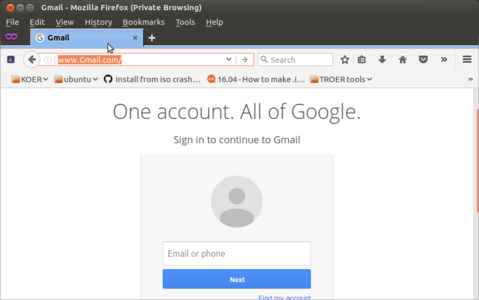
Gmail sign in page
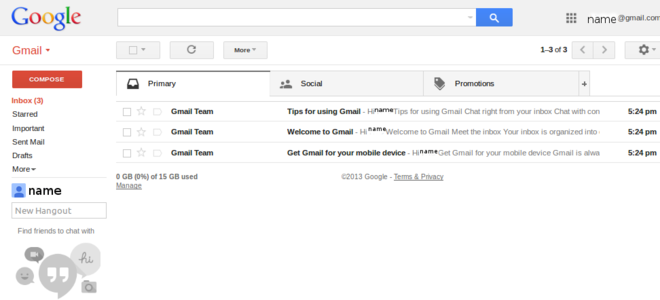
Home page for after logging in


Accessing emails
- When you want to check your email, simply type gmail.com or mail.google.com into any browser address bar. Be sure to type your email and password EXACTLY as you typed it in when you created your account (including whether letters are capitalized or not). DO NOT click “Stay signed in.”
- In the second image you will have following options.
- Refresh button : to refresh your gmail folders
- Compose : To send a new mail
- Search bar : To search for mails.
- Inbox : All the mails you have received will be in this folder
- Sent : This will have all your sent mails
- Draft : Draft is where your unfinished mails are saved
Composing new mail
- Compose and Sending mails
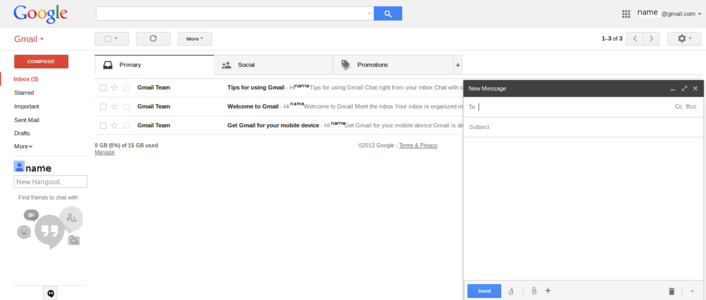
Select compose to compose mail
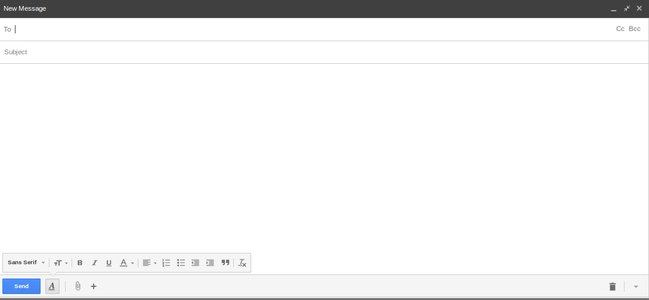
Composing mail, adding all the information


- To compose a new message, click "Compose". This can be found on the left panel. When you click on that you see a panel open for composing a new mail.
- Now you can start composing your new mail
- To: enter in an email address
Cc: “Carbon copy” or “courtesy copy” another email address (not the main recipient; meant to keep others in the loop)
Bcc: “Blind carbon copy” another email address (any email addresses entered here will be hidden from one another) - Subject: a few words to describe what your email is about
- Body of the email: type your message
- Click on attachment icon (next to send icon) to attach your local files(text files, images, etc.) with the mail and send it to the receipt.
- After you done all the above steps and if are ready to send your mail, just click on Send icon.
- To access your sent mails, click on Sent from the left side gmail panel.
- To: enter in an email address
Checking mails and replying
Your inbox displays all email messages you have received. By default, unread messages in your inbox have a white background and display in bold lettering while read messages have a gray background and normal type.
However, you must remember that these formatting settings are subject to change and you need to remember that there will be a separate way of displaying "read" and "unread" mails.
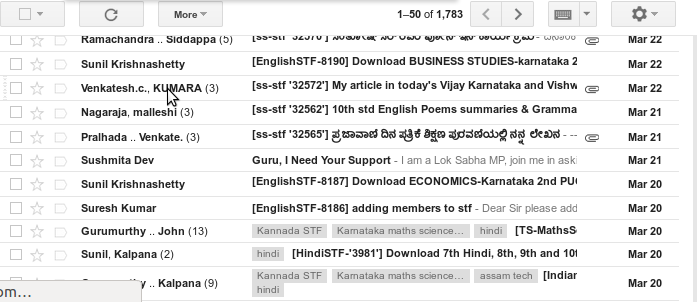
Checking received emails
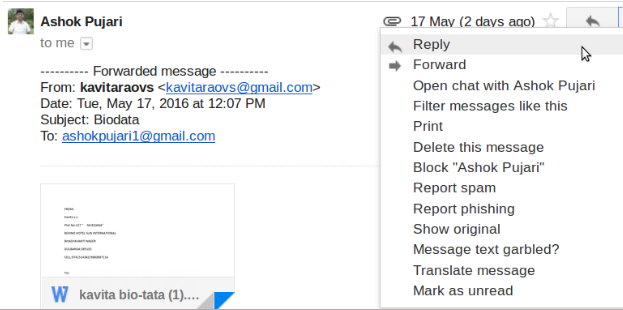
Replying and forwarding mail


- To open an email, simply click it in your email list and start reading it. To respond to an email, open it and in the box under the email, click Reply, Reply to all, or Forward.
- If you are going to reply to any group mailing list select reply all, all the group members will receive your reply mail. To reply to an single person(sent person), click on Reply, Type your message click on Send.
Same mail if you want to forward, click on forward from the option as shown in the second image, Enter the email address and send.
Download an attachment

- A paperclip icon next to an email indicates that there is an attachment with the mail
- To download an attachment in an email, open mail and scroll down the message and come to the file attached.
- You can either view or download the file (down arrow mark).
- Click on Download
- A window will appear Click on Save
- Choose the location where you want to save the file
- Click on Save to finish
Sign out from the account

This is a very important step to secure your mails from others. Logging out of your Gmail account is essential if you use public computers or even in personal computer. Your Gmail account can contain a lot of sensitive information, and signing out will help protect it.
- Click on your name or small circle with your starting letter of your username, which displayed on top right side of your screen, as in this screen.
- Click on it and select sign out or logout.
Advanced features
- Adding your default signature
- Email filtering
- Folder creation
- Setting up gmail with your language
- Managing spam mails and folder
- Setting up a high security for the account.
Ideas for resource creation
This very useful to sharing resources from each other.