Difference between revisions of "Learn Kdenlive"
| (14 intermediate revisions by one other user not shown) | |||
| Line 29: | Line 29: | ||
* Ability to add custom effects and transitions. | * Ability to add custom effects and transitions. | ||
* Rendering is done using a separate non-blocking process so it can be stopped, paused and restarted. | * Rendering is done using a separate non-blocking process so it can be stopped, paused and restarted. | ||
| − | * Kdenlive also provides a script called the Kdenlive Builder Wizard (KBW) that compiles the latest developer version of the software and its main dependencies from source, to allow users to try to test new features and report problems on the bug tracker. | + | * Kdenlive also provides a script called the "Kdenlive Builder Wizard" (KBW) that compiles the latest developer version of the software and its main dependencies from source, to allow users to try to test new features and report problems on the bug tracker. |
==== Installation ==== | ==== Installation ==== | ||
| − | ===== For Ubuntu ===== | + | ===== For Ubuntu OS ===== |
# The application is part of the Ubuntu custom distribution. | # The application is part of the Ubuntu custom distribution. | ||
| − | # In case you do not find it on your computer, you can install by choosing | + | # In case you do not find it on your computer, you can install by choosing “Kdenlive” in Ubuntu Software Center |
# If you would like to install through the terminal follow these steps below: | # If you would like to install through the terminal follow these steps below: | ||
## Open terminal by clicking (Ctrl+Alt+T), | ## Open terminal by clicking (Ctrl+Alt+T), | ||
| Line 40: | Line 40: | ||
## sudo apt-get install kdenlive | ## sudo apt-get install kdenlive | ||
## Then, just type your ubuntu password(it will not display on your screen), press Enter. | ## Then, just type your ubuntu password(it will not display on your screen), press Enter. | ||
| − | ===== For | + | ===== For Windows OS ===== |
| − | # Download the kdenlive-20.04.1.exe file from [https:// | + | # Download the kdenlive-20.04.1.exe file from [https://download.kde.org/stable/kdenlive/23.04/windows/kdenlive-23.04.0.exe this link] |
| − | # Locate and double-click the .exe file. (It will usually be in your Downloads folder.) | + | # Locate and double-click the .exe file. (It will usually be in your ''Downloads'' folder.) |
# A Installation dialog box will appear. Follow the instructions to install the software. | # A Installation dialog box will appear. Follow the instructions to install the software. | ||
# The software will be installed. You can now open the Kdenlive application by double clicking on Kdenlive icon on the desktop screen. | # The software will be installed. You can now open the Kdenlive application by double clicking on Kdenlive icon on the desktop screen. | ||
===Working with the application=== | ===Working with the application=== | ||
| − | When you start to working with any multimedia files (videos, images, animation) | + | When you start to working with any multimedia files (videos, images, animation) the first step is creating a new (empty) folder for our new project. This will help to find your all project files. Create a folder anywhere under your home folder. Open Kdenlive from "Applications --> Sound and video --> Kdenlive". |
<gallery mode="packed" heights="250px" caption="Opening kdenlive from menu option"> | <gallery mode="packed" heights="250px" caption="Opening kdenlive from menu option"> | ||
| Line 59: | Line 59: | ||
==== Adding clips ==== | ==== Adding clips ==== | ||
| − | + | <gallery mode="packed" heights="300"> | |
| + | File:2. Kdenlive browse files .png|450px|left|thumb|Importing files into Kdenlive project | ||
| + | </gallery> | ||
Now that the project is ready, let’s start adding some clips into your project. Click on the “Add Clip” icon, directly it opens the file dialogue, start browsing your local video clips, audio clips, images to start your edit. | Now that the project is ready, let’s start adding some clips into your project. Click on the “Add Clip” icon, directly it opens the file dialogue, start browsing your local video clips, audio clips, images to start your edit. | ||
| Line 66: | Line 68: | ||
==== Arranging files in tracks ==== | ==== Arranging files in tracks ==== | ||
| − | After you have imported files, the next step is to adding files into the timeline and arranging it for editing. Timeline is the place where the media clips will be edited. There are two different types of tracks, Video and Audio. Video tracks can contain any kind of clip, audio tracks as well | + | After you have imported files, the next step is to adding files into the timeline and arranging it for editing. Timeline is the place where the media clips will be edited. There are two different types of tracks, Video and Audio. Video tracks can contain any kind of clip, audio tracks as well but when dropping a video file to the audio track, only the audio will be used. |
| − | + | <gallery mode="packed" heights="200"> | |
| − | To add clips into tracks, select file from the project files section and drag and drop it in the tracks where your files are suited. Any time by pressing | + | File:3. Kdenlive arranging clicps.png|Arranging my file in tracker |
| + | </gallery> | ||
| + | To add clips into tracks, select file from the project files section and drag and drop it in the tracks where your files are suited. Any time by pressing "space" button(or click on the “Play” button in the project monitor) to see the preview of edited work. | ||
Once a clip is dropped on a track, it can be moved (drag and drop it) to another place on the same track or onto another track. | Once a clip is dropped on a track, it can be moved (drag and drop it) to another place on the same track or onto another track. | ||
==== Cutting, moving and deleting clips ==== | ==== Cutting, moving and deleting clips ==== | ||
| − | <gallery mode="packed" heights="150 | + | <gallery mode="packed" heights="150"> |
File:4. kdenlive - using scissor tool .png|Using scissor tool | File:4. kdenlive - using scissor tool .png|Using scissor tool | ||
File:7. Kdenlive - arranging clicps.png|moving clips to different tracks | File:7. Kdenlive - arranging clicps.png|moving clips to different tracks | ||
</gallery> | </gallery> | ||
| − | # To cut a clip into two parts, select | + | # To cut a clip into two parts, select Razor from "Edit --> Toolbar". The mouse cursor will change to a dotted line and razor icon. Click on a clip at the point you want to cut or slice it. And also if you want to remove one part of this clip, just right click on the clip and remove clip. |
| − | # After you cut a clip, now it will be two part. Click on | + | # After you cut a clip, now it will be two part. Click on cursor icon (Select Mode), click on a clip which you want to move. Then drag the clip to a new position on the timeline, and drop it. |
| − | # To cut a clip, the easiest way is to place the timeline cursor where you want to cut the clip, then select the clip (left click in it) and use the menu Timeline -> Current Clip -> Cut Clip ( | + | # To cut a clip, the easiest way is to place the timeline cursor where you want to cut the clip, then select the clip (left click in it) and use the menu "Timeline --> Current Clip --> Cut Clip" (Keyboard shortcut is Shift + R). |
| + | |||
| + | ==== Grouping and ungrouping audio ==== | ||
| + | Although audio and video comes together in a clip, there may be a possibility that you need either only audio or only video as your requirement. At such times you can ungroup them so that you can use the video with some other audio and viceversa. | ||
| + | |||
| + | To do this, Once you import the video, right click on the timeline --> click Ungroup. | ||
| + | |||
| + | Similarly, you can group an audio with video by selecting both and then right clicking on any then click on Group. | ||
| + | |||
| + | ==== Sound effects ==== | ||
| + | Sound effect can be given for a video in Kdenlive in a very easy and efficient method. | ||
| + | |||
| + | To give the sound effect right click on timeline window that appears to the bottom of the screen click on "Insert an effect --> Volume (Keyframable)". Immediately you can see a Red colored bubble on Audio timeline. You can flexibly move it to top and bottom to raise and down the volume respectively. | ||
==== Resizing a clip ==== | ==== Resizing a clip ==== | ||
A clip can be resized from its start or end by dragging its left or right edge. | A clip can be resized from its start or end by dragging its left or right edge. | ||
| − | If you want a more precise resize, you can place the timeline cursor wherever you want the resize to end and use the menu | + | If you want a more precise resize, you can place the timeline cursor wherever you want the resize to end and use the menu "Timeline --> Resize Item Start or Timeline --> Resize" Item End. |
==== Removing Space Between Clips ==== | ==== Removing Space Between Clips ==== | ||
| − | Right click in the space between the clips and choose Remove Space. <br> | + | Right click in the space between the clips and choose "Remove Space". <br> |
| − | + | <gallery mode="packed" heights="250"> | |
| − | Be aware however that if you have clips on multiple tracks in the timeline and they are not grouped, then removing space may disturb the alignment of the clips between the different tracks | + | File:8. removing extra space.png|Removing extra spaces between clips <br> |
| + | </gallery> | ||
| + | Be aware however that if you have clips on multiple tracks in the timeline and they are not grouped, then removing space may disturb the alignment of the clips between the different tracks the space is only removed from the timeline where you clicked. | ||
{{Clear}} | {{Clear}} | ||
==== Adding titles/subtitles ==== | ==== Adding titles/subtitles ==== | ||
| − | + | <gallery mode="packed" heights="300"> | |
| + | File:5. Kdenlive - adding the title.png|Adding the title | ||
| + | </gallery> | ||
Titles are text elements that can be added to the timeline and appear over the top of other clips. Titles are created in the Project Tree and then dragged to the timeline like other video clips. <br> | Titles are text elements that can be added to the timeline and appear over the top of other clips. Titles are created in the Project Tree and then dragged to the timeline like other video clips. <br> | ||
| − | |||
To create a title, choose “Add Title Clip” from the Project toolbar. Below is the title create window. | To create a title, choose “Add Title Clip” from the Project toolbar. Below is the title create window. | ||
| − | Here just start adding your title and do the formatting using different tools in it and finally click on “OK”. | + | Here just start adding your title and do the formatting using different tools in it and finally click on “OK”. Once click on the OK, your title file will add to you project tree. Drag drop it on your track for adding into your video. |
| − | If you want titles to overlay other footage, you put title clips on video track 1 and have the other footage on video track 2. You also need to retain the affine transition that is automatically added to the title clips if you want the footage visible underneath. | + | If you want titles to overlay other footage, you put title clips on ''video track 1'' and have the other footage on ''video track 2''. You also need to retain the affine transition that is automatically added to the title clips if you want the footage visible underneath. |
==== Adding fade in fade out effect ==== | ==== Adding fade in fade out effect ==== | ||
By adding fade-in and fade-out for the clips, it will smoothly changing the slides from one to next. | By adding fade-in and fade-out for the clips, it will smoothly changing the slides from one to next. | ||
| − | + | <gallery mode="packed" heights="300"> | |
| − | The most basic type of fade-in and fade-out are the fade from black and fade to black effects. The easiest way to add these to your media files | + | File:10. kdenlive fade in out.png|400px|Adding fade in/out for clip |
| − | + | </gallery> | |
| − | + | The most basic type of fade-in and fade-out are the fade from black and fade to black effects. The easiest way to add these to your media files is to move the mouse pointer close to the corner of a clip on the timeline, then click and drag until your fade reaches the desired length. | |
==== Adding transition into clips==== | ==== Adding transition into clips==== | ||
| − | To add a transition, adjust clips in the timeline so that the end of one overlaps the beginning of another. Then right-click in the timeline at the overlap point, select Add Transition , then choose one of the transitions from the transition list. | + | To add a transition, adjust clips in the timeline so that the end of one overlaps the beginning of another. Then right-click in the timeline at the overlap point, select "Add Transition" , then choose one of the "transitions" from the transition list. |
| − | |||
| + | ==== Save project files ==== | ||
| + | Kdenlive needs a project file to save the information that makes up a video project. Information such as the name and location of your project, video and audio files, timeline information, which clips have been trimmed, arranged, etc. This project file you can use it later if you need to do any change in your file. Click on "File --> Save Project", enter your ''file name'' and select location for save in that location. | ||
| + | <gallery mode="packed" heights="300"> | ||
| + | File:11. Kdenlive saving the project.png|Saving the project | ||
| + | </gallery> | ||
| − | |||
| − | |||
| − | |||
| − | |||
====Export/Render as Video==== | ====Export/Render as Video==== | ||
| − | Once done with your all editing work, next is to export your video. This will convert your OpenShot project into a single video file, which should work on any platform. | + | Once done with your all editing work, next is to export your video. This will convert your "OpenShot" project into a single video file, which should work on any platform. Click on the "Render" icon on the top toolbar, video icon at the top menu tool bar (or use the "File --> Export Video" menu). Under rendering section there are many things which you need to configure to export your project as video. |
| − | Click on the | ||
| − | Under rendering section there are many things which you need to configure to export your project as video. | ||
| − | Video profile : | + | Video profile : Preset rendering profiles to choose from. The rendering profiles are grouped into categories. |
| − | # When a variable | + | # When a variable bit rate profile is selected, the File Size section displays a drop down for choosing the Video quality you want. |
| − | # Select mp4 format from the format list. | + | # Select "mp4" format from the format list. |
# File size will be differ from your parameter selection | # File size will be differ from your parameter selection | ||
| − | # In the last section, clicking on "full project" will render your entire project as video and by clicking on "Selected zone" will render the portion you | + | # In the last section, clicking on "full project" will render your entire project as video and by clicking on "Selected zone" will render the portion you are selected. |
| − | # Finally click on " | + | # Finally click on "Render to file " option to start the process. |
====Video cutter tool ==== | ====Video cutter tool ==== | ||
| − | Kdenlive is a powerful app for video editing and movie creation, but if you are looking for something simple and light-weight that can quickly trim of those long videos, then try VidCutter tool. It is a free and open source video trimmer for Linux, Windows, and Mac. From VidCutter, you can easily do most common video editing like trim, split, and join videos. <br> | + | Kdenlive is a powerful app for video editing and movie creation, but if you are looking for something simple and light-weight that can quickly trim of those long videos, then try VidCutter tool. It is a free and open source video trimmer for Linux, Windows, and Mac. From VidCutter, you can easily do most common video editing like trim, split, and join videos. <br>VidCutter supports popular video formats including MP4 (which is default video format of smartphones), AVI (used by some cameras), MOV, WMV, MPEG, and FLV. <br>To install this tool in your ubuntu, <br>'''Method 1 :''' From the PPA<br>Open a terminal (Ctrl+Alt+T) and copy paste these following commands one by one: |
| − | VidCutter supports popular video formats including MP4 (which is default video format of smartphones), AVI (used by some cameras), MOV, WMV, MPEG, and FLV. <br> | ||
| − | To install this tool in your ubuntu, <br> | ||
| − | Method 1 : | ||
| − | Open a terminal (Ctrl+Alt+T) and copy paste these following commands one by one: | ||
sudo add-apt-repository ppa:ozmartian/apps <br> | sudo add-apt-repository ppa:ozmartian/apps <br> | ||
sudo apt-get update <br> | sudo apt-get update <br> | ||
sudo apt-get install qml-module-qtmultimedia vidcutter <br> | sudo apt-get install qml-module-qtmultimedia vidcutter <br> | ||
| − | Method 2 : App image file<br> | + | '''Method 2 :''' App image file<br>Download App Image file from [https://github.com/ozmartian/vidcutter/releases from this link]. and follow the instruction mentioned in the same link to run it in your system. But it is a bit complicated for the new users. <br>From the above link you can download this application for windows computers. |
| − | Download | ||
| − | From the above link you can download this application for windows computers. | ||
====Advanced features==== | ====Advanced features==== | ||
| Line 157: | Line 168: | ||
===Ideas for resource creation=== | ===Ideas for resource creation=== | ||
| + | If you want to create a video by yourself using images or any existing OER video you can trim those and put some other background voices. | ||
===References=== | ===References=== | ||
Latest revision as of 10:10, 26 April 2023

Introduction
Basic information
| ICT Competency | Kdenlive Video editor is generic resource creation tool |
| Educational application and relevance | Working with video, audio, text and image resources. This can be used in digital story telling vities |
| Version | version 19.12.3 |
| Other similar applications | Openshot video editor, Pitivi and advance Lightwork |
| The application on mobiles and tablets | Cyberlink Powerdirector, Splice |
| Development and community help | Official Website |
Overview of features
Kdenlive is an open source video editor. The project was started around 2003. Kdenlive is an acronym for KDE Non-Linear Video Editor. It is a free software (GPL licensed) primarily aimed at the Linux platform. Kdenlive is built on Qt and the KDE Frameworks libraries.
- Kdenlive has multi-track editing with a timeline and supports an unlimited number of video and audio tracks.
- Tools to create, move, crop and delete video clips, audio clips, text clips and image clips. Configurable keyboard shortcuts and interface layouts.
- A wide range of effects and transitions. Audio effects including normalization, phase and pitch shifting, limiting, volume adjustment, reverb and equalization filters as well as others. Video effects include options for masking, blue-screen, distortions, rotations, colour tools, blurring, obscuring and others.
- Ability to add custom effects and transitions.
- Rendering is done using a separate non-blocking process so it can be stopped, paused and restarted.
- Kdenlive also provides a script called the "Kdenlive Builder Wizard" (KBW) that compiles the latest developer version of the software and its main dependencies from source, to allow users to try to test new features and report problems on the bug tracker.
Installation
For Ubuntu OS
- The application is part of the Ubuntu custom distribution.
- In case you do not find it on your computer, you can install by choosing “Kdenlive” in Ubuntu Software Center
- If you would like to install through the terminal follow these steps below:
- Open terminal by clicking (Ctrl+Alt+T),
- Once Window page is open, in front of dollar($) symbol just type below command.
- sudo apt-get install kdenlive
- Then, just type your ubuntu password(it will not display on your screen), press Enter.
For Windows OS
- Download the kdenlive-20.04.1.exe file from this link
- Locate and double-click the .exe file. (It will usually be in your Downloads folder.)
- A Installation dialog box will appear. Follow the instructions to install the software.
- The software will be installed. You can now open the Kdenlive application by double clicking on Kdenlive icon on the desktop screen.
Working with the application
When you start to working with any multimedia files (videos, images, animation) the first step is creating a new (empty) folder for our new project. This will help to find your all project files. Create a folder anywhere under your home folder. Open Kdenlive from "Applications --> Sound and video --> Kdenlive".
- Opening kdenlive from menu option
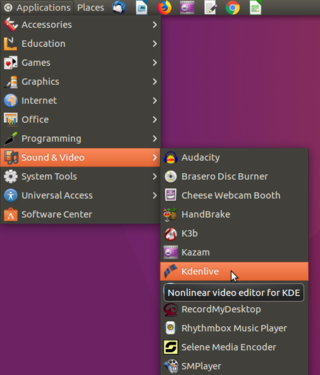
Opening kdenlive from menu option
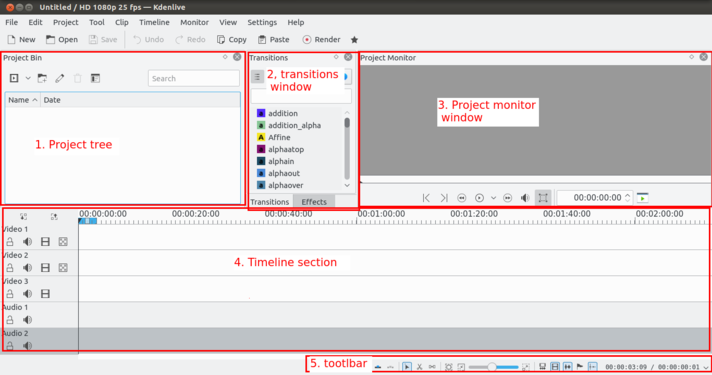
Kdenlive main window


Create new project to start your video editing. Creating/Saving a project file to your computer is similar to saving a file in any other Office program.
If we have created a project that we want to share or to save to be revised at a later time, there are two things that we need to do. The first is to save our project for revise your work later and the second is to export the project to a video file for previewing or sharing. These are two similar but separate processes.
Adding clips
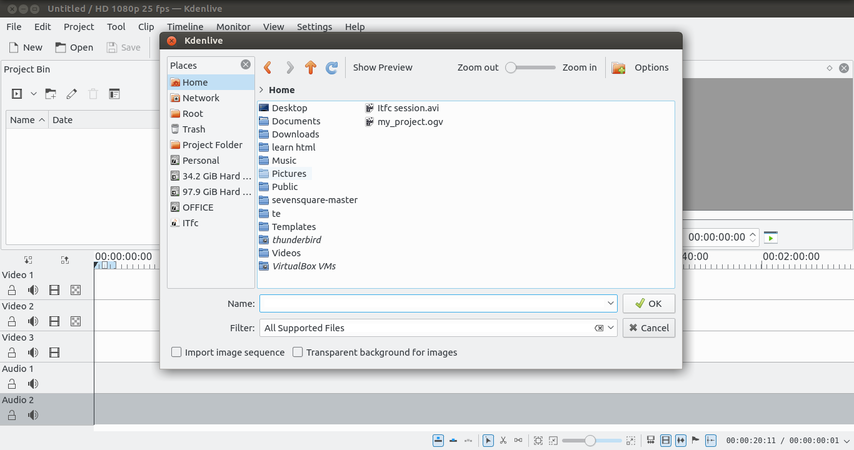
Importing files into Kdenlive project

Now that the project is ready, let’s start adding some clips into your project. Click on the “Add Clip” icon, directly it opens the file dialogue, start browsing your local video clips, audio clips, images to start your edit.
Arranging files in tracks
After you have imported files, the next step is to adding files into the timeline and arranging it for editing. Timeline is the place where the media clips will be edited. There are two different types of tracks, Video and Audio. Video tracks can contain any kind of clip, audio tracks as well but when dropping a video file to the audio track, only the audio will be used.
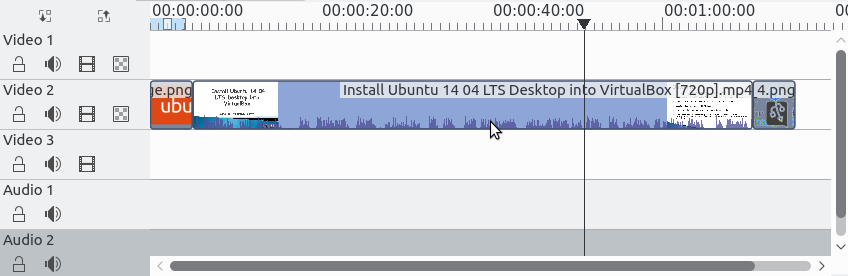
Arranging my file in tracker

To add clips into tracks, select file from the project files section and drag and drop it in the tracks where your files are suited. Any time by pressing "space" button(or click on the “Play” button in the project monitor) to see the preview of edited work.
Once a clip is dropped on a track, it can be moved (drag and drop it) to another place on the same track or onto another track.
Cutting, moving and deleting clips

Using scissor tool
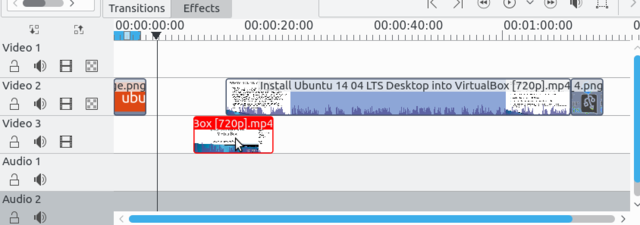
moving clips to different tracks


- To cut a clip into two parts, select Razor from "Edit --> Toolbar". The mouse cursor will change to a dotted line and razor icon. Click on a clip at the point you want to cut or slice it. And also if you want to remove one part of this clip, just right click on the clip and remove clip.
- After you cut a clip, now it will be two part. Click on cursor icon (Select Mode), click on a clip which you want to move. Then drag the clip to a new position on the timeline, and drop it.
- To cut a clip, the easiest way is to place the timeline cursor where you want to cut the clip, then select the clip (left click in it) and use the menu "Timeline --> Current Clip --> Cut Clip" (Keyboard shortcut is Shift + R).
Grouping and ungrouping audio
Although audio and video comes together in a clip, there may be a possibility that you need either only audio or only video as your requirement. At such times you can ungroup them so that you can use the video with some other audio and viceversa.
To do this, Once you import the video, right click on the timeline --> click Ungroup.
Similarly, you can group an audio with video by selecting both and then right clicking on any then click on Group.
Sound effects
Sound effect can be given for a video in Kdenlive in a very easy and efficient method.
To give the sound effect right click on timeline window that appears to the bottom of the screen click on "Insert an effect --> Volume (Keyframable)". Immediately you can see a Red colored bubble on Audio timeline. You can flexibly move it to top and bottom to raise and down the volume respectively.
Resizing a clip
A clip can be resized from its start or end by dragging its left or right edge.
If you want a more precise resize, you can place the timeline cursor wherever you want the resize to end and use the menu "Timeline --> Resize Item Start or Timeline --> Resize" Item End.
Removing Space Between Clips
Right click in the space between the clips and choose "Remove Space".
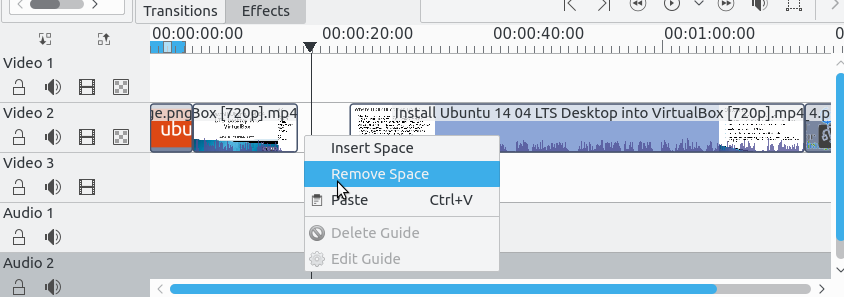
Removing extra spaces between clips

Be aware however that if you have clips on multiple tracks in the timeline and they are not grouped, then removing space may disturb the alignment of the clips between the different tracks the space is only removed from the timeline where you clicked.
Adding titles/subtitles

Adding the title

Titles are text elements that can be added to the timeline and appear over the top of other clips. Titles are created in the Project Tree and then dragged to the timeline like other video clips.
To create a title, choose “Add Title Clip” from the Project toolbar. Below is the title create window.
Here just start adding your title and do the formatting using different tools in it and finally click on “OK”. Once click on the OK, your title file will add to you project tree. Drag drop it on your track for adding into your video.
If you want titles to overlay other footage, you put title clips on video track 1 and have the other footage on video track 2. You also need to retain the affine transition that is automatically added to the title clips if you want the footage visible underneath.
Adding fade in fade out effect
By adding fade-in and fade-out for the clips, it will smoothly changing the slides from one to next.
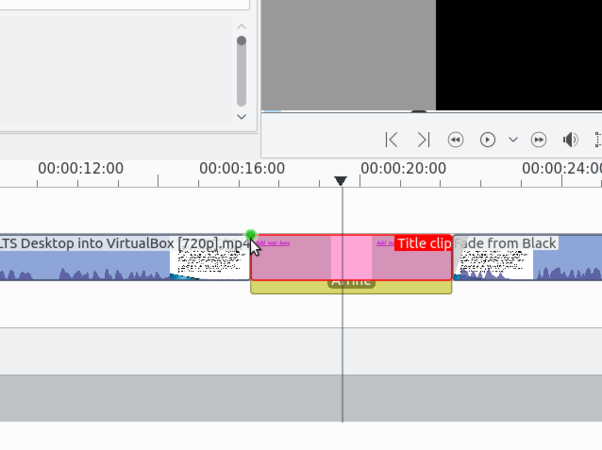
Adding fade in/out for clip

The most basic type of fade-in and fade-out are the fade from black and fade to black effects. The easiest way to add these to your media files is to move the mouse pointer close to the corner of a clip on the timeline, then click and drag until your fade reaches the desired length.
Adding transition into clips
To add a transition, adjust clips in the timeline so that the end of one overlaps the beginning of another. Then right-click in the timeline at the overlap point, select "Add Transition" , then choose one of the "transitions" from the transition list.
Save project files
Kdenlive needs a project file to save the information that makes up a video project. Information such as the name and location of your project, video and audio files, timeline information, which clips have been trimmed, arranged, etc. This project file you can use it later if you need to do any change in your file. Click on "File --> Save Project", enter your file name and select location for save in that location.
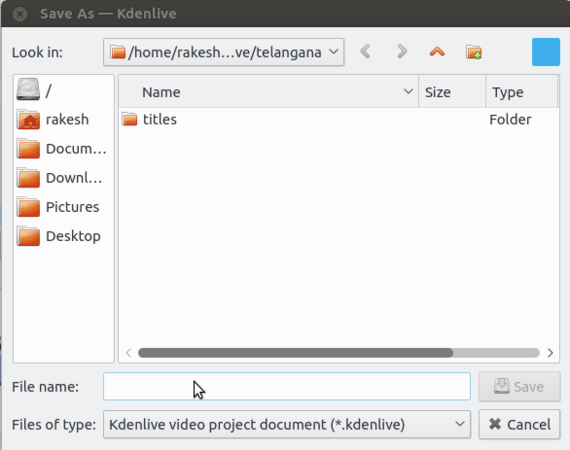
Saving the project

Export/Render as Video
Once done with your all editing work, next is to export your video. This will convert your "OpenShot" project into a single video file, which should work on any platform. Click on the "Render" icon on the top toolbar, video icon at the top menu tool bar (or use the "File --> Export Video" menu). Under rendering section there are many things which you need to configure to export your project as video.
Video profile : Preset rendering profiles to choose from. The rendering profiles are grouped into categories.
- When a variable bit rate profile is selected, the File Size section displays a drop down for choosing the Video quality you want.
- Select "mp4" format from the format list.
- File size will be differ from your parameter selection
- In the last section, clicking on "full project" will render your entire project as video and by clicking on "Selected zone" will render the portion you are selected.
- Finally click on "Render to file " option to start the process.
Video cutter tool
Kdenlive is a powerful app for video editing and movie creation, but if you are looking for something simple and light-weight that can quickly trim of those long videos, then try VidCutter tool. It is a free and open source video trimmer for Linux, Windows, and Mac. From VidCutter, you can easily do most common video editing like trim, split, and join videos.
VidCutter supports popular video formats including MP4 (which is default video format of smartphones), AVI (used by some cameras), MOV, WMV, MPEG, and FLV.
To install this tool in your ubuntu,
Method 1 : From the PPA
Open a terminal (Ctrl+Alt+T) and copy paste these following commands one by one:
sudo add-apt-repository ppa:ozmartian/apps

sudo apt-get update

sudo apt-get install qml-module-qtmultimedia vidcutter
Method 2 : App image file
Download App Image file from from this link. and follow the instruction mentioned in the same link to run it in your system. But it is a bit complicated for the new users.
From the above link you can download this application for windows computers.
Advanced features
Multi-track video editing - Kdenlive allows you to use and arrange several audio and video tracks, each one can be locked or muted to your convenience.
Configurable interface and shortcuts -You can arrange and save your custom interface layouts to fit your workflow.
Keyboard shortcuts can also be configured to match your preferences.
Many effects and transitions - Dozens of effects are available, ranging from color correction to audio adjustments, as well as all the standard transform options.
Automatic backup - Your project file is automatically backed up every few minutes, and older versions of the project file are also kept in case you need to roll back to a previous version.
Ideas for resource creation
If you want to create a video by yourself using images or any existing OER video you can trim those and put some other background voices.