Difference between revisions of "Learn LibreOffice Math"
m (added Category:Mathematics using HotCat) |
|||
| (5 intermediate revisions by 2 users not shown) | |||
| Line 1: | Line 1: | ||
| + | [https://teacher-network.in/OER/hi/index.php/%E0%A4%B2%E0%A4%BF%E0%A4%AC%E0%A4%B0%E0%A5%87%E0%A4%91%E0%A4%AB%E0%A4%BF%E0%A4%B8_%E0%A4%AE%E0%A5%88%E0%A4%A5_%E0%A4%B8%E0%A5%80%E0%A4%96%E0%A4%BF%E0%A4%AF%E0%A5%87 हिंदी] | ||
| + | |||
=== Introduction === | === Introduction === | ||
| − | LibreOffice Math is a free and open-source formula editing application of the LibreOffice software package. Math can be invoked in your text documents, spreadsheets, presentations and drawings, enabling you to insert | + | LibreOffice Math ('Math' hereafter) is a free and open-source formula editing application of the LibreOffice software package. Math can be invoked in your text documents, spreadsheets, presentations and drawings, enabling you to insert well formatted mathematical and scientific formulas. Your formulas can include a wide range of elements, from fractions, terms with exponents and indices, integrals, and mathematical functions, to inequalities, systems of equations, and matrices. |
You can start Math either as a stand-alone application directly from the LibreOffice Start Center or directly from within other LibreOffice applications such as Writer, Calc, Impress and Draw. | You can start Math either as a stand-alone application directly from the LibreOffice Start Center or directly from within other LibreOffice applications such as Writer, Calc, Impress and Draw. | ||
{| class="wikitable" | {| class="wikitable" | ||
|ICT Competency | |ICT Competency | ||
| − | |ICT for creating | + | |ICT for creating Mathematical resources |
|- | |- | ||
|Educational application and relevance | |Educational application and relevance | ||
| − | |LibreOffice | + | |LibreOffice Math is a software used for creating (including writing, editing, formatting, type setting and printing) mathematical formulae. |
|- | |- | ||
|Version | |Version | ||
| Line 30: | Line 32: | ||
====Installation==== | ====Installation==== | ||
| − | + | Please click on the below link to learn about LibreOffice Installation & Configuration | |
| − | + | ||
| − | + | [https://teacher-network.in/OER/index.php/LibreOffice_Installation_and_Configuration Click here] | |
| − | |||
| − | |||
| − | |||
=== Working with the application === | === Working with the application === | ||
| Line 44: | Line 43: | ||
LibreOffice Writer includes insertion of mathematical expressions in documents. A special feature. LibreOffice Math is an application that assists in insertion of mathematic or scientific formulas of a wide range is a part of LibreOffice writer. | LibreOffice Writer includes insertion of mathematical expressions in documents. A special feature. LibreOffice Math is an application that assists in insertion of mathematic or scientific formulas of a wide range is a part of LibreOffice writer. | ||
| − | LibreOffice Writer treats formulae as objects. For insertion of an expression at any point in the document | + | LibreOffice Writer treats formulae as objects. For insertion of an expression at any point in the document go to '''Insert (in menu bar) → Object → Formula.''' |
The Formula Window appears on the left hand-side, it has a variety of operations, functions and attributes that can be included in the document. The top drop down menu helps us toggle between different operations. Selecting the operations from the drop down box displays all the mathematical notations under each category. Clicking on the required mathematical notation inserts the notation in the document. | The Formula Window appears on the left hand-side, it has a variety of operations, functions and attributes that can be included in the document. The top drop down menu helps us toggle between different operations. Selecting the operations from the drop down box displays all the mathematical notations under each category. Clicking on the required mathematical notation inserts the notation in the document. | ||
| Line 72: | Line 71: | ||
1) <math>a=\pm{5}</math>,<math>b\neq\pm6</math> | 1) <math>a=\pm{5}</math>,<math>b\neq\pm6</math> | ||
| − | [https://teacher-network.in/OER/images/2/26/Equals_not_equals_plus_or_minus.gif Link] | + | [https://teacher-network.in/OER/images/2/26/Equals_not_equals_plus_or_minus.gif Link] |
| + | |||
| + | ''(if you click on the [https://teacher-network.in/OER/images/2/26/Equals_not_equals_plus_or_minus.gif Link], it will open the gif in your web browser. You can see it and also save it on your computer using the File -> Save As option. You can also download the file by 'right-clicking' the [https://teacher-network.in/OER/images/2/26/Equals_not_equals_plus_or_minus.gif Link] and choosing 'Save link as' option).'' | ||
2) <math>a+0=a, a\times0=a, a+(-a)=0, a\div a=1</math> | 2) <math>a+0=a, a\times0=a, a+(-a)=0, a\div a=1</math> | ||
| Line 195: | Line 196: | ||
In tool-bar content scroll down and click on the check box for '''formula'''. | In tool-bar content scroll down and click on the check box for '''formula'''. | ||
| − | Then press '''Enter''' , this provides a | + | Then press '''Enter''' , this provides a short cut for formula insertion in the standard menu bar |
Clicking on it opens the same formula window which we can use to insert and edit formulae. | Clicking on it opens the same formula window which we can use to insert and edit formulae. | ||
Latest revision as of 17:06, 26 September 2022
Introduction
LibreOffice Math ('Math' hereafter) is a free and open-source formula editing application of the LibreOffice software package. Math can be invoked in your text documents, spreadsheets, presentations and drawings, enabling you to insert well formatted mathematical and scientific formulas. Your formulas can include a wide range of elements, from fractions, terms with exponents and indices, integrals, and mathematical functions, to inequalities, systems of equations, and matrices.
You can start Math either as a stand-alone application directly from the LibreOffice Start Center or directly from within other LibreOffice applications such as Writer, Calc, Impress and Draw.
| ICT Competency | ICT for creating Mathematical resources |
| Educational application and relevance | LibreOffice Math is a software used for creating (including writing, editing, formatting, type setting and printing) mathematical formulae. |
| Version | 5.1.6.2
LibreOffice Writer is also available on the Windows and Macintosh operating systems. This tool has no specific configuration requirements but in this application you can use many extra features by installing extensions |
| Other similar applications | FxSolver, MathType, |
| The application on mobiles and tablets | You can download https://www.libreoffice.org/download/android-viewer. There are text editors on the mobile / tablet platform like ''"OpenDocumentReader" App and WPS Office App. |
| Development and community help | The Document Foundation |
Overview of features
LibreOffice Math lets you type and format mathematical formulae that can include signs and symbols. In this application you can save the documents in a variety of formats, including the standardized Open Document Format (ODF) or MathML Format (mml). Here you can easily export your document to the Portable Document Format(PDF). Math treats formulae as objects and does not perform any computation.
Installation
Please click on the below link to learn about LibreOffice Installation & Configuration
Working with the application
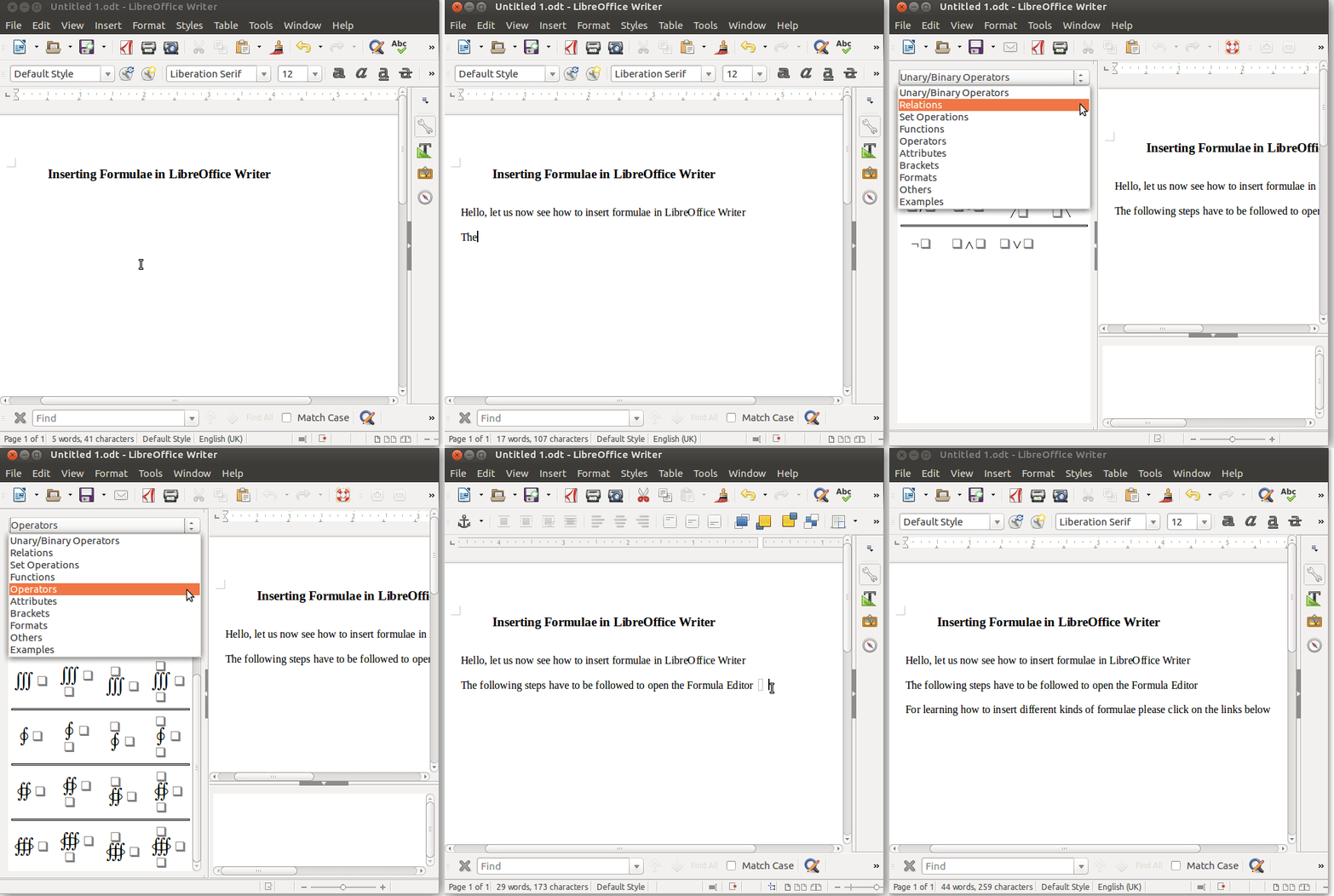
Using the Formula Editor, you can insert formulas directly into a document using LibreOffice Writer, Calc, Impress, or Draw.
Formulas in LibreOffice documents
LibreOffice Writer includes insertion of mathematical expressions in documents. A special feature. LibreOffice Math is an application that assists in insertion of mathematic or scientific formulas of a wide range is a part of LibreOffice writer.
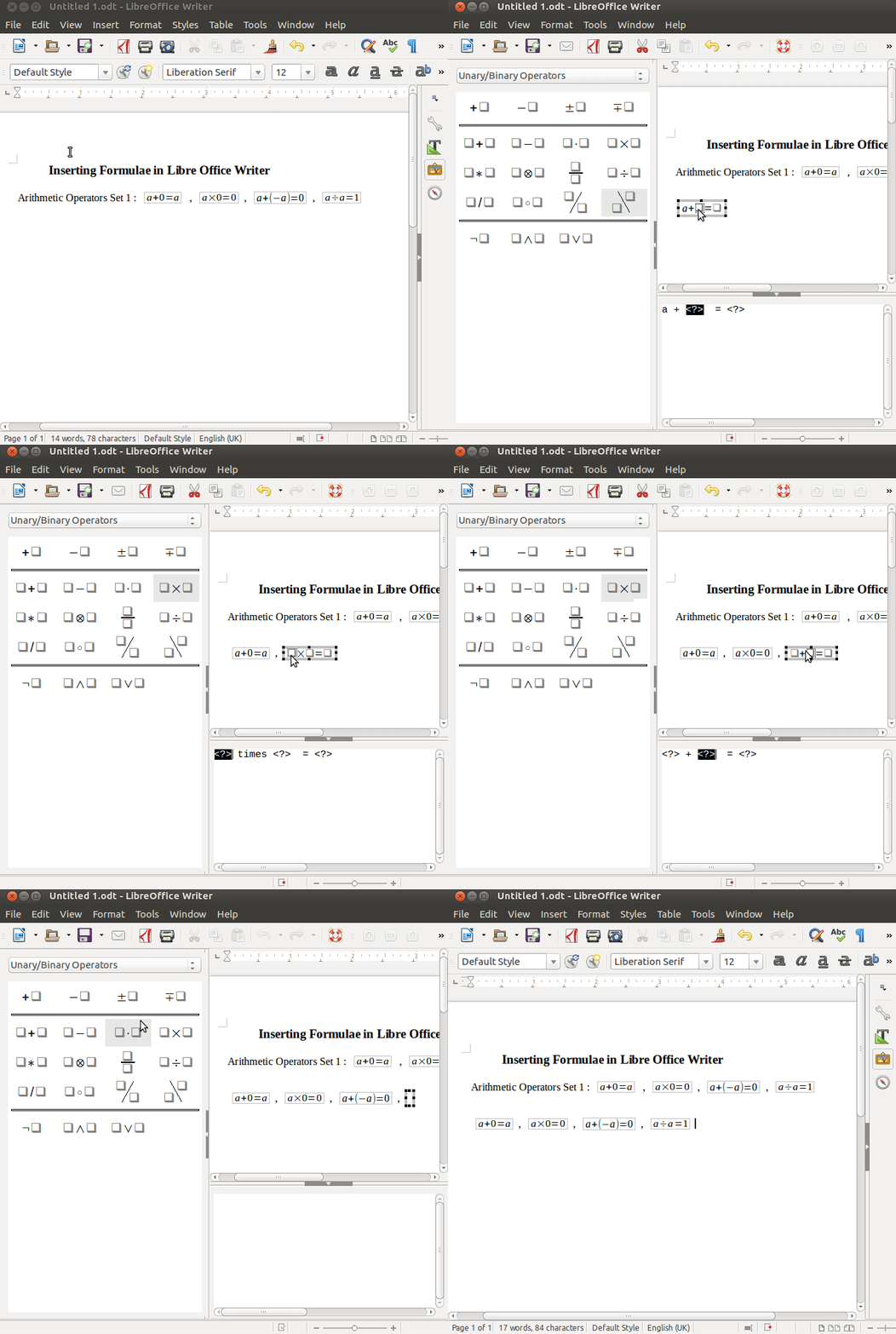
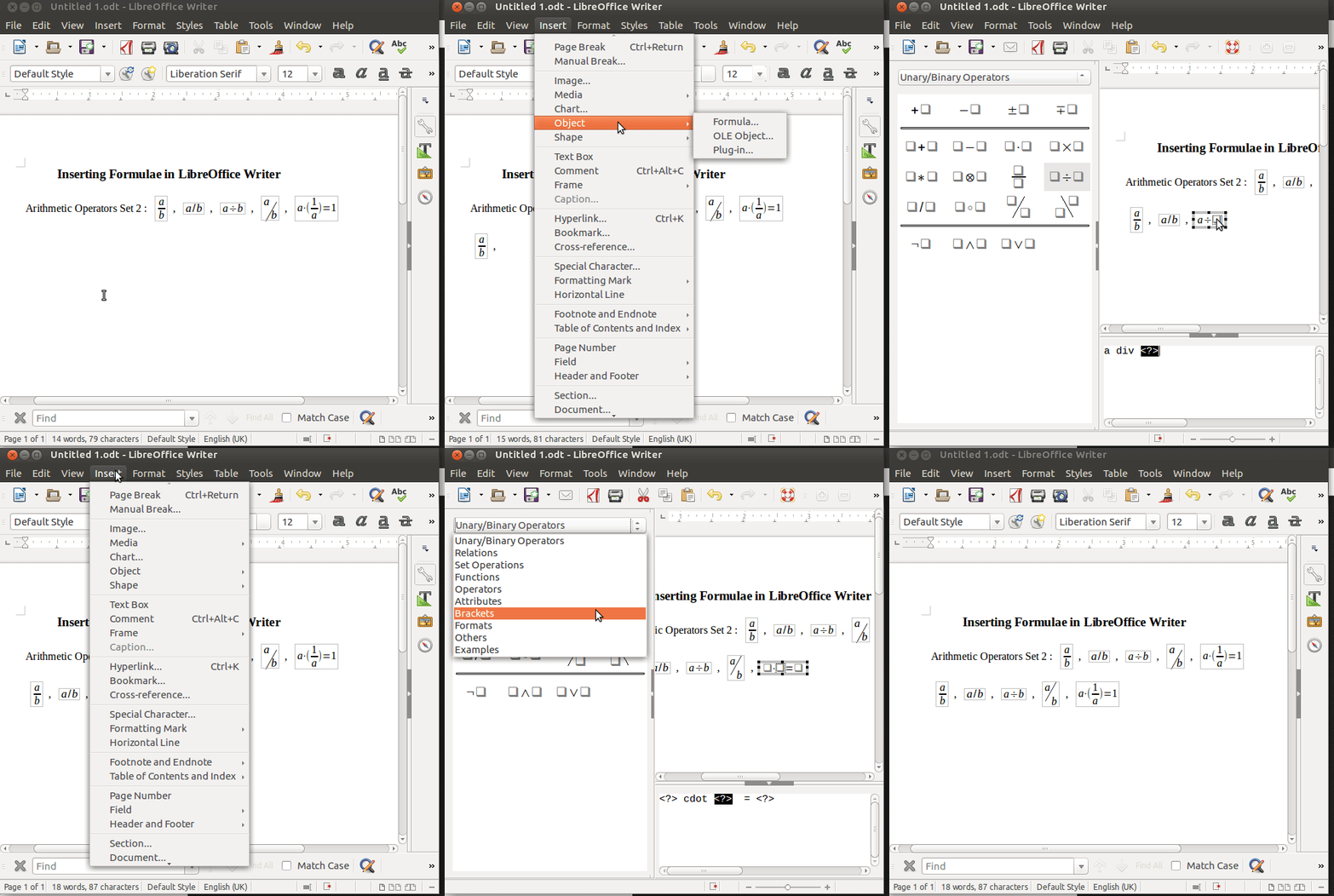
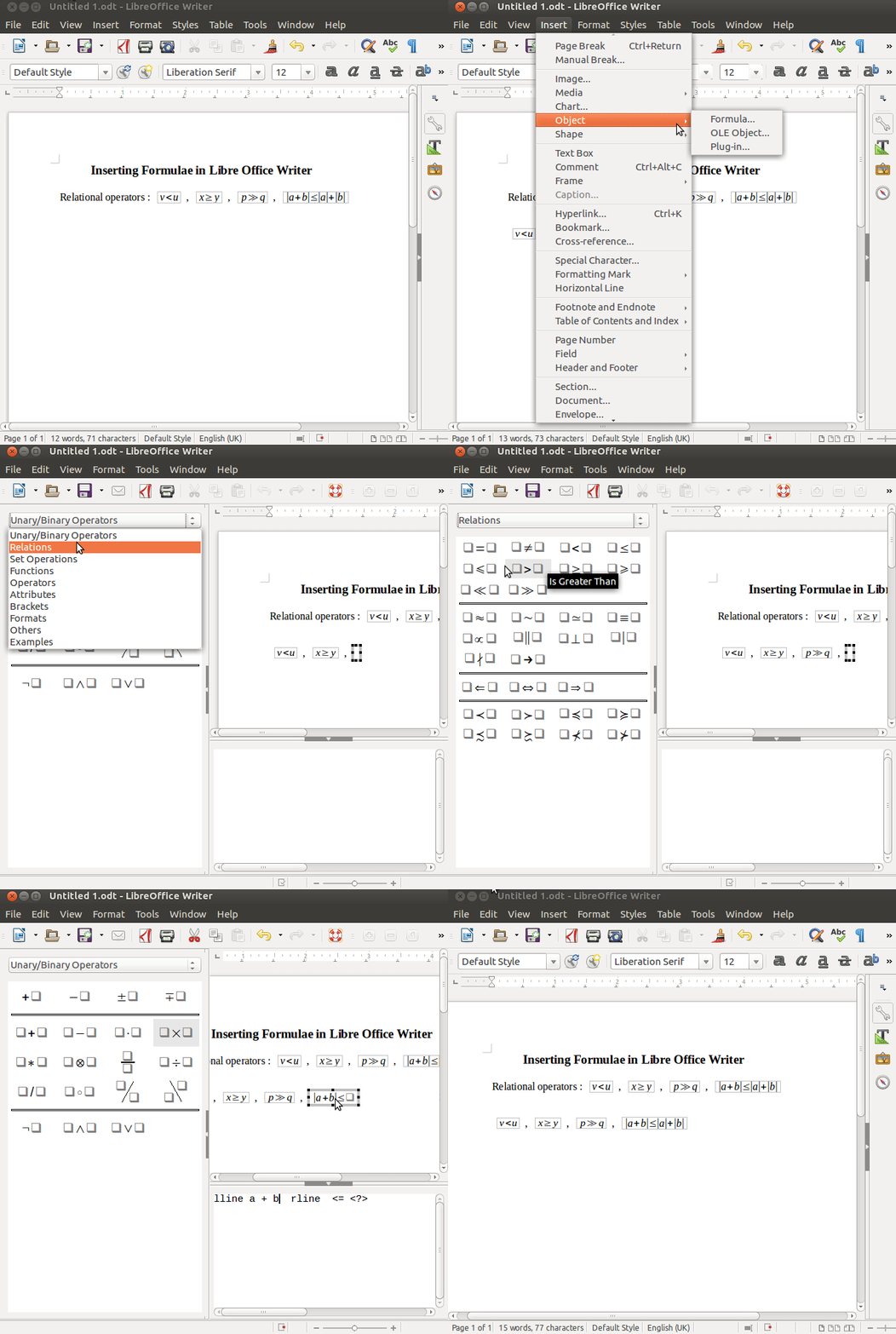
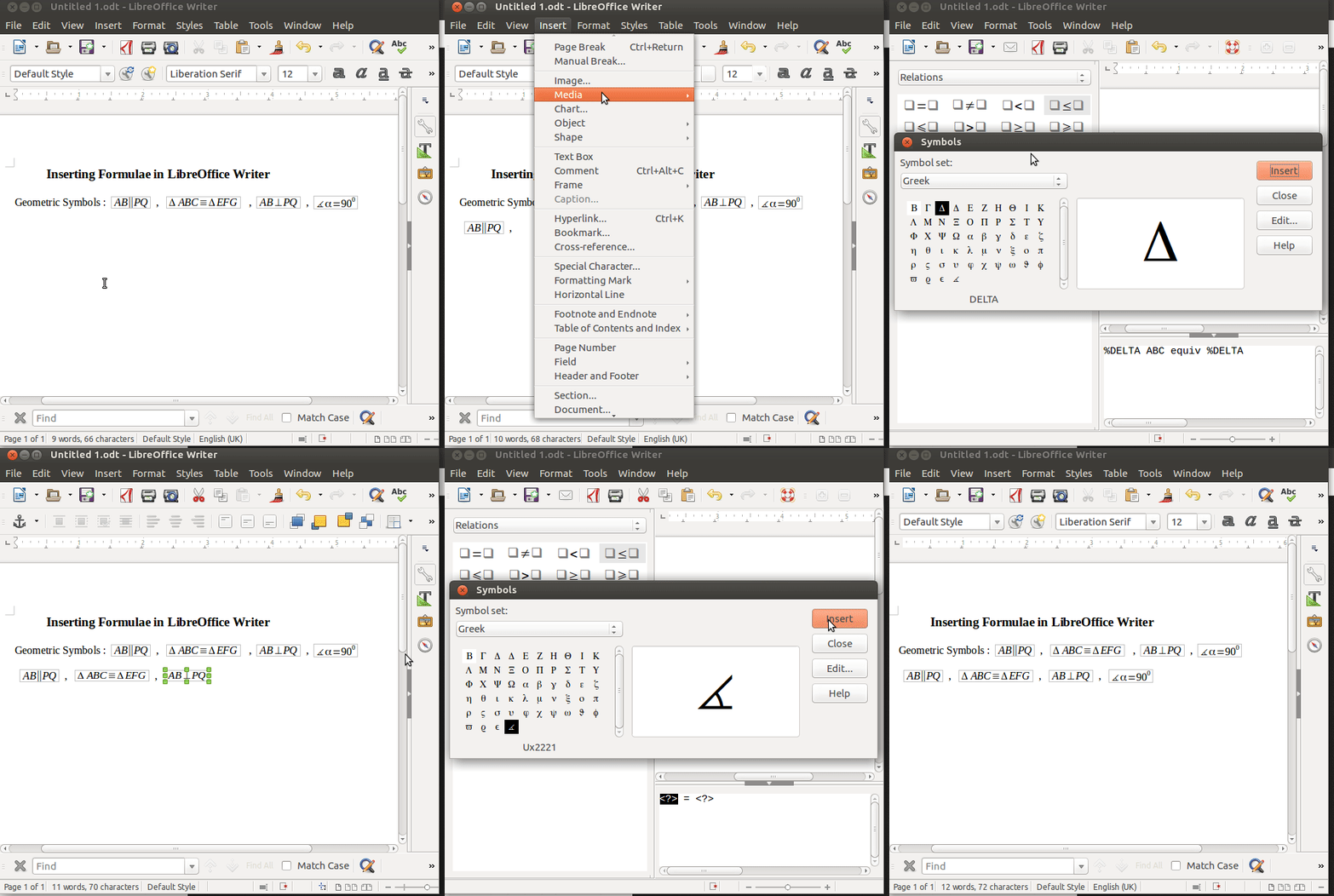
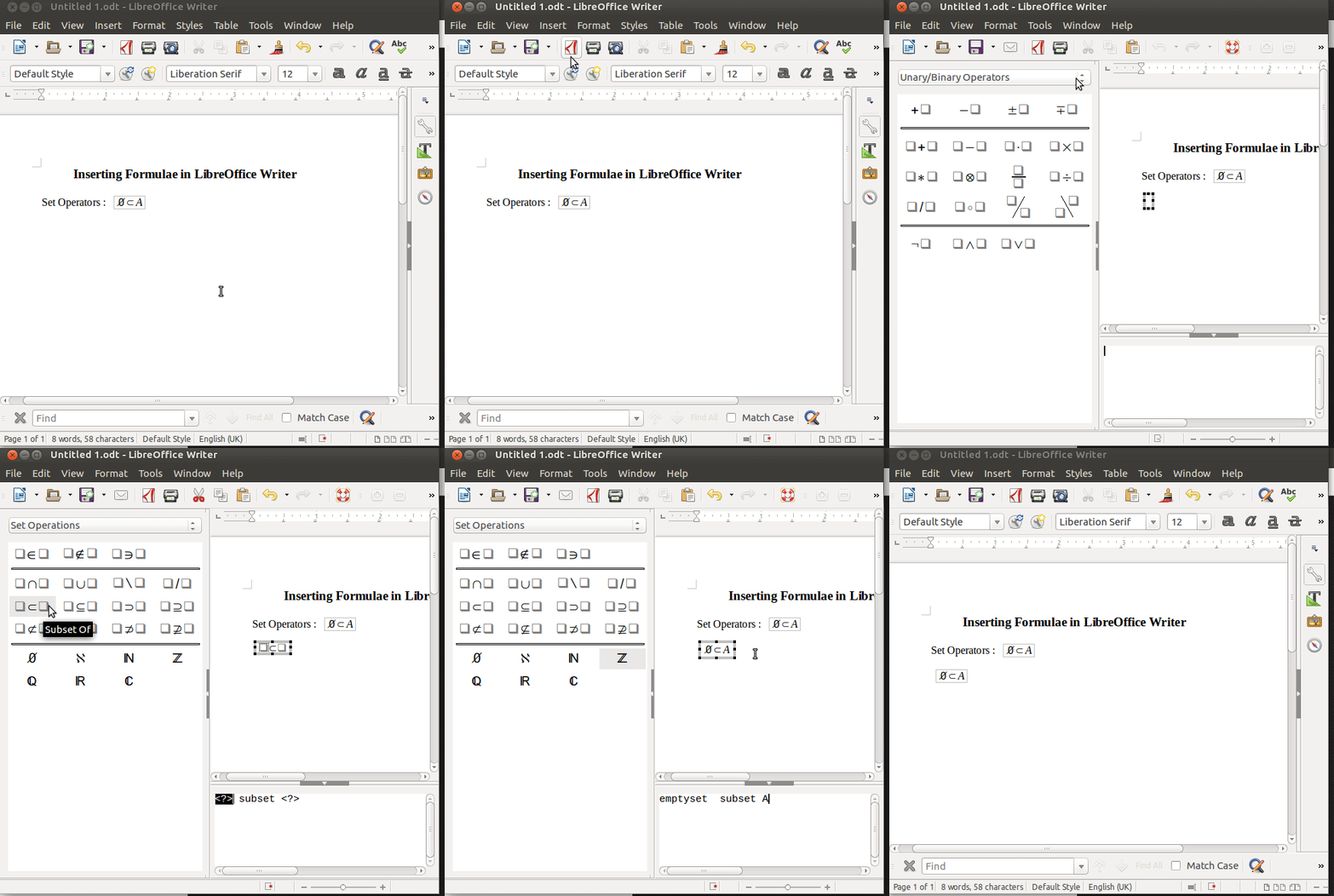
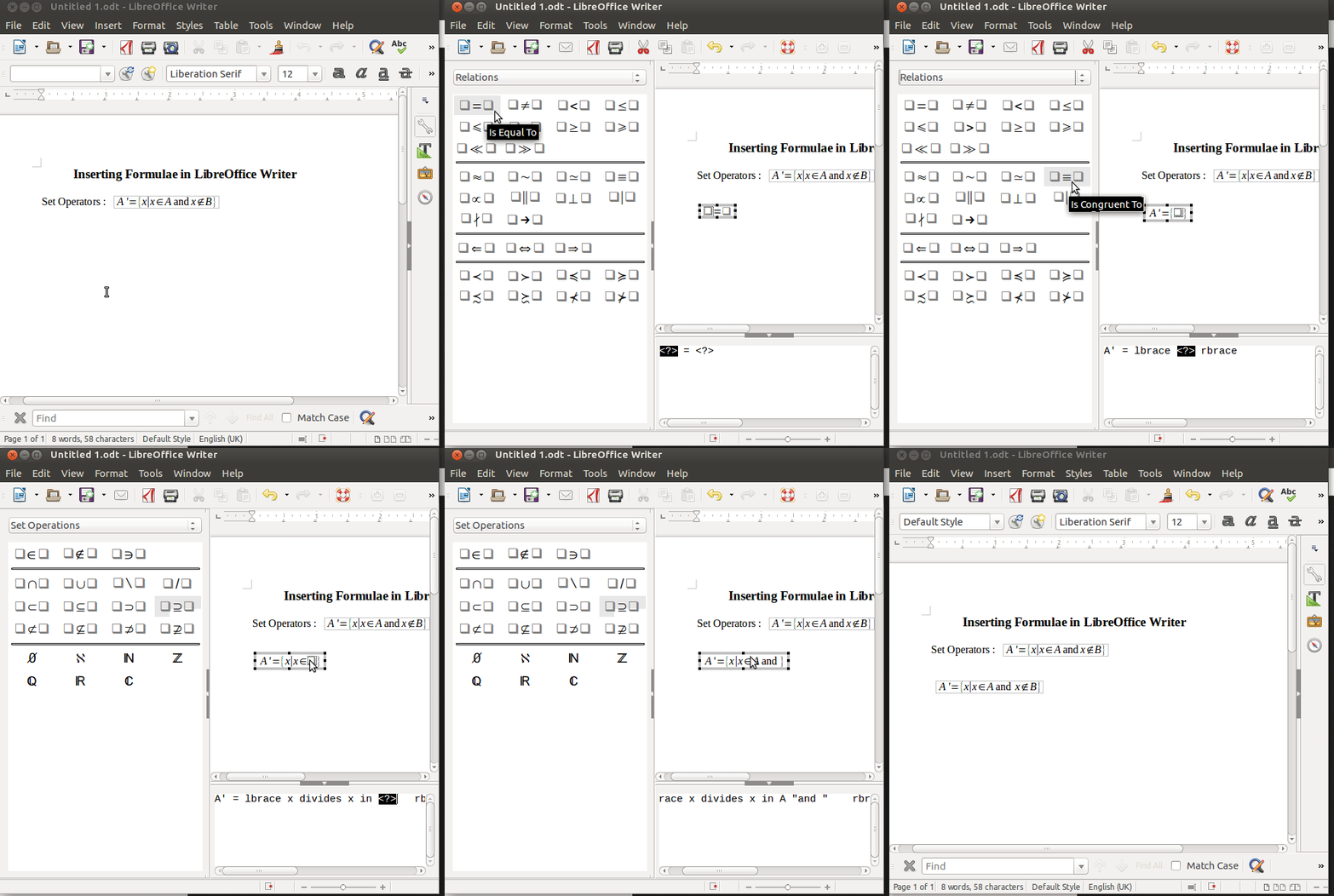
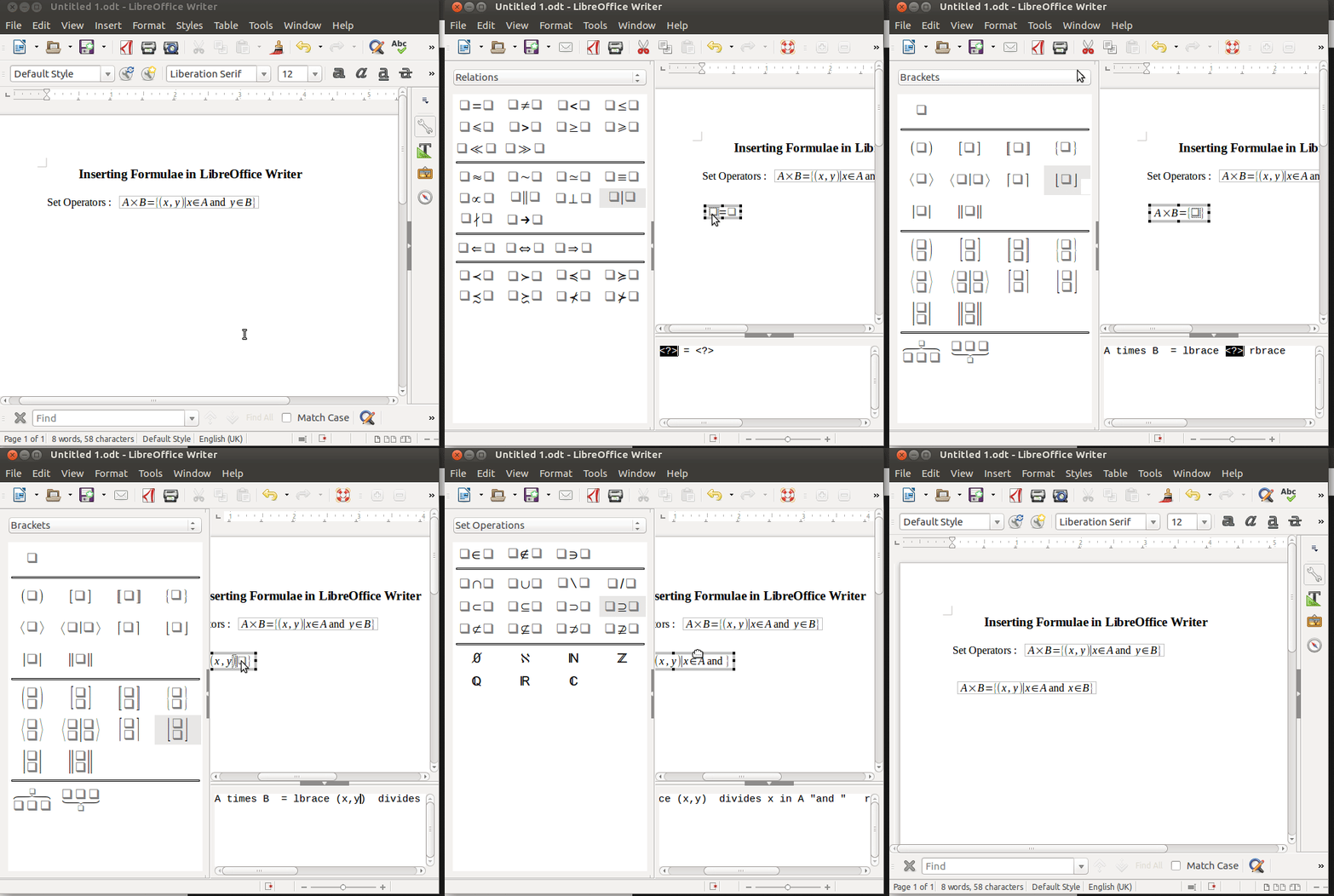
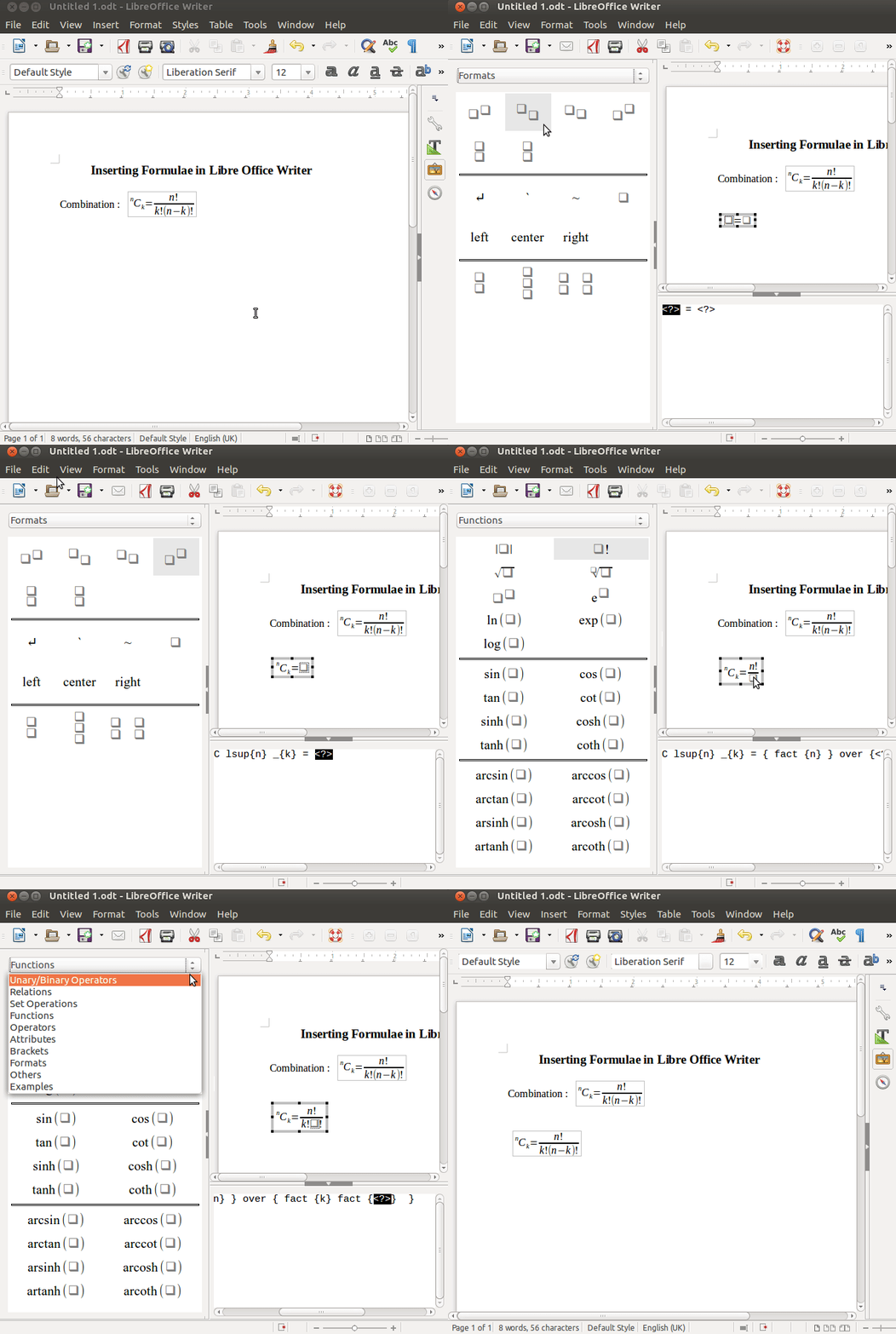
LibreOffice Writer treats formulae as objects. For insertion of an expression at any point in the document go to Insert (in menu bar) → Object → Formula.
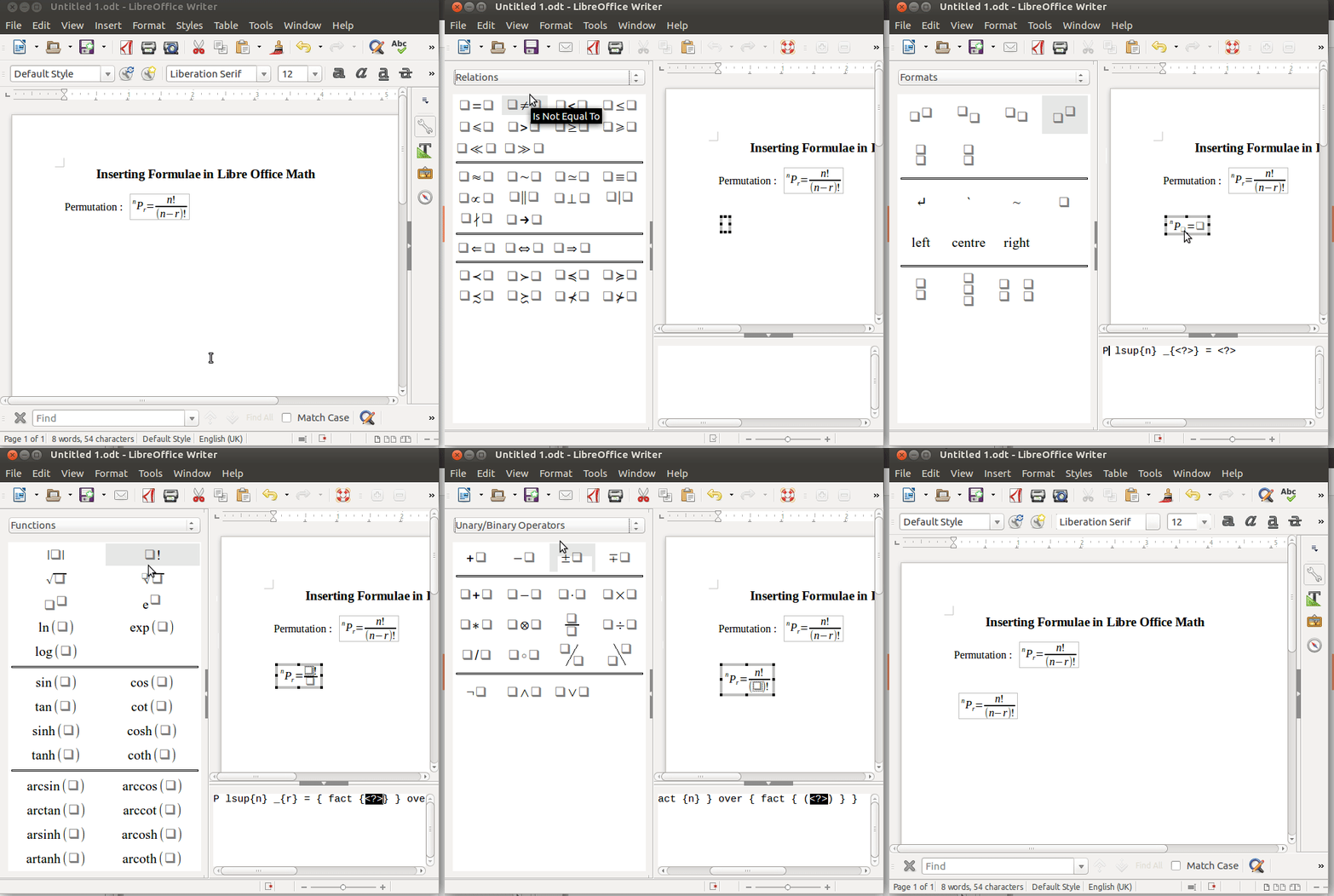
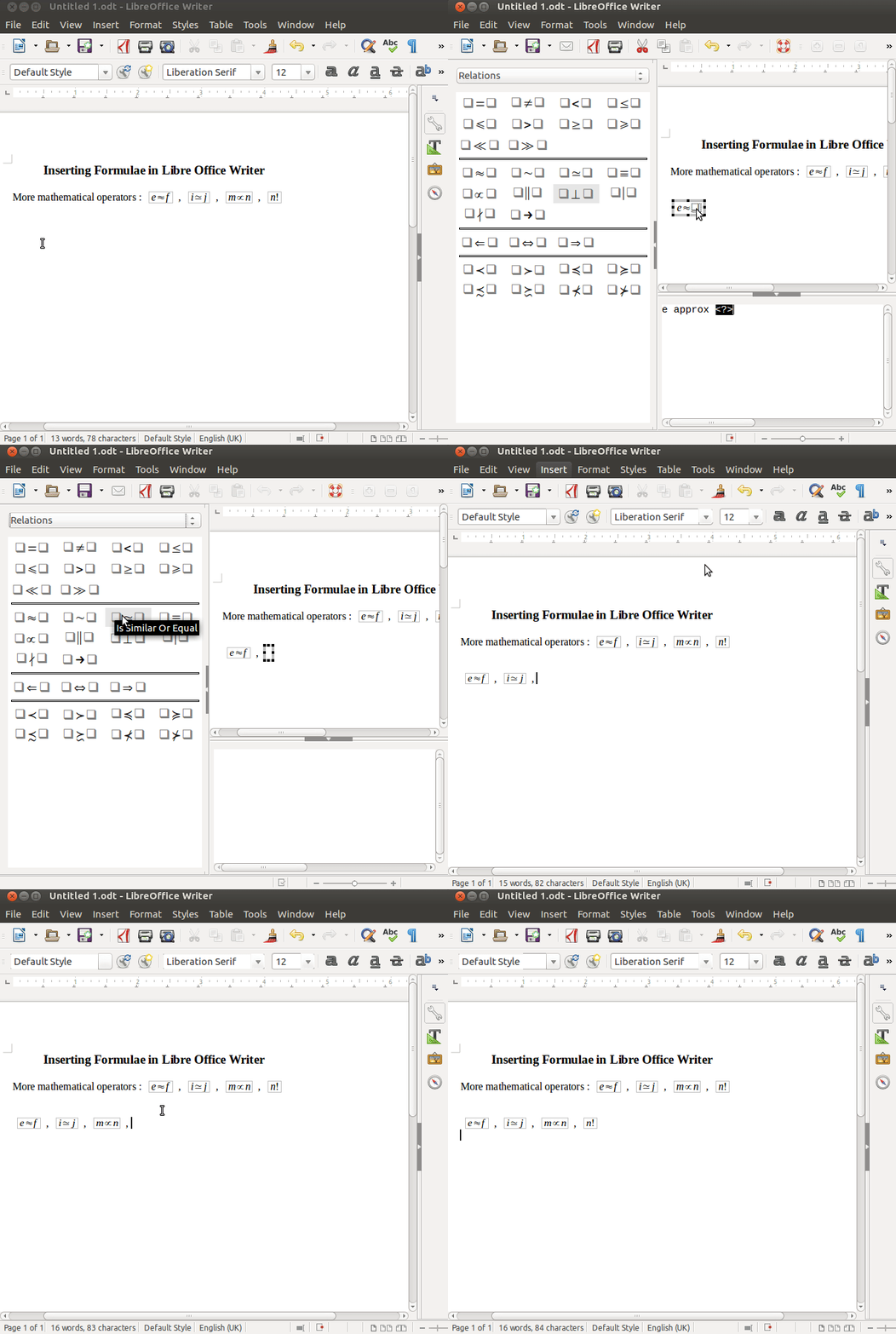
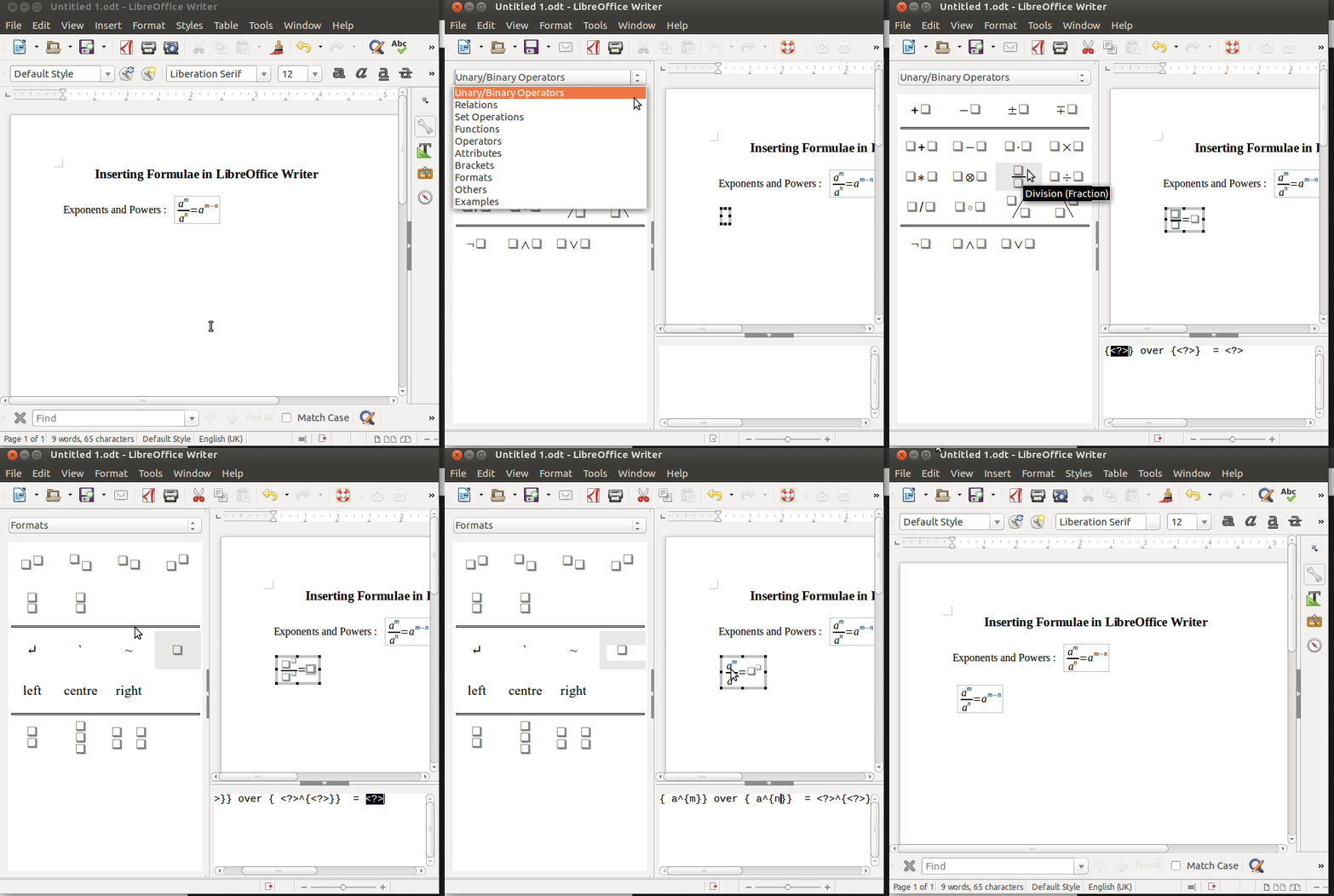
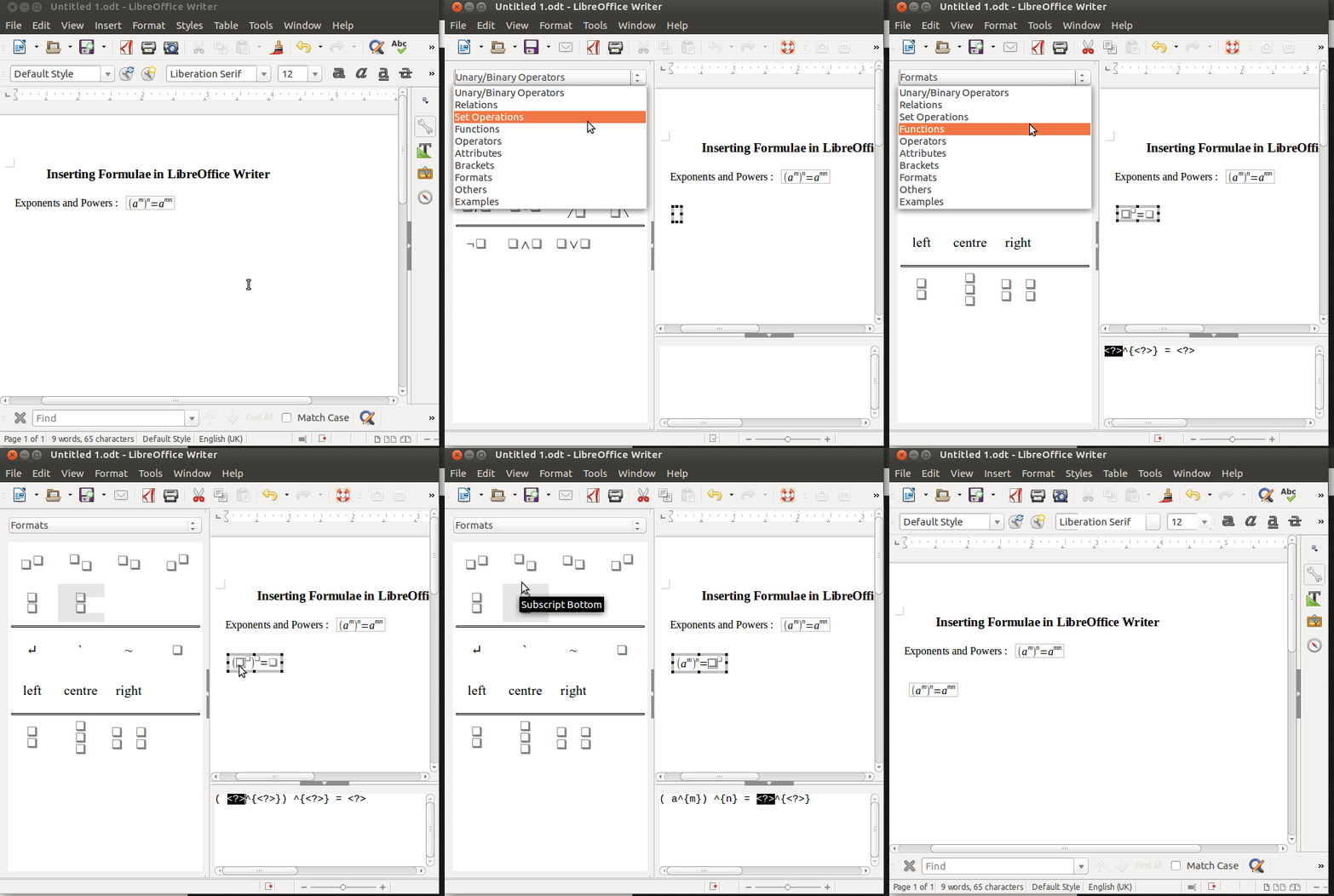
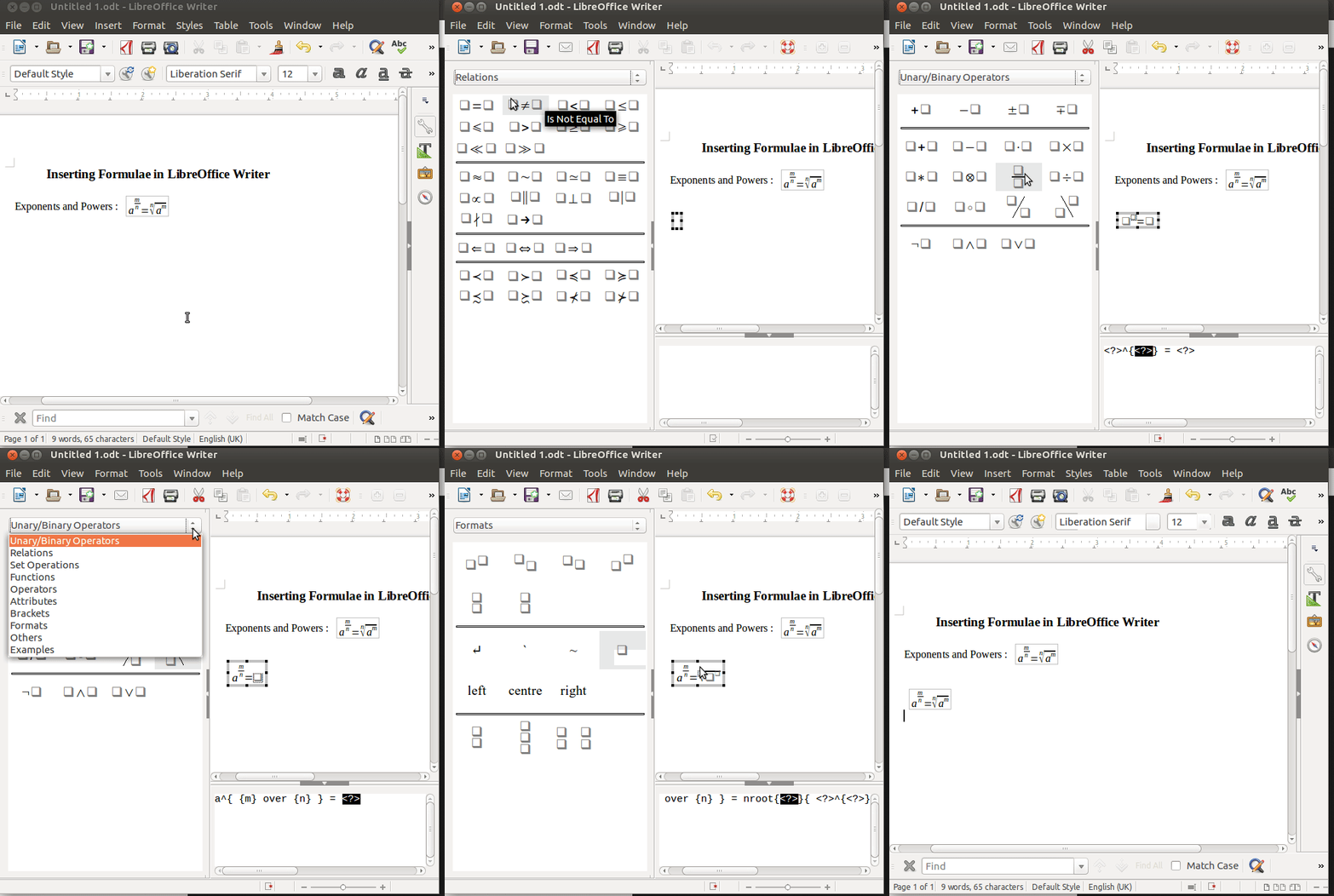
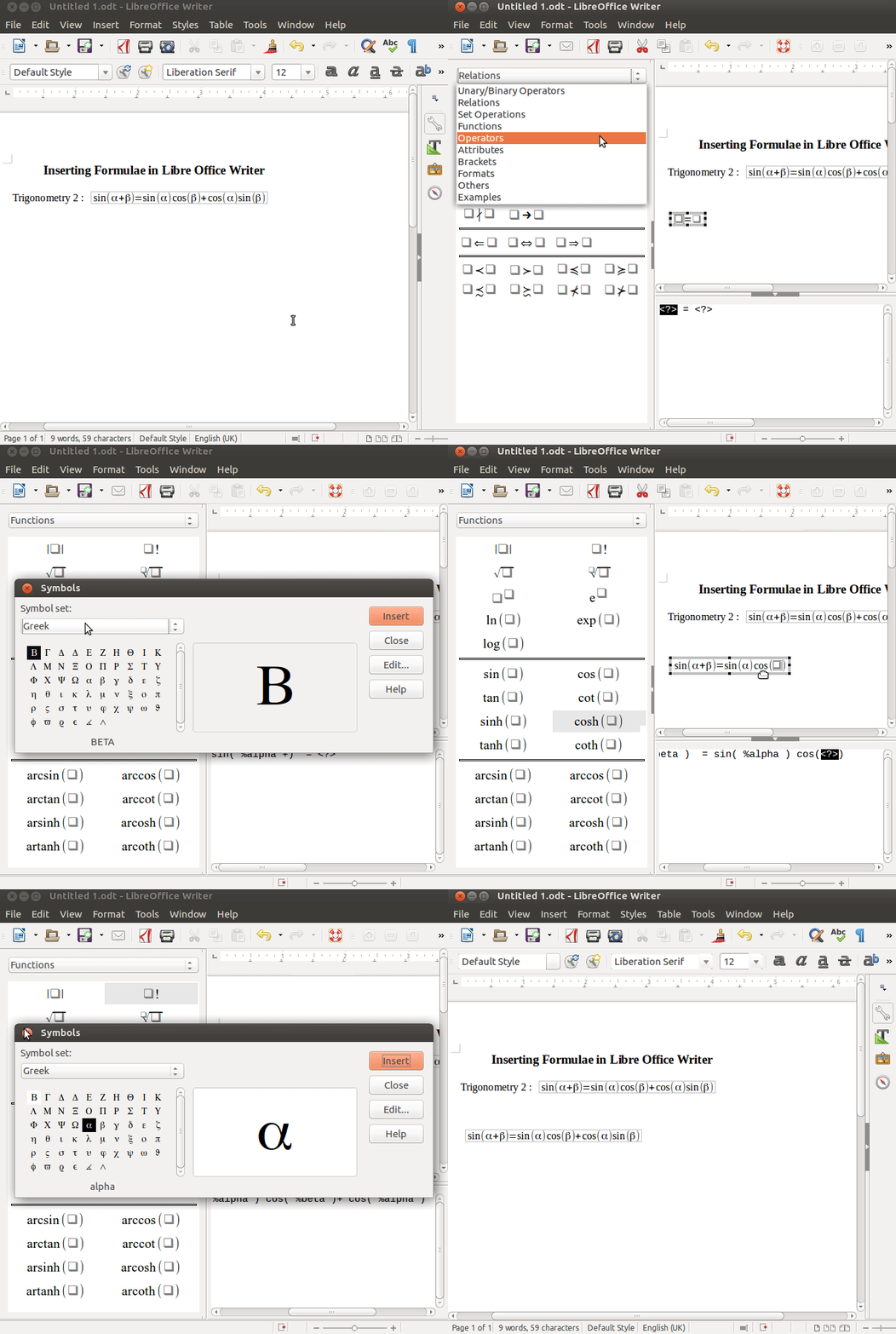
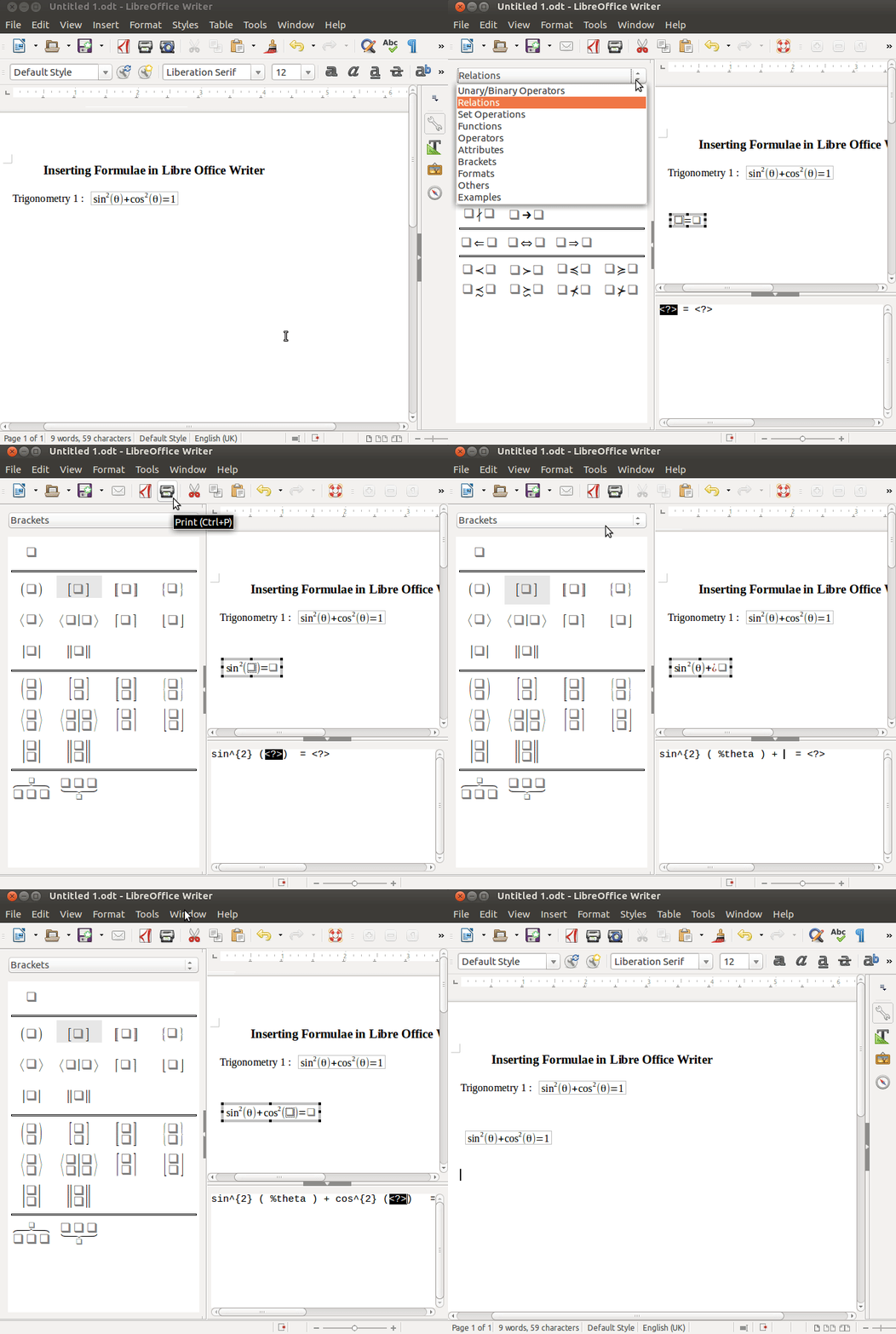
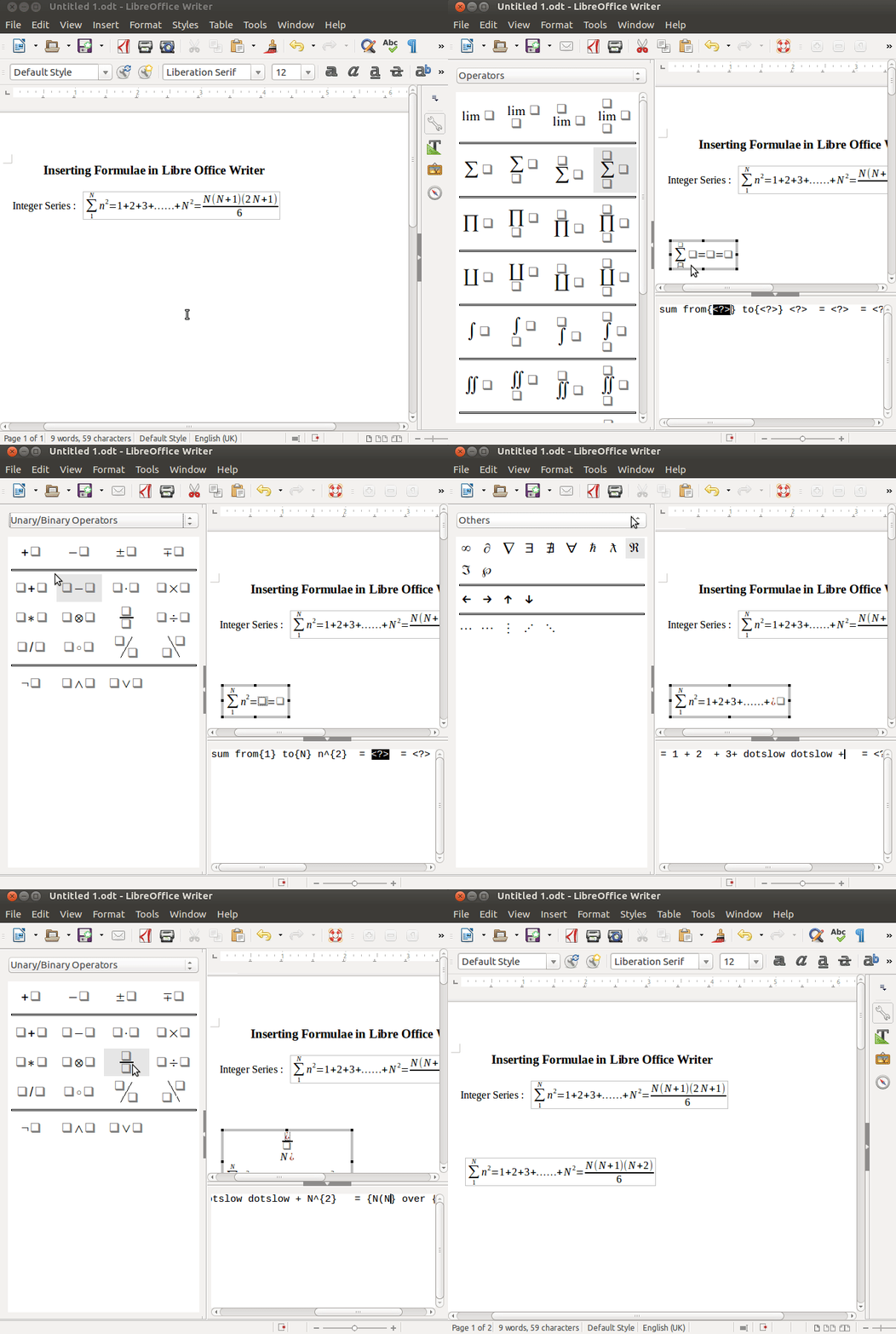
The Formula Window appears on the left hand-side, it has a variety of operations, functions and attributes that can be included in the document. The top drop down menu helps us toggle between different operations. Selecting the operations from the drop down box displays all the mathematical notations under each category. Clicking on the required mathematical notation inserts the notation in the document.
To edit this object or to insert numbers and variables in the expression double click on the object/ right click on the object to select edit from the options.
- A dialogue box on the bottom part of the screen allows us to edit the the formula structure and also enter data.
- The text or numbers in the formula structure can also be inserted by clicking on the specific place holders in the expression.
*It is important to note that once we move the cursor away from the formula the formula window closes and to insert another formula we have to follow the steps to insert formula again.
Inserting Formulae in LibreOffice Writer
* The links to the formulae open the GIFs in your browser, to download the GIF save the page after opening the link.
Introduction
1) Navigating Menus

2) Exemplar Formula

Simple Arithmetic Operators
1) ,


(if you click on the Link, it will open the gif in your web browser. You can see it and also save it on your computer using the File -> Save As option. You can also download the file by 'right-clicking' the Link and choosing 'Save link as' option).
2)

3) 
 ,
,


Relational Operators
1) ,


2)

Geometric Operators
1)

2) 

Set Operators
1)

2)

3)

4)

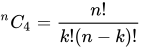
Permutation and Combination
1)
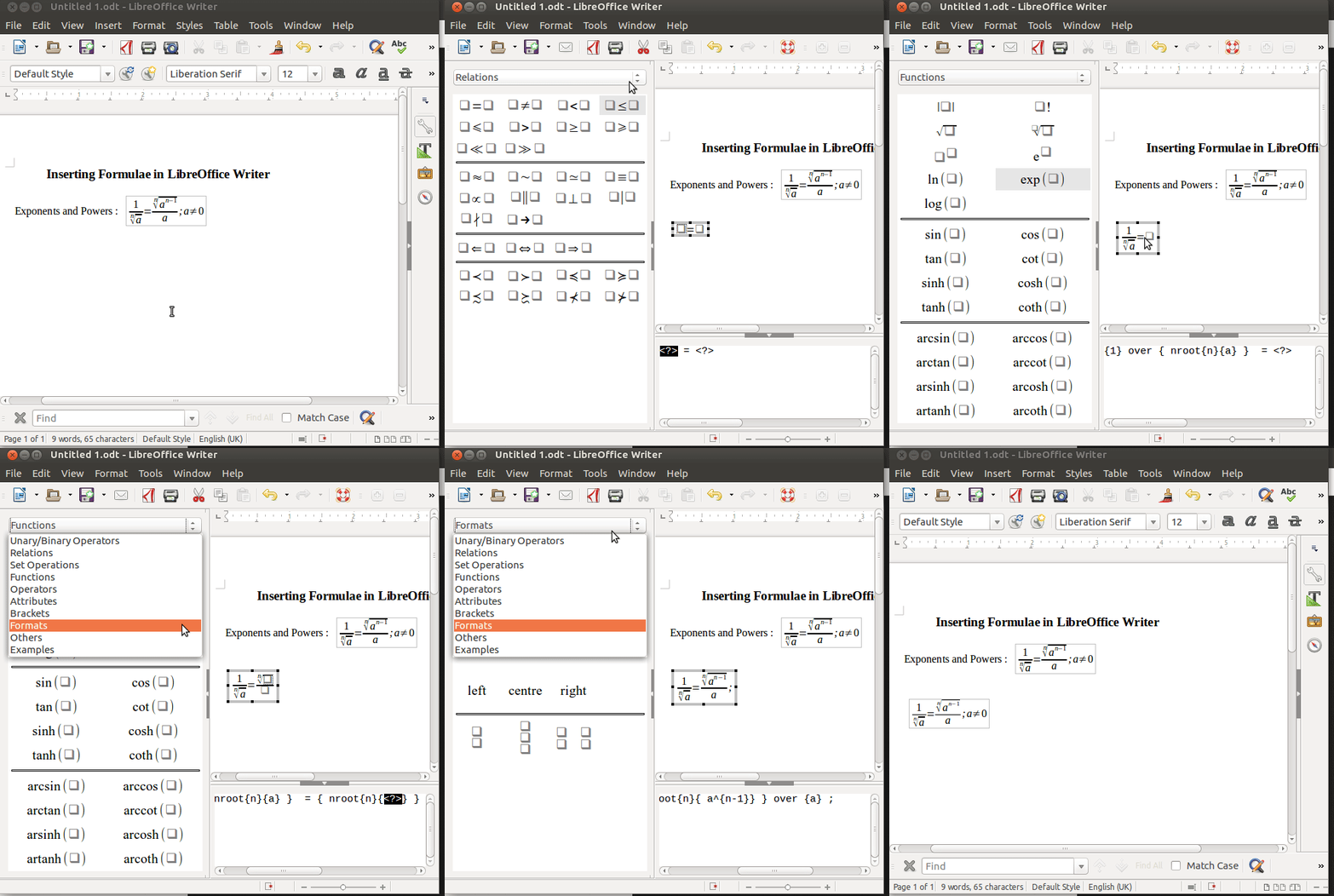
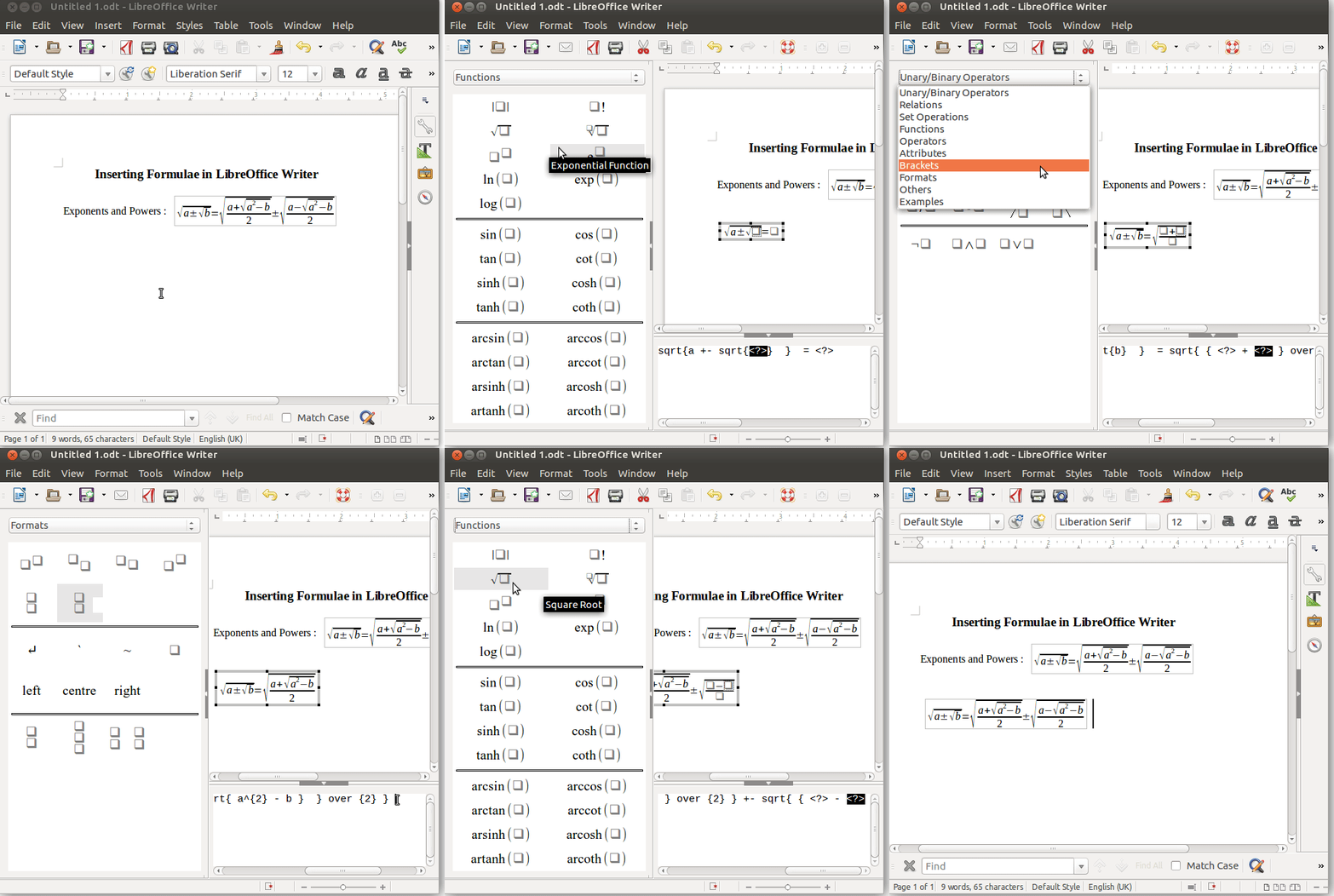
Exponents and Powers
1)

2)

3)
![{\displaystyle a^{m \over n}={\sqrt[{n}]{a^{m}}}}](https://wikimedia.org/api/rest_v1/media/math/render/svg/33fec5b4eefde4a9519af30a674b5b612781d989)
4)
![{\displaystyle {{1} \over {\sqrt[{n}]{a}}}={{\sqrt[{n}]{a^{n-1}}} \over {a}};a\neq 0}](https://wikimedia.org/api/rest_v1/media/math/render/svg/0aa10d2b3d529fa008a720dab6076a0562095e04)
5)

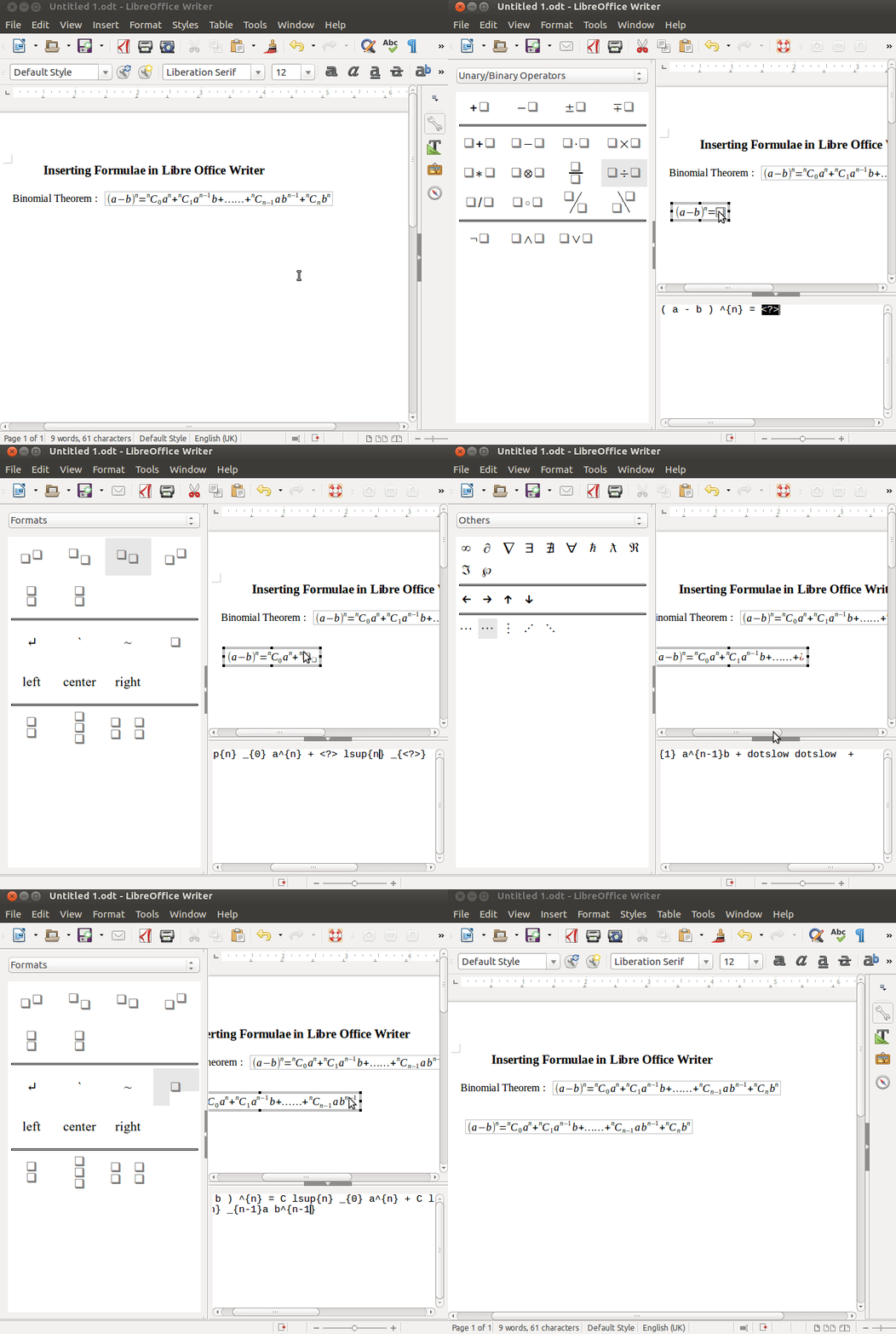
Binomial Theorem
1)

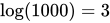
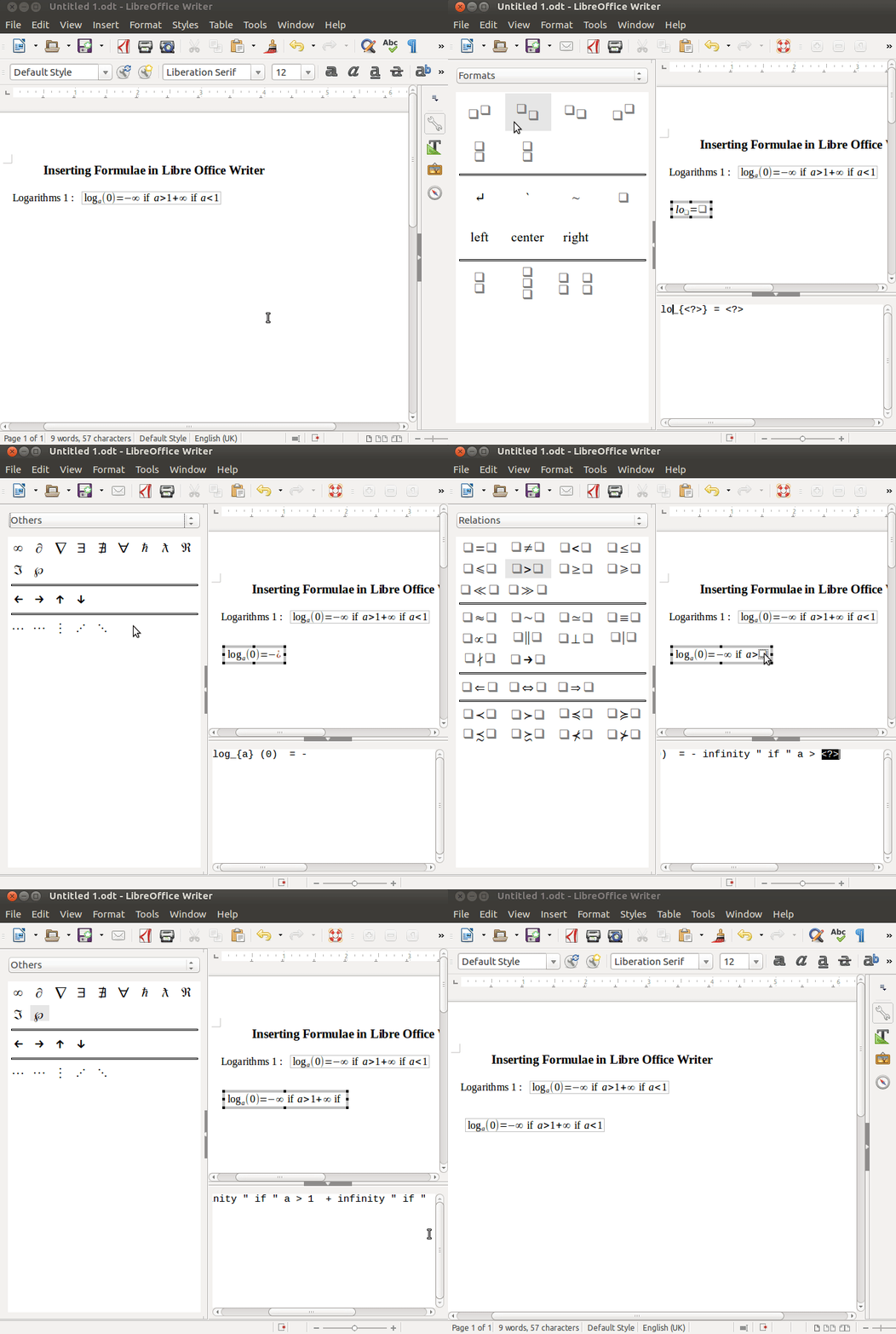
Logarithms
1)

2)
Trigonometry
1)

2)

Integer Series
1)





Advanced Features :
Formulas as separate documents or files
To create a formula as a separate document or file, use one of the following methods to open an empty formula document in LibreOffice Math :
• On the menu bar, go to File > New > Formula
• From the Start Center, click Math Formula
•On the Standard toolbar, click the triangle to the right of the New icon and select Formula from the context menu.
•In Math, use the keyboard shortcut Ctrl+N
•Use command Import MathML from the clipboard
As you enter the markup language in the Formula Editor, the formula will appear in the Preview window during and after input of the markup. The Elements window to the left of the Preview window may also appear, if it has been selected in View on the menu bar.
Click on Tools → Customize, the customization window appears.
Here, in tool-bar select Standard.
In tool-bar content scroll down and click on the check box for formula.
Then press Enter , this provides a short cut for formula insertion in the standard menu bar
Clicking on it opens the same formula window which we can use to insert and edit formulae.