Difference between revisions of "Learn Ubuntu"
| Line 143: | Line 143: | ||
===Adding your languages to type in Ubuntu=== | ===Adding your languages to type in Ubuntu=== | ||
| − | In Ubuntu by default you can type English in any application and by default it will use only Unicode fonts unless you manually changing it to non- | + | In Ubuntu by default you can type English in any application and by default it will use only Unicode fonts unless you manually changing it to non-Unicode. |
| − | [[File:Selecting | + | [[File:Selecting ibus for typing language.png|left|thumb|Selecting Ibus for typing language]] |
| + | Also you can type any your local languages in Ubuntu by adding those languages in Ibus. For typing in any local language, Ubuntu will use application called Ibus. You can follow the below step to set up Ibus and to add languages in the typing list. <br> | ||
# Go to Applications -> System tools -> System Settings -> Language Support ->Look at the Keyboard input method system Select '''IBus''' and close the window. | # Go to Applications -> System tools -> System Settings -> Language Support ->Look at the Keyboard input method system Select '''IBus''' and close the window. | ||
# Log-out your computer and log-in to applying this changes. | # Log-out your computer and log-in to applying this changes. | ||
| − | |||
Now you have to add your languages in "Text Entry" to type it. You can type multiple language in any application by adding it in this list.<br> | Now you have to add your languages in "Text Entry" to type it. You can type multiple language in any application by adding it in this list.<br> | ||
| − | + | ||
| − | File: | + | |
| − | File: | + | [[File:Selecting preferences.png|left|thumb|Selecting preferences]] |
| − | + | [[File:Adding language to text entry.png|thumb|Adding language to text entry]] | |
| + | |||
| + | |||
| + | |||
| + | |||
| + | |||
| + | |||
| + | |||
| + | |||
| + | |||
| + | |||
# Click on '''"En"''' from the top panel and select "Text Entry". | # Click on '''"En"''' from the top panel and select "Text Entry". | ||
# Once the Text Entry window opens, click on "+" arrow mark, as shown in image. | # Once the Text Entry window opens, click on "+" arrow mark, as shown in image. | ||
Revision as of 10:08, 20 September 2022

Introduction
Operating system is also called system software as it works with the hardware. Every computer must have an operating system to run other computer programs. Even your mobile phone will have an operating system. Operating systems start automatically when you turn on the computer, this process is termed as booting. All the other computer programs like programs to paint, type, listen to music, learn mathmatics etc., are called application software or 'Apps' which work with the system software.
Ubuntu is a ‘Free and Open Source Software’ (called FOSS in short) operating system. You may be familiar with Microsoft Windows operating system or used an application called Adobe Reader. Windows or Adobe Photoshop are ‘proprietary’ , meaning they cannot be copied or shared or modified by us; FOSS applications are licensed under the ‘General Public License’ which allows all of us to share the software freely, we can also modify the software as per our needs. Hence it is important to use FOSS in our schools. Teachers must learn and teach FOSS and avoid use of proprietary software, since it is not possible for all to access and use proprietary software, and not possible for anyone (other than the vendor) to study or improve the software.
Since all the software like Office suite, web browser, educational software can be bundled with Ubuntu GNU/Linux operating system, all these applications can be installed on the computer at one time. On proprietary software Windows, each software has to be separately installed, which can make it cumbersome and time consuming. Operating systems use a program called the Graphical User Interface (GUI) to access other computer with a mouse. The popular operating systems are Microsoft Windows, GNU/Linux and Mac OS. In this section, you will learn about the functions of an operating system, using an example of Ubuntu GNU/Linux operating system. With this learning, you can also operate a computer with Windows of Mac operating systems. Remember that we are focusing on learning the processes of any software application, so that we can, with that learning, use similar other applications.
Basic information
| ICT Competency | Ubuntu GNU/Linux is an operating system for the computer. The operating system is the foundation, which supports the interface between the user and other software applications. Hence learning Ubuntu constitutes basic digital literacy. |
| Educational application and relevance | There are a large number of freely shareable educational tools on Ubuntu pertaining to mathematics, science, social sciences, languages etc which can be used in all schools. There are a large number of additional freely shareable tools on GNU/Linux, such as IBUS which support word processing in more than 50 languages, including all languages used in Telangana such as Telugu, Urdu, Kannada, Tamil, Marathi, Hindi etc. The ORCA screen reader can be used by the visually handicapped for reading content on the computer screen. Scribus can be used for for desktop publishing. |
| Version |
Once in six months, Canonical releases a new version of the Ubuntu. The first Ubuntu release was in April 2004. The recently released version of Ubuntu is 18.04 (as April 2018), but Ubuntu 18.04 is the latest LTS (Long Term Support) version, which you will use. |
| Configuration | To install and use Ubuntu on your computer, it should have following configuration:
Processor: 2 GHz dual core processor or better If your computer does not match the above hardware specifications, or is old, install Lubuntu OS. Lubuntu is an Ubuntu based distribution meant for low hardware configuration computers. Lubuntu is a fast and lightweight operating system. It has low hardware requirements. Download Lubuntu ISO 32 bit from here and 64 bit here. |
| Other similar applications | Mint, Debian, OpenSUSE, and Fedora are popular Linux distributions. |
| The application on mobiles and tablets |
Ubuntu is available on select Mobile phones and tablets |
| Development and community help |
There are many community forums are helping Ubuntu users. |
Overview of Features
Ubuntu performs all the basic functions expected of an operating system.
- It allows the user to login and logout and keeps the user data secure within that login
- Users can browse the folders and files using a file browser
- Users can use different applications on their computer for creating and accessing files. This includes accessing, creating, editing text, image, audio, video, animation files.
- Users can connect to other devices - printers and scanners, mobile phones, pen drives, external hard disks and other storage devices, external DVD writers etc.
- Users can connect to the internet.
Ubuntu is shipped with many applications relevant to education including GCompris, KDE Edutainment Suite, Ubuntu Menu editor, LibreOffice, Gnome Nanny etc. Ubuntu is available to freely download. Edubuntu's default GUI is Unity while GNOME is also available.
Working with the application
- Starting and shutting down your computer
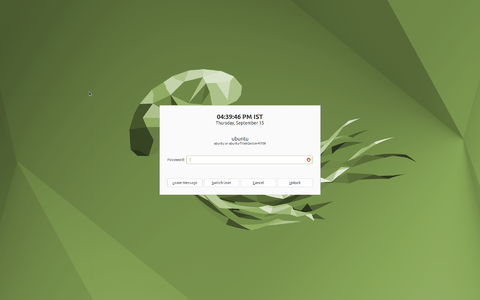
Ubuntu login screen
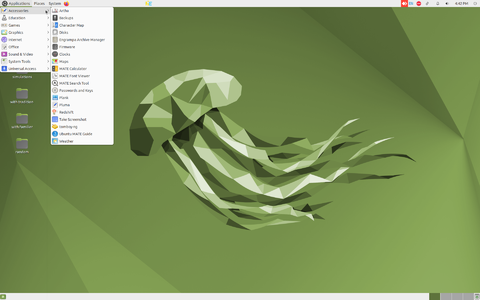
Ubuntu home screen
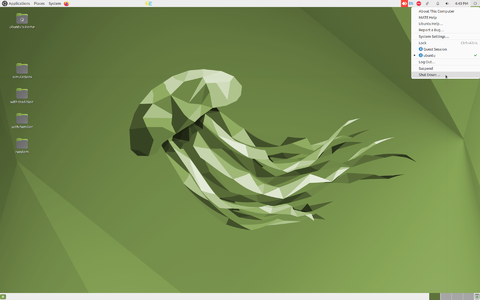
Shutdown the computer


The above images show you the basic Ubuntu interface.
- Logging in: When you switch on your computer, you will see a login screen. Login with the user id (name) and password created by the system administrator. Ubuntu allows you to have a user interface in your own language, by specifying your language as the user language, during your user id creation. Once you have logged in, the home screen will appear.
- Home screen: The second image shows you the Ubuntu home screen. The applications menu at the top left has a list of all the programs (apps) on your computer. The Places menu, next to it, lets you access the 'places' on your computer including the hard disk, CD/DVD or pen drives. Digital cameras and MP3 players are also listed here when plugged-in. The Applications menu has sub menus for Education, Office, Internet, Games etc. Each sub-menu has many applications. You can try to learn them yourselves by clicking and selecting options.
- Shutting down the computer: What will you do after you have finished your work? You have to turn off the computer. You must turn it off by clicking on the last button on the right hand top corner and select shut down. Never turn off the power button without shutting the computer properly.
- Creating and managing folders and files
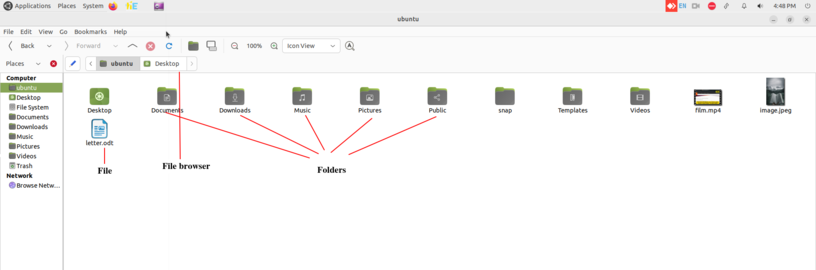
Managing files & folders
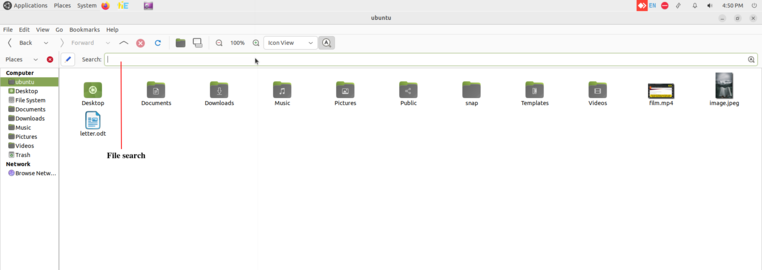
File search


- Creating and managing files and folders - When you write an essay or paint something on a paper, you would like to keep it for future, right? You would probably put it in a hard bound folder. Maybe, if you have more than one essay or painting, you would have one folder to hold your essays and one folder to hold your paintings.
- To create new folder right click on your mouse and click on "New Folder". Rename the folder and save your files in it. You can also create many sub folders within that.
- Always give meaningful names for folders, so that you can easily search for them later.
- You can move folders, and files across folders.
- You can create a file by opening a application, and creating a new file to prepare your content. You can create text documents with LibreOffice Writer, Images with Tux Paint etc.
- From HOME folder you can search any files and folders which you have saved in your computer, click on search option on the toolbar and type the keywords of the file or folder, it will show the all files contains our searching keywords in your computer. If you have an idea about the location of the file you are searching, you can launch the search from within that folder itself, instead of the Home folder, this will show you a lesser number of files
Opening files by "open with" option
- Opening files with application
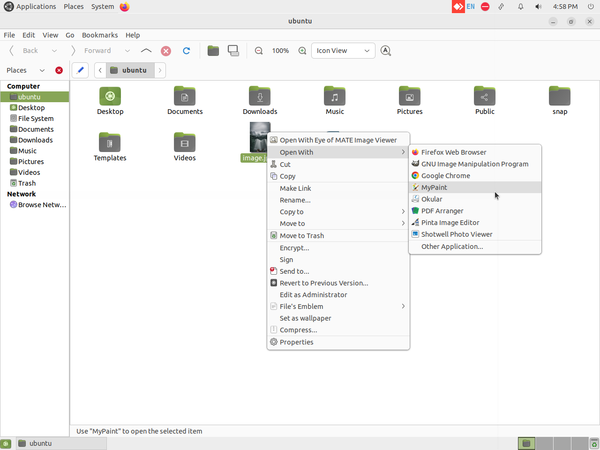
Opening files with application

- A file can usually be opened with any given application in Ubuntu which supports that particular file. For example, an image file can be opened with image viewer, gimp, etc. So if you want to open with a application of your choice, right click on file select "Open with" to see the available options.
- File can be opened with multiple application in Ubuntu which support that particular file. For example, an image file can be opened with image viewer and also can be with Gimp, Mypaint, Kolorpaint, Shotwell viewer etc. So if you want to open the file with a application of your choice, right click on file select "Open with" to see the available multiple options.
Import files and folders from external device
- Import files and folders from external device
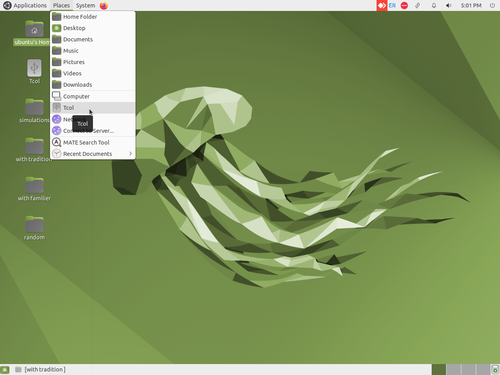
Access external device
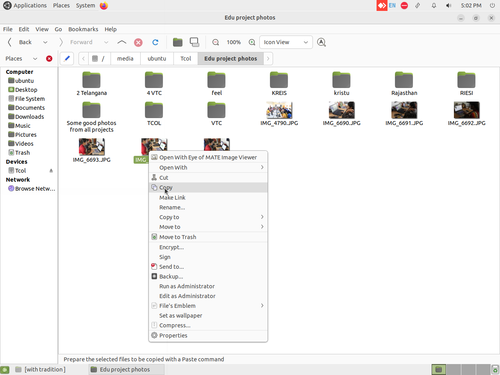
Copy from external device


- You can import files from other devices. You can insert devices such as CDs, DVDs or memory cards into your computer.
- Connect the devices such as pen drives, memory card holders, external DVD drives using a cable, to your computer.
- Click on "Places" from your desktop top panel. You can see your device name.
- Click on your device name to view the files from that device.
- To import files from devices, right click on that file and click on "Copy", then paste it into your computer folder.You can copy audio and video files, that you have recorded on your mobile phone, to your computer. You can edit these files. In the same way, you can copy these and other files from your computer to your mobile phone.
You should periodically take back up of important files on your computer and store it on a pen drive or an external hard disk. So that if the hard disk of your computer has a problem or crashes, you would not lose your data entirely.
 |
Study how there are different kinds of connecting cables, for different devices / ports on your computer. Use the appropriate cable in each case. You can connect printers, scanners, projectors to suitable ports on your computer. |
Changing user interface language in Ubuntu
English will be default interface in Ubuntu but you can also use Ubuntu in you local languages like Telugu, Kannada or Tamil.
- Changing user interface language in Ubuntu

Select language support from system settings
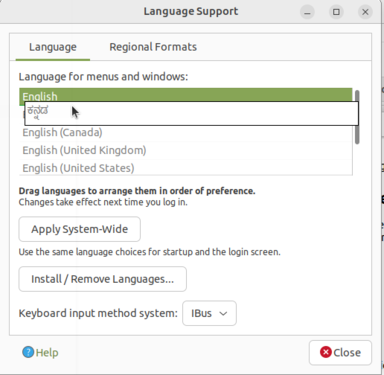
Changing the language from English to Kannada
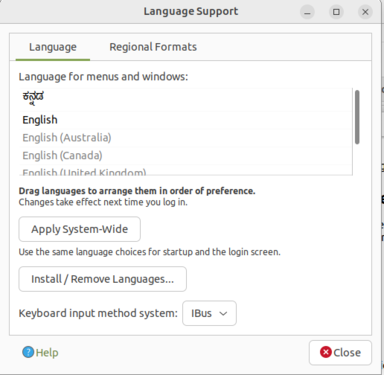
Arrange language list


- To get started, goto Applications -> System tools -> System settings -> Language support.
- It may ask you to update or add components to your current default language when you first open the dialog. If you do not have internet connect then click "Remind Me Later" and If you have good internet connection, select install to update your language lists.
- Now we are ready to change our Ubuntu interface language. Find your new language in the list, and then click and drag it to the top of the list and click Apply System-Wide.
- Once you have set you language as first and click on "system-wide", you will need to log out of your account and log in to see your new interface language.
- Ubuntu may ask if you want to update your user folders names to your new language, Select Rename folder option.
- Changing user interface language in Ubuntu
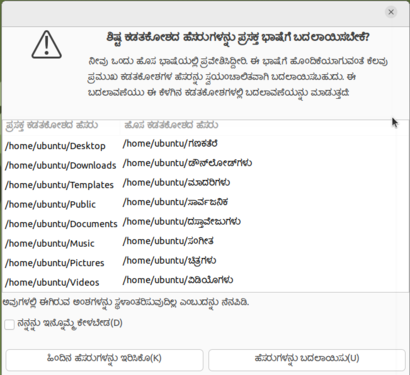
Renaming folders
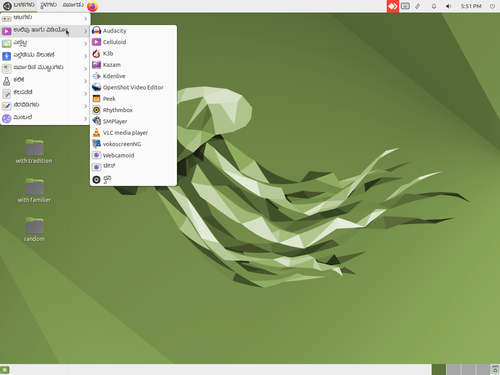
Kannada Ubuntu interface


Adding software applications to your computer system

You can add many more FOSS applications to your computer. Select the "Ubuntu software centre" - You can download applications from the Internet. Teachers can explore new FOSS educational tools and utilities.
Go to Applications > System Tools -> Software. You will need to type the required application name in the search bar. It will show all applications with the words you have entered and you will get an option for "Install". Click on "install" if you want to install the application. If your search does not get the application(s) you want, try with fewer letters / words to search.
It may ask your Ubuntu log in password for authentication, just type your Ubuntu password press enter.
If you have doubts or difficulties in using the Ubuntu operating system or any of the applications, you can search for solutions on the Internet using a search engine or refer to 'Frequently asked questions'.
Saving the files and formats
Not applicable
Adding your languages to type in Ubuntu
In Ubuntu by default you can type English in any application and by default it will use only Unicode fonts unless you manually changing it to non-Unicode.

Also you can type any your local languages in Ubuntu by adding those languages in Ibus. For typing in any local language, Ubuntu will use application called Ibus. You can follow the below step to set up Ibus and to add languages in the typing list.
- Go to Applications -> System tools -> System Settings -> Language Support ->Look at the Keyboard input method system Select IBus and close the window.
- Log-out your computer and log-in to applying this changes.
Now you have to add your languages in "Text Entry" to type it. You can type multiple language in any application by adding it in this list.


- Click on "En" from the top panel and select "Text Entry".
- Once the Text Entry window opens, click on "+" arrow mark, as shown in image.
- The language list window will open, search your languages by typing it in search box. It will show the all the typing methods for the language. Choose a keyboard layout you are comfortable with and click "Add".
- Yes, you are finished all the set up, after this your language list looks like below.
- Adding languages in Text Entry
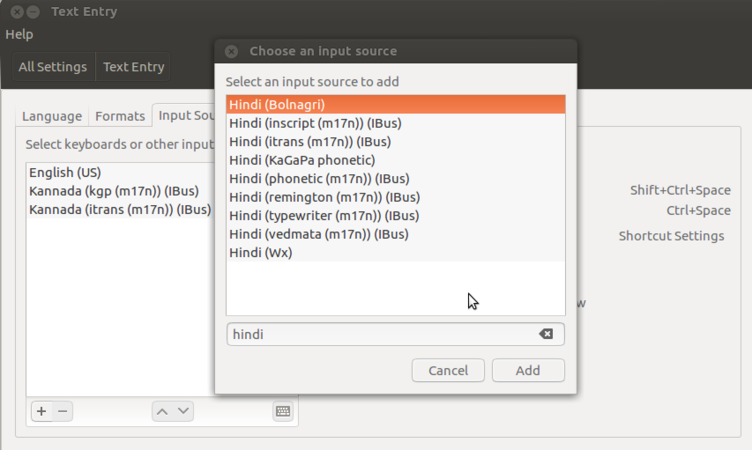
Adding Telugu to my language list
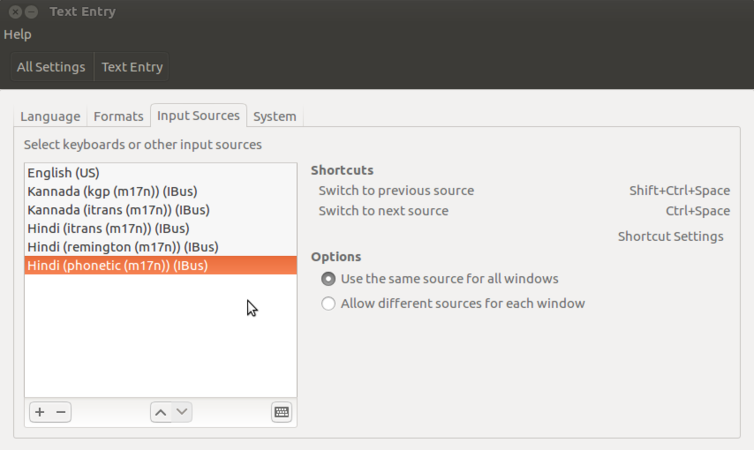
Added Telugu 3 typing methods


Now its time to type your added language in most of the applications. Click on the language panel "En" (right top corner of the screen) and select language in which you want to type. When you select language, icon will change to that language. The very important is you can add multiple languages in this list.
Advanced features
Ubuntu contains a wide range of software that includes LibreOffice, Firefox, Thunderbird and several games and Educational tools. Many additional software packages are accessible from the built in Ubuntu Software Center. More complex commands can be given to the computer using the 'Terminal' interface, this is really for those who have technical expertise.
Installation process
- Dual core processor and above
- Minimum 2 GB of RAM
- 30 GB of Separate partition in your hard-drive
- Either a CD/DVD drive or a USB port for the installer media
You will also need the Ubuntu software in a DVD or in a pen drive (as a boot-able USB device). You can download the Ubuntu(Kalpavriksha) iso from this link.
After you download Ubuntu16.04_dist.iso from the above link, follow below steps to put it in dvd or pen drive for installation.
- To make Ubuntu DVD in windows platform, follow this link
- To make Ubuntu DVD in Ubuntu plat form, follow this link
- To make Ubuntu bootable pendrive, follow this link
Installation steps
- To install Ubuntu along side your current windows OS - click here for installation handout
- To install Ubuntu by erasing your current OS - click here for installation handout
- To Upgrade your current Ubuntu to latest version - click here for installation handout
| Telugu
|
|---|
After login into you Ubuntu and if it is not showing Applications and places menu option, you just logout from your user and click on the Ubuntu icon (in front of your user name)

Click on Ubuntu icon from login screen and here select the Gnome flashback(metacity) and now login to your username with password. see the below gif for your reference.
NOTE: If you are not able to find any icons in the login screen, means you need to install this gnome flashback packages to get Applications, places menu. Follow the below steps to install it in your ubuntu computer.
You have to use terminal for installing this application. Applications -> System tools -> Terminal or key board shortcut Ctrl+Alt+T.
- Once terminal window is open, in front of dollar($) symbol just type below command.
- sudo apt update && sudo apt-get install kdenlive
- Then, just type your ubuntu password(it will not display on your screen), press Enter.
After you complete the installation, follow the above steps to switch to gnome.