Difference between revisions of "Learn Text Editor"
| Line 25: | Line 25: | ||
====Overview of features==== | ====Overview of features==== | ||
| − | Text editor | + | Text editor has very basic features of text editing. It does not allow formatting or embedding of other objects like images in a document. It is very simple to use. You can use it to prepare simple notes and documents. This also has tools for editing source code and structured text such as markup languages. |
====Installation==== | ====Installation==== | ||
#The application is part of the Ubuntu custom distribution. | #The application is part of the Ubuntu custom distribution. | ||
| − | #In case you do not find it on your computer, you can install by choosing | + | #In case you do not find it on your computer, you can install by choosing "Pluma" in Ubuntu Software Center |
#If you would like to install through the terminal follow these steps below: | #If you would like to install through the terminal follow these steps below: | ||
##Open terminal by clicking (Ctrl+Alt+T), | ##Open terminal by clicking (Ctrl+Alt+T), | ||
##Once Window page is open, in front of dollar($) symbol just type below command. | ##Once Window page is open, in front of dollar($) symbol just type below command. | ||
| − | ##'''sudo apt-get install | + | ##'''sudo apt-get install pluma''' |
## Then, just type your ubuntu password(it will not display on your screen), press Enter. | ## Then, just type your ubuntu password(it will not display on your screen), press Enter. | ||
| Line 39: | Line 39: | ||
==== Getting familiar with application ==== | ==== Getting familiar with application ==== | ||
| − | Open Text editor from | + | Open Text editor from "Applications --> Accessories --> Text editor (Pluma)" <br>The application has a menu bar and the standard toolbar which help you to open saved files, create new and also save a file. <br> |
====Creating a text document==== | ====Creating a text document==== | ||
| Line 46: | Line 46: | ||
File:Display the line margin.png|Displaying the line numbering | File:Display the line margin.png|Displaying the line numbering | ||
</gallery> | </gallery> | ||
| − | #In the first image you see text in multiple languages. Once you open the text editor directly you can start entering text in the new page. you can also type any language like Telugu, Tamil and Kannada etc by changing language from the top bar language option. You have an option for highlighting | + | #In the first image you see text in multiple languages. Once you open the text editor directly you can start entering text in the new page. you can also type any language like Telugu, Tamil and Kannada etc by changing language from the top bar language option. You have an option for highlighting misspelled words under the "Tools" option. The text editor also allows you to search, find and replace words from the search option on the tool bar. |
#You can also add line numbers to text document. In the right side bottom corner, click on drop down option and choose "Display line numbers". | #You can also add line numbers to text document. In the right side bottom corner, click on drop down option and choose "Display line numbers". | ||
| − | |||
| − | |||
==== Saving and exporting ==== | ==== Saving and exporting ==== | ||
<gallery mode="packed" heights="250px"> | <gallery mode="packed" heights="250px"> | ||
File:Saving text doc.png|Save the document in you computer | File:Saving text doc.png|Save the document in you computer | ||
</gallery> | </gallery> | ||
| − | To save the text document, click on save from | + | To save the text document, click on save from "File --> Save" option or you can press "Ctrl+S" and give the file name and the location to save the file. |
The text document will be saved as a ".txt" file. {{clear}} | The text document will be saved as a ".txt" file. {{clear}} | ||
==== Advanced features ==== | ==== Advanced features ==== | ||
| − | In a text editor, you can add preferences for the document from the Edit option which includes formatting and adding additional features. You can refer | + | In a text editor, you can add preferences for the document from the Edit option which includes formatting and adding additional features. You can refer for more details. |
| − | |||
=== Ideas for resource creation === | === Ideas for resource creation === | ||
Revision as of 10:56, 6 July 2022

Introduction
Basic information
| ICT Competency | ICT for creating generic resources; this can be used to enter text in English and local languages |
| Educational application and relevance | Text editor is a software used for creating (including writing, editing and printing) text resources. This can be used or gaining familiarity with text entry. |
| Version | 1.26.0 |
| Other similar applications | Sublimetext, Kate |
| The application on mobiles and tablets | Text Editor for Android |
| Development and community help | Pluma Text Editor |
Overview of features
Text editor has very basic features of text editing. It does not allow formatting or embedding of other objects like images in a document. It is very simple to use. You can use it to prepare simple notes and documents. This also has tools for editing source code and structured text such as markup languages.
Installation
- The application is part of the Ubuntu custom distribution.
- In case you do not find it on your computer, you can install by choosing "Pluma" in Ubuntu Software Center
- If you would like to install through the terminal follow these steps below:
- Open terminal by clicking (Ctrl+Alt+T),
- Once Window page is open, in front of dollar($) symbol just type below command.
- sudo apt-get install pluma
- Then, just type your ubuntu password(it will not display on your screen), press Enter.
Working with application
Getting familiar with application
Open Text editor from "Applications --> Accessories --> Text editor (Pluma)"
The application has a menu bar and the standard toolbar which help you to open saved files, create new and also save a file.
Creating a text document
- Using the text editor for text input
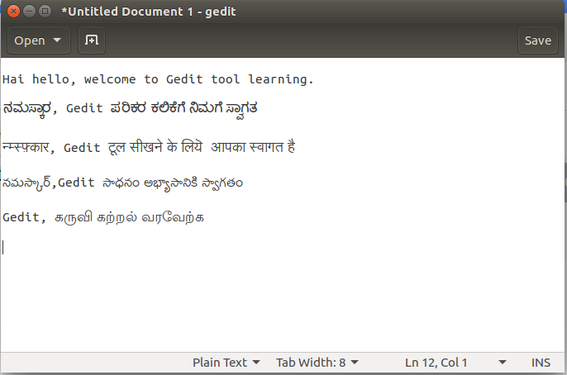
Entering text in different languages
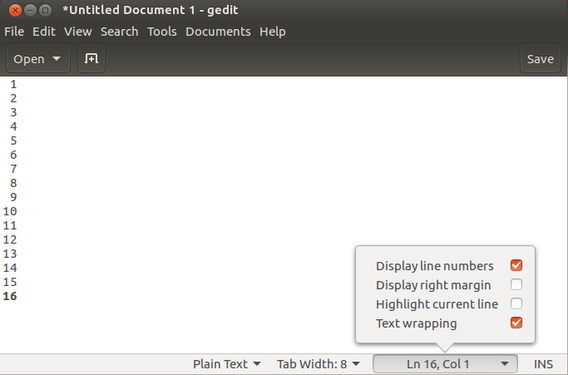
Displaying the line numbering


- In the first image you see text in multiple languages. Once you open the text editor directly you can start entering text in the new page. you can also type any language like Telugu, Tamil and Kannada etc by changing language from the top bar language option. You have an option for highlighting misspelled words under the "Tools" option. The text editor also allows you to search, find and replace words from the search option on the tool bar.
- You can also add line numbers to text document. In the right side bottom corner, click on drop down option and choose "Display line numbers".
Saving and exporting
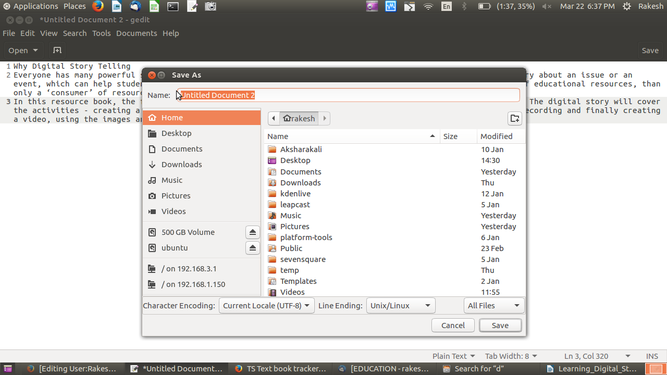
Save the document in you computer

To save the text document, click on save from "File --> Save" option or you can press "Ctrl+S" and give the file name and the location to save the file.
The text document will be saved as a ".txt" file.
Advanced features
In a text editor, you can add preferences for the document from the Edit option which includes formatting and adding additional features. You can refer for more details.
Ideas for resource creation
You can use Text editor to create plain text resources