Difference between revisions of "Learn PDF Shuffler"
Jump to navigation
Jump to search
| (32 intermediate revisions by the same user not shown) | |||
| Line 20: | Line 20: | ||
|- | |- | ||
|Other similar applications | |Other similar applications | ||
| − | | | + | |[https://code-industry.net/masterpdfeditor/ Master PDF editor] |
|- | |- | ||
|The application on mobiles and tablets | |The application on mobiles and tablets | ||
| Line 30: | Line 30: | ||
|} | |} | ||
| − | ==Overview of Features== | + | ====Overview of Features==== |
PDF Arranger is a tool that helps to merge, split, crop, rotate and rearrange the documents in the PDF. | PDF Arranger is a tool that helps to merge, split, crop, rotate and rearrange the documents in the PDF. | ||
| Line 42: | Line 42: | ||
====Installation==== | ====Installation==== | ||
| − | ====For Ubuntu | + | =====For Ubuntu OS===== |
# The application is part of the Ubuntu custom distribution. | # The application is part of the Ubuntu custom distribution. | ||
# In case you do not find it on your computer, you can install by choosing “PDF Arranger” in Ubuntu Software Center. | # In case you do not find it on your computer, you can install by choosing “PDF Arranger” in Ubuntu Software Center. | ||
| Line 50: | Line 50: | ||
## <code>sudo apt install pdfarranger</code> | ## <code>sudo apt install pdfarranger</code> | ||
| − | ==== For Windows | + | ===== For Windows OS ===== |
| − | # You can download the installation file of PDF Arranger | + | # You can download the installation file of PDF Arranger [https://github.com/pdfarranger/pdfarranger/releases here] |
# Go to the downloaded place and install by double clicking on it. | # Go to the downloaded place and install by double clicking on it. | ||
| − | ==== For MAC | + | ===== For MAC OS ===== |
| − | # Download the similar application | + | # Download the similar application [https://macdownload.informer.com/preview2/ here]. Install it to your system. |
=== Working with the application === | === Working with the application === | ||
| − | == | + | ==== Getting familiar with the application ==== |
| + | <gallery mode="packed" heights="300"> | ||
| + | File:PDF Arranger Interface.png|PDF Arranger Interface | ||
| + | </gallery> | ||
| − | = | + | When we open the PDF Arranger, we will see this interface. The main screen is simple and it shows the the menus with basic tools. |
| − | = | + | * First tool '+' in a Green color indicates to Import a file to the application. |
| − | + | * Second tool which shows the disk image indicates to Export the file. | |
| + | * Third tool that is '+' inside the square indicates Zoom in operation. | ||
| + | * Fourth tool that is '-' inside the square indicates Zoom out operation. | ||
| + | * Rotate Left rotates the page to left direction by 90 degrees. | ||
| + | * Rotate Right rotates the page to the right direction by 90 degrees. | ||
| + | * Last option indicates deleting a document. | ||
| + | |||
| + | ==== Rearranging the pages in a document ==== | ||
| + | [[File:Rearranging document in Arranger.gif]] | ||
| + | * Go to "Import" option and upload the file. | ||
| + | * All the pages in the document will be displayed on the screen. | ||
| + | * You can simply drag and drop the pages in according to your needs. | ||
| + | * Once you are done with shuffling, simply "Export" it. | ||
| + | |||
| + | ==== Merging the documents into one file ==== | ||
| + | * To merge two or more than two files, simply import all of them by clicking on '+' button. | ||
| + | * Rearrange the documents if required. | ||
| + | * Export them. | ||
| + | |||
| + | ==== Deleting a selected page from the document ==== | ||
| + | * To delete a particular page from the document, select the page. | ||
| + | * Go to "Edit-->Delete". | ||
| + | |||
| + | ==== Crop a document ==== | ||
| + | [[File:Cropping the images in Arranger.gif.gif]] | ||
| + | * Any imported document can be cropped as per user's requirement. | ||
| + | * To do this, right click the page you want perform the operation. | ||
| + | * Select the option "Crop". | ||
| + | * A dialogue box appears which will show the percentage of width of sides to be cropped. | ||
| + | * Give the proper values, If a particular side does not need to be cropped let the value be '0'. Click "OK". | ||
| + | |||
| + | ==== Rotate a document ==== | ||
| + | * To rotate a document, right click on a document and click on "Rotate left" or "Rotate right". | ||
| + | |||
| + | ===Ideas for resource creation=== | ||
| + | This tool is to restructure the already prepared document. | ||
| + | |||
| + | ===References=== | ||
| + | [https://github.com/pdfarranger/pdfarranger PDF Arranger Manual] | ||
| + | |||
| + | [[Category:Explore an application]] | ||
Latest revision as of 11:58, 22 June 2022

Introduction
Portable Document Format or PDF is a popular file format which can be usually uploaded or shared when nothing is there to modify or update. An Agreement, A class notes, A bill or any such documents can be in the .pdf format. PDF Shuffler or Arranger allows you to rearrange the PDF file in terms of page number. It also allows you to crop some portion of PDF and make it more usable.
Basic Information
| ICT Competency | It is a generic text resource editing tool. |
| Educational application and relevance | You can use this tool to shuffle or rearrange the pages of PDF document. You are also able to crop some portion of page using this tool. |
| Version | PDF arranger 1.8.2 |
| Other similar applications | Master PDF editor |
| The application on mobiles and tablets | PDF Reader and Editor |
| Development and community help | PDF Arranger |
Overview of Features
PDF Arranger is a tool that helps to merge, split, crop, rotate and rearrange the documents in the PDF.
In detail, It can do the following things,
- Rearrange pages in a PDF file
- Merge various PDF documents
- Delete pages from a PDF file
- Crop PDF pages
- Rotate pages in a PDF file
- Zoom in or Zoom out
Installation
For Ubuntu OS
- The application is part of the Ubuntu custom distribution.
- In case you do not find it on your computer, you can install by choosing “PDF Arranger” in Ubuntu Software Center.
- If you would like to install through the terminal follow these steps below:
- Open terminal by clicking (Ctrl+Alt+T)
- Once Window page is open, in front of dollar($) symbol just type below command.
sudo apt install pdfarranger
For Windows OS
- You can download the installation file of PDF Arranger here
- Go to the downloaded place and install by double clicking on it.
For MAC OS
- Download the similar application here. Install it to your system.
Working with the application
Getting familiar with the application
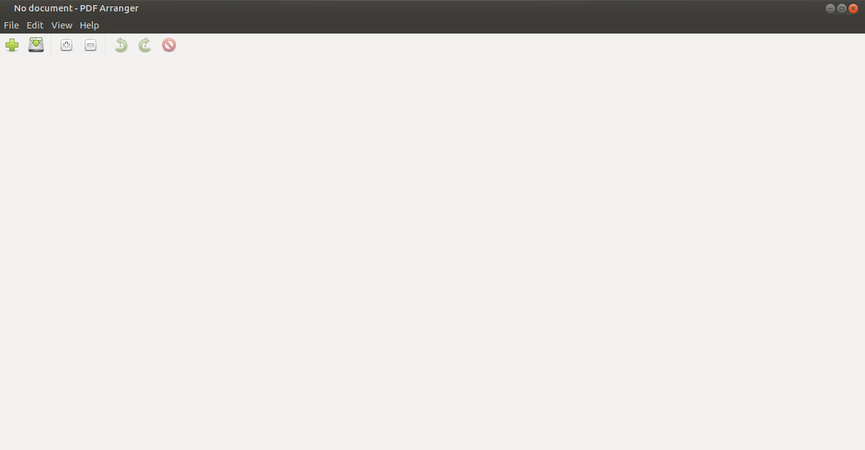
PDF Arranger Interface

When we open the PDF Arranger, we will see this interface. The main screen is simple and it shows the the menus with basic tools.
- First tool '+' in a Green color indicates to Import a file to the application.
- Second tool which shows the disk image indicates to Export the file.
- Third tool that is '+' inside the square indicates Zoom in operation.
- Fourth tool that is '-' inside the square indicates Zoom out operation.
- Rotate Left rotates the page to left direction by 90 degrees.
- Rotate Right rotates the page to the right direction by 90 degrees.
- Last option indicates deleting a document.
Rearranging the pages in a document

- Go to "Import" option and upload the file.
- All the pages in the document will be displayed on the screen.
- You can simply drag and drop the pages in according to your needs.
- Once you are done with shuffling, simply "Export" it.
Merging the documents into one file
- To merge two or more than two files, simply import all of them by clicking on '+' button.
- Rearrange the documents if required.
- Export them.
Deleting a selected page from the document
- To delete a particular page from the document, select the page.
- Go to "Edit-->Delete".
Crop a document

- Any imported document can be cropped as per user's requirement.
- To do this, right click the page you want perform the operation.
- Select the option "Crop".
- A dialogue box appears which will show the percentage of width of sides to be cropped.
- Give the proper values, If a particular side does not need to be cropped let the value be '0'. Click "OK".
Rotate a document
- To rotate a document, right click on a document and click on "Rotate left" or "Rotate right".
Ideas for resource creation
This tool is to restructure the already prepared document.