Difference between revisions of "Learn Google Drive"
| Line 48: | Line 48: | ||
#The google drive page will open and will look like the above image (last image). | #The google drive page will open and will look like the above image (last image). | ||
| − | ====Creating / uploading and sharing files==== | + | ====Creating / uploading and sharing files and folder==== |
<gallery mode="packed" heights="300px" caption="Creating/Uploading"> | <gallery mode="packed" heights="300px" caption="Creating/Uploading"> | ||
File:Google_Drive_3_New_Files_Uploads.png|New files | File:Google_Drive_3_New_Files_Uploads.png|New files | ||
| Line 60: | Line 60: | ||
#This upload time is completely depending on your file size, once it uploads it will show you the right mark (green colour). | #This upload time is completely depending on your file size, once it uploads it will show you the right mark (green colour). | ||
#Google drive will allow you to upload any kind of files like image, audio, video, text files etc. | #Google drive will allow you to upload any kind of files like image, audio, video, text files etc. | ||
| + | |||
| + | ==== Upload your folder to google drive ==== | ||
| + | # To upload your local folder, click on "new" select "folder upload" -> select folder -> click open. | ||
| + | # By doing this you can directly upload folder from local storage. | ||
===== Sharing your google drive files and folders ===== | ===== Sharing your google drive files and folders ===== | ||
Revision as of 13:30, 11 June 2020
Introduction
Google Drive is a cloud storage service that lets you save various files and folders you create and which are shared with you by others. To access your drive from different devices, you need to sign in to your Google Account (which is created when you open your Gmail account).
Basic information
| ICT Competency | Google Drive is a application for storing and accessing resources. |
| Educational application and relevance | You can store all your data here by uploading existing file, folders and also can create new files and folders. And you can share your data with your peers to view, edit and comment. |
| Version | Version - Not Applicable |
| Configuration | No specific configuration requirements but Internet connection is needed to use this application. |
| Other similar applications | Nextcloud Dropbox |
| The application on mobiles and tablets | Android phones will have inbuilt Google Drive option. You need to switch on the synchronizing option to get all your mobile camera photos to upload to your google drive photos automatically. This enable all your important event photos will be saved safely in Google Drive. |
| Development and community help |
Overview of Features
- Google allows 15GB of free Google online storage space on cloud, this includes your photos (Google photos), emails (Gmail), stories, drawings, recordings, video (Drive files).
- Your files in Drive can be access from any smart phone, tablet, or computer.
- You can invite others to view, download, and collaborate on all the files of you.
Installation
It is a web based application, there is no installation needed. To access google drive, you have to sign in to www.drive.google.com site by using your google login details.
Working with the application
Accessing Google Drive
- Opening Google Drive

Opening a browser
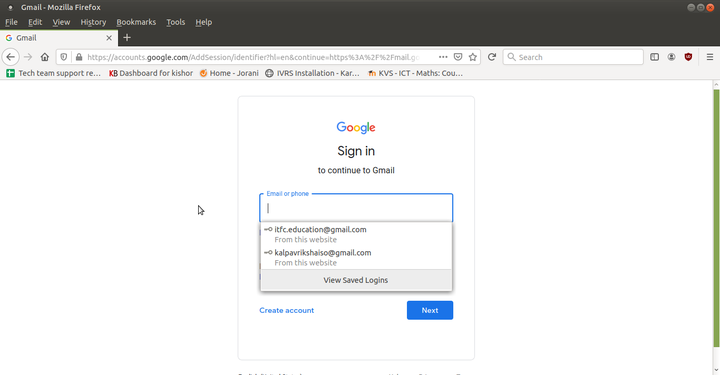
Login to Gmail account

Google Apps, select Drive
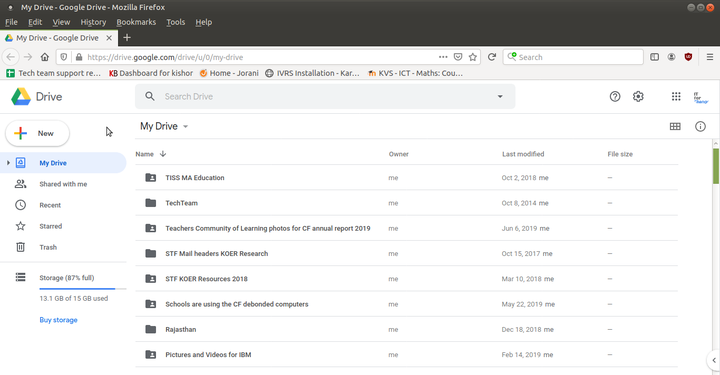
Google Drive main page


- The above images show you how to access Google Drive. You need to access a browser (Mozilla Firefox) for this. On your computer with Ubuntu custom distribution, to open web browser go to (Applications → Internet→ Firefox web browser), as shown in the first image.
- If you are using windows or any other operating system open web browsers like Google, Mozilla, Safari etc…
- You have to sign in to www.drive.google.com site by using your Gmail user (email) ID and password.
- The google drive page will open and will look like the above image (last image).
Creating / uploading and sharing files and folder
- Creating/Uploading
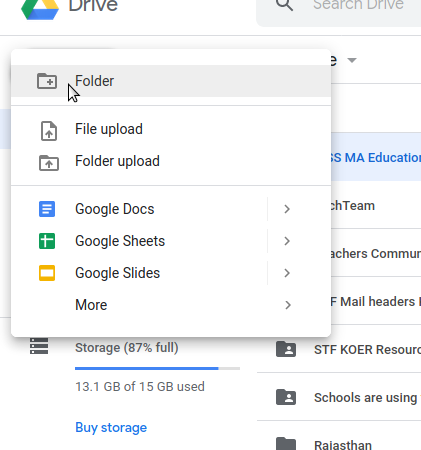
New files

Create your local files or folders to Google Drive
- Click on “New” icon on left side of the screen.
- If you want to create a folder, click on “Folder” --> Give folder name --> Click on “Create”.
- Inside this folder, you can create new files such as documents, spreadsheet and slides. Google Drive has Open Document Format (odt, odp, ods) viewer and can open any .odf files, doc, docx, xls, xlsx, ppt, pptx are the supported file formats.
Upload your files to google drive
- To upload your local files, click on "new" select "file upload" -> select file -> click open.
- This upload time is completely depending on your file size, once it uploads it will show you the right mark (green colour).
- Google drive will allow you to upload any kind of files like image, audio, video, text files etc.
Upload your folder to google drive
- To upload your local folder, click on "new" select "folder upload" -> select folder -> click open.
- By doing this you can directly upload folder from local storage.
Sharing your google drive files and folders
- Sharing file
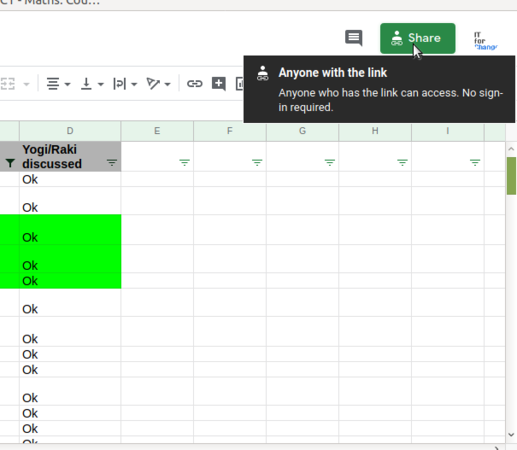
Sharing files
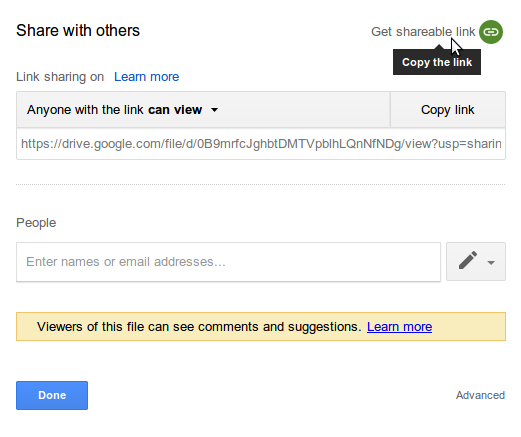
Sharing files
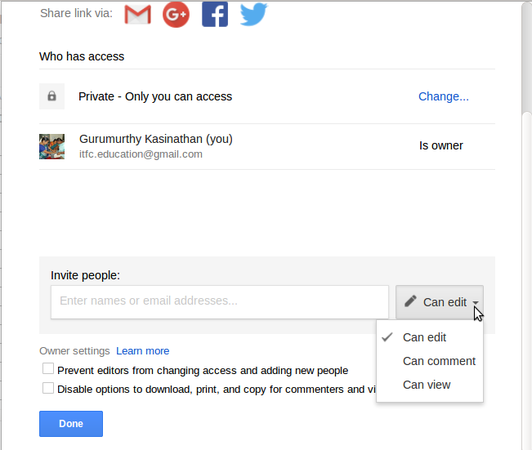
Access permission


- Select any uploaded file from your google drive - > Right click on the file and click "Share" on the right side corner of your screen and click on "get shareable link" -> click on "copy link" to get the shareable link.
- Even if you have opened the file to share it, click on "share" button from top corner of your screen. It will open a pop-up window, here click on the "get shareable link" option on the top right side of the window, copy this link
- Once you copied the shareable link from any one of the method, now you just paste the link in a platform where you are going to share example like moodle, Gmail, WhatsApp, telegram etc by pasting this link.
- You can also set permissions for people to access your files/folders. In the same pop-up window choose access permission under anyone with this link option.
Examples: If you want to give access to edit , select “can edit” option, similarly you can select other options like "comment" and only "view".
Saving the files and formats
When you start working on Google Drive documents, it will save automatically with given file name. Or else it will save as "Untitled" file.
Advanced features
- You can create simple drawings on "Google Drawing Page".
- You can allow others to access your documents ('sharing' documents with them) and give their comments and feedback.
Ideas for resource creation
All the documents like photos , important files and text resources can be saved in the drive. You can share these resources with your peers to view, edit and comment to make it more effective.
References
Google Drive Tutorial