Difference between revisions of "Learn Kazam"
| (24 intermediate revisions by 4 users not shown) | |||
| Line 1: | Line 1: | ||
| + | [http://karnatakaeducation.org.in/KOER/index.php/%E0%B2%95%E0%B2%9C%E0%B2%AE%E0%B3%8D ಕನ್ನಡದಲ್ಲಿ ನೋಡಿ] [https://teacher-network.in/OER/hi/index.php/%E0%A4%95%E0%A4%9C%E0%A4%BC%E0%A4%AE_%E0%A4%B8%E0%A5%80%E0%A4%96%E0%A4%BF%E0%A4%8F हिन्दी] | ||
{{Template:Book-sidebar}} | {{Template:Book-sidebar}} | ||
| − | |||
===Introduction=== | ===Introduction=== | ||
====Basic information==== | ====Basic information==== | ||
| Line 30: | Line 30: | ||
====Overview of features==== | ====Overview of features==== | ||
====Installation==== | ====Installation==== | ||
| − | #The application is part of the Ubuntu custom distribution. | + | #The application is not part of the Ubuntu custom distribution. |
| − | # | + | #You need to install by choosing “kazam” in Ubuntu Software Centre |
#If you would like to install through the terminal follow these steps below: | #If you would like to install through the terminal follow these steps below: | ||
##Open terminal by clicking (Ctrl+Alt+T), | ##Open terminal by clicking (Ctrl+Alt+T), | ||
| Line 80: | Line 80: | ||
{{Clear}} | {{Clear}} | ||
| − | ==== Screen casting your computer screen ==== | + | ==== Getting start with Screen casting your computer screen ==== |
| − | This works similar to Screenshot except that it helps users to record their computer screens and save them as videos. | + | This works similar to Screenshot except that it helps users to record their computer screens along with audio and save them as videos. |
[[File:Screencasting home page.png|left|frame|390x390px|Screencast dialog box]] | [[File:Screencasting home page.png|left|frame|390x390px|Screencast dialog box]] | ||
| − | Here also users can choose whether to keep their '''Mouse cursor''' in their Screencast recording, also they can choose to record '''Sounds from speakers''' (computer audio output) and '''Sounds from microphone''' (record | + | Here also users can choose whether to keep their '''Mouse cursor''' in their Screencast recording, also they can choose to record '''Sounds from speakers''' (computer audio output) and '''Sounds from microphone''' (record users input through microphone) in their recording which will help users to use their own voice or music from other sources. |
| + | Also users can choose to set capturing delay by few seconds before they actually start their recording. | ||
After selecting above options users can click on '''Capture''' to begin Screencast. | After selecting above options users can click on '''Capture''' to begin Screencast. | ||
| − | + | {{clear}} | |
| − | |||
| − | |||
| − | Now users can change the project name before saving the project in their desired destination. Now project will be saved as video. This project can again be used later. | + | ==== Saving/exporting screencast ==== |
| + | After recording a screen, users can click on '''Finish recording''' which will prompt users to choose '''edit''' it further using any video editing tools or to '''Save for later''' to save this video in computer'''.''' | ||
| + | |||
| + | <gallery mode="packed" heights="250px"> | ||
| + | File:Stop screencasting.png|left|Pause/Finish recording dialog box | ||
| + | File:Save sreencasted video.png|Save screencasted video | ||
| + | </gallery> | ||
| + | |||
| + | Now users can change the project name before saving the project in their desired destination. Now project will be saved as video. This project can again be used later.<br> [[File:Choose lacation to save your screenshot.png|left|thumb|390x390px|Choose location to save your screencast]]{{Clear}} | ||
| + | |||
| + | === Video on how how to use Kazam === | ||
| + | {{#widget:YouTube|id=W-I7yxi_jmM|height=300|width=400}} | ||
=== Ideas for resource creation === | === Ideas for resource creation === | ||
| + | # This is very useful for creating simple video/screenshot resources by adding narration to a process being done using an application. For example, you can run a simulation on your screen or an image slide show and add your narration to it as the application runs. | ||
| + | # You can also use an existing video and dub it in another language | ||
| + | # Please make sure that in both (1) and (2) the original visual resource/ video is licensed for reuse with modification. | ||
| + | |||
=== References === | === References === | ||
| + | |||
| + | |||
| + | [[Category:Explore an application]] | ||
Latest revision as of 13:00, 4 May 2020

Introduction
Basic information
| ICT Competency | Kazam is an Free and Open Source application and this tool can use it as both screencasting tool and for taking screenshot of your computer screen. screencasting: digital recording of computer screen output, also known as a video screen capture, often containing audio narration. |
| Educational application and relevance | Creating video and image resources, combining audio, text, image, video and dubbing audio of any video. This can be used in digital story telling activities |
| Version | kazam 1.4.5 |
| Other similar applications | RecordMyDesktop, Simple screen recorder |
| The application on mobiles and tablets | There are many similar application are available in android mobile phones. Example,. AZ screen recorder |
| Development and community help |
Overview of features
Installation
- The application is not part of the Ubuntu custom distribution.
- You need to install by choosing “kazam” in Ubuntu Software Centre
- If you would like to install through the terminal follow these steps below:
- Open terminal by clicking (Ctrl+Alt+T),
- Once Window page is open, in front of dollar($) symbol just type below command.
- sudo apt-get install kazam
- just type your password(it will not display on your screen), press Enter.
Working with application
Use Print Screen
This is the most common method to take Screenshot. Pressing the “Print Screen” button will take the Screenshot of the “Entire Visible Screen”.
Getting familiar with application
When we open the Kazam we will see this main window. This main window contains the following sections. Open application from Applications--->Sound and Video--->Kazam.

- Screencast : This option is to set the screen-casting
- screenshot : This option is to set the screenshot
- Fullscreen : By selecting this option, user can able to screencast/screenshot of complete screen of the computer display. This mode is useful for creating tutorials where you need to show the interaction between the desktop manager and the different windows and applications.
- Window : By selecting this option, user can able to screencast/screenshot of only current window of your computer screen. This mode which records only a particular window and is ideal for recording screencasts of an application.
- Area : By selecting this option, user can able to screencast/screenshot of only selected area of your computer screen.
- Mouse cursor : Select this feature for including cursor point into our screencast/screenshot output file.
- Sound from the speaker : Select this feature for adding speaker output audio with our screencasting.
- Sound from microphone : Select this feature for adding your own audio (by using microphone) with our screencasting.
- Seconds to wait before capturing : This will allow us to delay to start the capture.
- Capture : This option is to start screencast/scheenshot.
Getting start with simple screenshot
When user launch the application, user will notice that in addition to recording screencast, user can also use the application to take screenshots, by switching to it at the top.
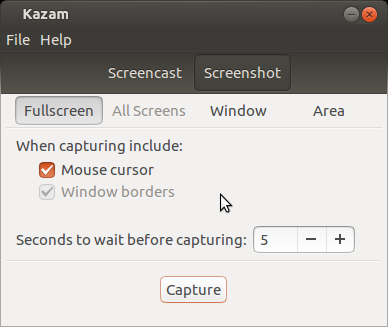
Selecting screenshot option
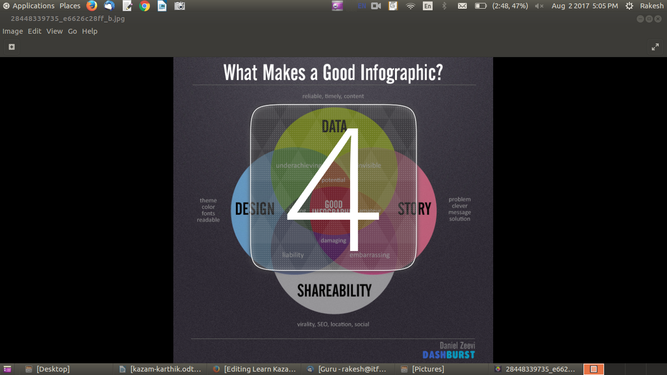
Delay count time for taking screenshot

After user opens kazam from menu, just click on the Screenshot option to take capture your computer screen as image. Here user can take screenshot in three modes like full screen, select window and select area. Users can choose
- Fullscreen when they want to take full computer screen as Screenshot, they can choose (include top and buttom panel of your Ubuntu.
- Window when they want to take current window
- Area when they want particular area in the screen.
If users choose Area option, they have to drag cursor along particular area. Also users can choose whether to keep their Mouse cursor in their Screenshot and can choose to set capturing delay by few seconds before they actually start their Screenshot.
NOTE:- These options are same for both Screenshot and Screencast.
Saving screenshot

After selecting above options users can click on Capture to take Screenshot.
It will prompt users to choose location for save your screenshot. Users can also change the file name before saving.
Getting start with Screen casting your computer screen
This works similar to Screenshot except that it helps users to record their computer screens along with audio and save them as videos.

Here also users can choose whether to keep their Mouse cursor in their Screencast recording, also they can choose to record Sounds from speakers (computer audio output) and Sounds from microphone (record users input through microphone) in their recording which will help users to use their own voice or music from other sources. Also users can choose to set capturing delay by few seconds before they actually start their recording.
After selecting above options users can click on Capture to begin Screencast.
Saving/exporting screencast
After recording a screen, users can click on Finish recording which will prompt users to choose edit it further using any video editing tools or to Save for later to save this video in computer.
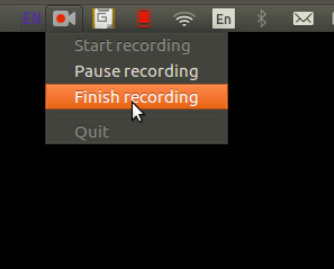
Pause/Finish recording dialog box
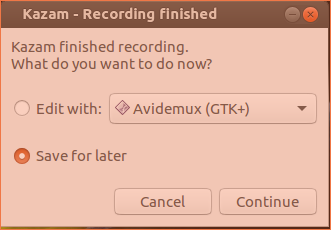
Save screencasted video


Now users can change the project name before saving the project in their desired destination. Now project will be saved as video. This project can again be used later.
Video on how how to use Kazam
Ideas for resource creation
- This is very useful for creating simple video/screenshot resources by adding narration to a process being done using an application. For example, you can run a simulation on your screen or an image slide show and add your narration to it as the application runs.
- You can also use an existing video and dub it in another language
- Please make sure that in both (1) and (2) the original visual resource/ video is licensed for reuse with modification.